How to Fix Windows Update Errors in Windows 11 | 0x80070002, 0x800F081F & 0x80070422
Windows Update errors are easier to fix when you first identify where the failure happens: during download, during installation, or after the update is installed. In Windows 11, start with a normal restart, a stable internet connection, and enough free storage, then work through the Windows Update troubleshooter in Get Help → DISM → SFC → reinstalling the current version of Windows through Windows Update. That order expands the repair scope gradually without jumping straight to a reset or clean install.
Quick answer: Repeated Windows Update errors do not automatically mean you need to reset or format the PC. Windows 11 includes a repair option that reinstalls the same Windows version while preserving your apps, personal files, and settings, so it is worth trying before more destructive recovery steps.
① Start by separating Windows Update errors into three types
▸ The update will not download
If Windows Update sits at 0%, repeatedly fails to download, or reports a connection problem, begin with the network side of the process. Check your internet connection, VPN or proxy, metered connection settings, and whether Windows Update is actually able to run. For download-related Windows Update errors, the best first sequence is usually restart → network check → Windows Update troubleshooter.
▸ The update downloads but will not install
Installation failures, repeated retry loops, and error codes often point to a different group of Windows Update errors. Check free space on the system drive, then use the troubleshooter. If the problem continues, repair the Windows component store and protected system files with DISM followed by SFC.
▸ Windows starts acting up after the update
If the update installs successfully but a driver, app, Windows feature, or startup process begins failing afterward, the priority changes. Check for a newer corrective update first. If the issue persists, consider reinstalling the current Windows version through Windows Update before removing a security update. This helps separate post-installation Windows Update errors from ordinary download failures.
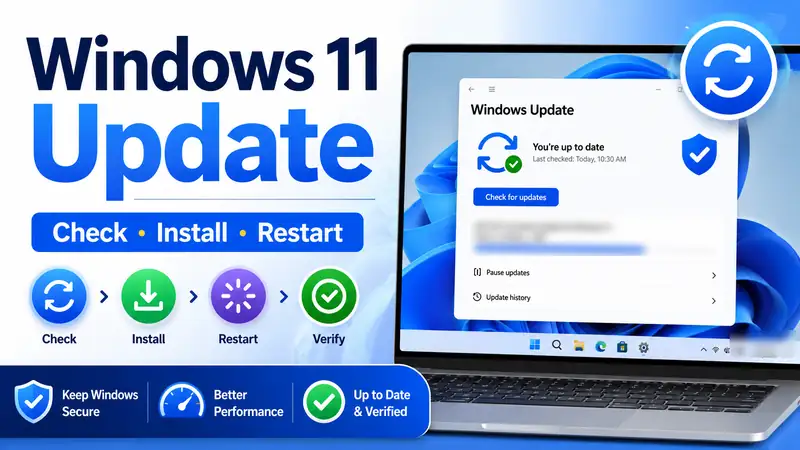
Related guide: Windows 11 Update Guide — Check Version, Install Updates, and Restart Safely
② Use the error code to narrow the cause, not to declare it
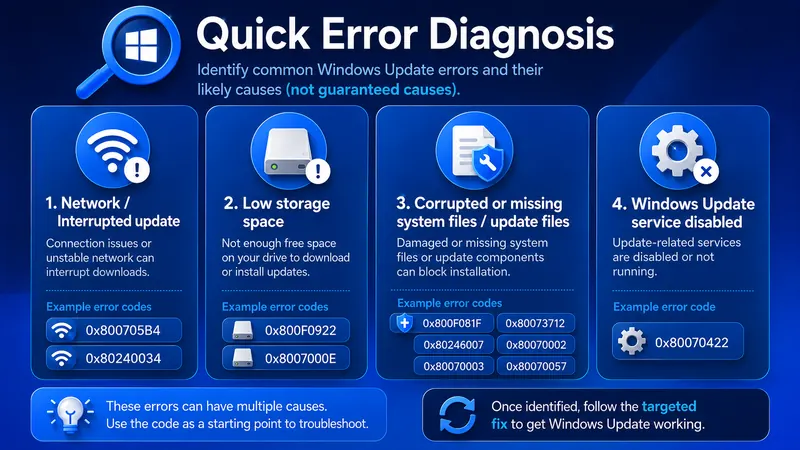
Microsoft groups common Windows Update errors by their possible causes, but an error code is a diagnostic clue rather than a guaranteed diagnosis. For Windows Update errors, the code should tell you where to investigate first—not what to delete first. The same code can appear under different conditions, so use the table below to decide which area to check first.
| Error code | What it may indicate | Check first |
|---|---|---|
0x800705b4 | The update took too long or was interrupted | Restart, stable internet, retry Windows Update |
0x80240034 | An incomplete update or interrupted download/connection | Network, troubleshooter, update status |
0x800F0922 / 0x8007000E | Insufficient space can be involved; 0x800F0922 can also relate to VPN/connectivity or reserved-partition issues | Free space, VPN/network conditions, update history |
0x800F081F / 0x80073712 | Missing source files or component-store/system-file corruption | DISM → SFC |
0x80246007 | Required download or update files are unavailable or incomplete | Troubleshooter, download state, system files |
0x80070002 / 0x80070003 / 0x80070057 | The update failed to install; the underlying reason can vary | Troubleshooter → storage → DISM/SFC as needed |
0x80070422 | A required service, commonly Windows Update, is disabled or stopped | Windows Update service and update settings |
Microsoft: Troubleshoot problems updating Windows
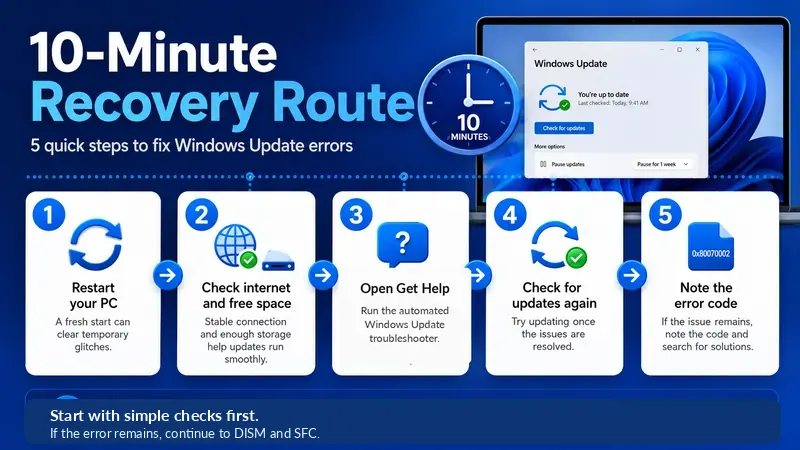
③ A 10-minute first-response route for Windows Update errors
- Restart the PC normally so pending update work and temporary processes can finish.
- Check the internet connection and free space on C: before changing services or deleting update files.
- Run the Windows Update troubleshooter in Get Help.
- Open Settings → Windows Update and select Check for updates again.
- If Windows Update errors return, note the error code and Update history before moving to deeper repair steps.
▸ Run the troubleshooter before manual commands
For Windows 11, Microsoft directs users to the automated Windows Update troubleshooter in the Get Help app. It is a good first-line tool for Windows Update errors because it checks common update conditions without requiring manual system changes. It can diagnose common configuration and update-state problems automatically. That makes it a sensible first tool for Windows Update errors before you start changing services, clearing folders, or running repair commands.
Microsoft: Windows Update Troubleshooter
④ If storage may be the problem, check C: before clearing the cache
Some Windows Update errors are associated with insufficient disk space. Storage-related Windows Update errors are especially worth checking before you move into command-line repairs. If Windows asks for more room, or you see a code that can involve storage, open Settings → System → Storage before touching the update cache. Microsoft notes that the amount varies by update, but a feature update typically needs about 6–11 GB or more of free space, while a quality update may need about 2–3 GB or more.
- Use Cleanup recommendations to review files Windows suggests removing.
- Use Storage Sense for temporary-file cleanup.
- Do not blindly delete Downloads or personal files without checking what they contain.
- If Windows offers an external storage option, follow the on-screen process instead of improvising a workaround.
Freeing space is not a universal cure for Windows Update errors, but it is a low-risk check. It does, however, eliminate one of the simplest causes of Windows Update errors that can prevent unnecessary command-line work.
Microsoft: Free up space for Windows updates
⑤ When system files are suspect, repair Windows with DISM → SFC
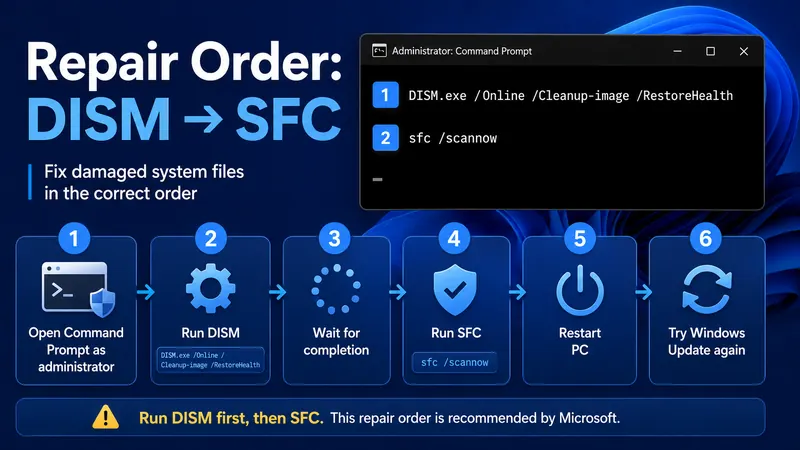
Repeated Windows Update errors such as 0x800F081F or 0x80073712 can involve the Windows component store or missing/corrupted files. When Windows Update errors survive a restart and the troubleshooter, component repair becomes a more logical next step. Microsoft’s current repair guidance is to run DISM first, then SFC. DISM repairs the Windows image/component store that SFC relies on, and SFC then checks protected system files.
▸ Step 1: Run DISM as administrator
Search for Command Prompt, choose Run as administrator, and run:
DISM.exe /Online /Cleanup-image /RestorehealthWait for DISM to finish successfully. Do not interrupt it simply because Windows Update errors are still visible in Settings. If DISM itself fails because repair source files cannot be obtained, the problem has moved beyond a simple SFC scan and may require another repair source or a Windows reinstall path.
▸ Step 2: Run System File Checker
sfc /scannowDo not close Command Prompt until verification reaches 100%. Restart the PC when the repair sequence is complete, then run Windows Update again. This DISM → SFC sequence is one of the most useful next steps when Windows Update errors point to damaged Windows components rather than a simple connection issue.
Microsoft: Using System File Checker in Windows
⑥ If Windows Update errors keep returning, reinstall the current Windows version
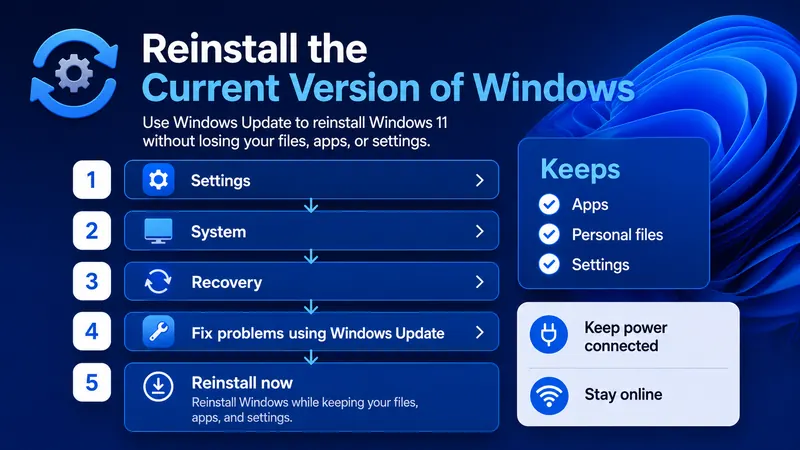
Windows 11 includes a recovery feature designed specifically for persistent problems, including Windows Update errors. For stubborn Windows Update errors, this repair reinstall sits between command-line fixes and a full reset. Fix problems using Windows Update reinstalls the same version of Windows already on the PC, repairs system files and components, and preserves your apps, personal files, and settings.
- Open Settings → System → Recovery.
- Find Fix problems using Windows Update.
- Select Reinstall now.
- Choose whether Windows may restart automatically after installation.
- Keep the PC connected to power and the internet while the repair version downloads and installs.
- Restart if required, then check Windows Update again.
▸ Why try this before Reset this PC?
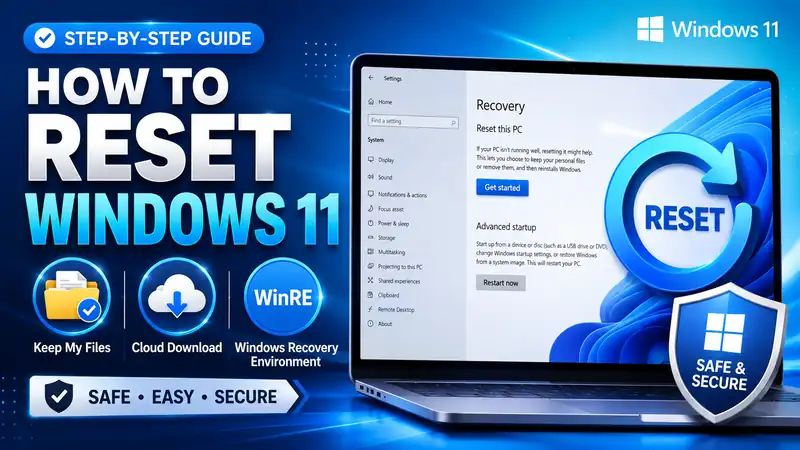
The important difference is scope. This Windows Update repair option reinstalls the current Windows version while retaining apps, files, and settings. A reset is broader and can remove apps or restore settings. For persistent Windows Update errors, the repair reinstall is therefore a strong intermediate step before a reset or clean installation.
This repair path is especially useful when Windows Update errors continue after DISM and SFC. The option may be unavailable on work- or school-managed PCs, devices controlled by certain Windows Update policies, or Windows 11 systems that do not meet the feature’s update prerequisites.
Microsoft: Fix issues by reinstalling the current version of Windows
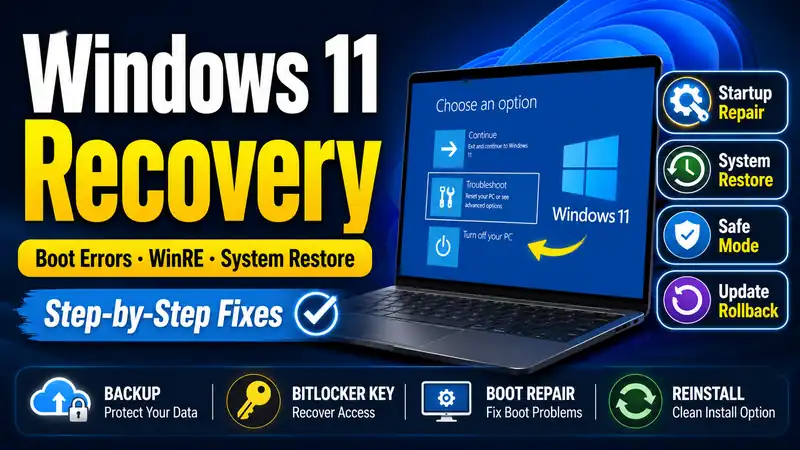
Related guide: Windows 11 Recovery Guide — Startup Problems, Windows RE, and System Restore
⑦ For error 0x80070422, check whether Windows Update can actually run
0x80070422 is one of the Windows Update errors Microsoft associates with a service that is disabled or stopped. Among common Windows Update errors, this one is a strong reason to check service availability before assuming file corruption. In that situation, deleting cache files is not the first priority. Confirm that Windows Update has not been paused or disabled and that required update services can run.
- Check whether Windows Update is paused in Settings.
- On a work or school PC, check whether your organization manages update policy.
- On a personal PC, if the Windows Update service has been disabled, restore it to an enabled state before retrying.
- If you used a third-party “block updates” or privacy-tweaking tool, undo the relevant setting before assuming Windows itself is corrupted.
Because service configuration can be affected by management policy, security software, or tweaking tools, avoid changing several services at once. For this category of Windows Update errors, one controlled change at a time makes troubleshooting much easier.
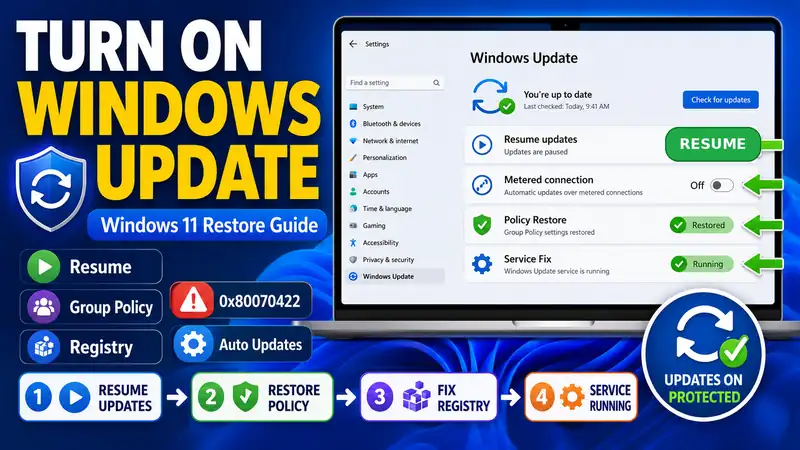
Next in the series: How to Turn On Windows Update — A Step-by-Step Guide
⑧ Suspect a damaged update cache? Do not start by deleting folders
If the same update repeatedly downloads again, stalls during download, or fails with signs of missing update files, the Windows Update cache may be involved. Cache-related Windows Update errors usually have a download/retry pattern rather than a general Windows malfunction pattern. Microsoft does document clearing the SoftwareDistribution cache as a troubleshooting step, but it should not become the automatic first response to all Windows Update errors.
For most users, it is safer to work through the troubleshooter, storage checks, DISM/SFC, and the current-version repair reinstall first. If the symptoms still point specifically to downloaded update files, then follow a dedicated cache-reset procedure that stops the relevant services, resets the cache correctly, and starts the services again. That is easier to audit and less error-prone than deleting system folders at random.
Next in the series: How to Clear the Windows Update Cache — SoftwareDistribution and catroot2 Safely
⑨ If the problem started after an update, try repair before uninstalling
Some Windows Update errors happen only after an update has installed: an app stops working, a driver behaves badly, a Windows feature breaks, or the system becomes unstable. These post-install Windows Update errors need a different decision path from download failures. Before removing the update, first check whether Microsoft has already released a newer corrective update. On Windows 11, Microsoft also recommends trying the current-version repair reinstall before uninstalling a security update.
- Open Settings → Windows Update and check for a newer update.
- Consider Fix problems using Windows Update and reinstall the current version.
- Compare the date the problem started with Update history.
- If there is strong evidence that one update caused the issue, go to Settings → Windows Update → Update history → Uninstall updates.
- After removal, check again for a later update that fixes the original problem.
Removing a security update can re-expose vulnerabilities that the update fixed, and Microsoft notes that some updates cannot be uninstalled. Use this route when the timing and symptoms genuinely point to a specific update rather than as a generic answer to Windows Update errors.
Microsoft: How to uninstall a Windows Update
⑩ Work and school PCs may need a different Windows Update error fix
Managed Windows 11 devices can behave differently from personal PCs. Windows Update errors on managed devices can be caused or shaped by organizational policy, so home-PC troubleshooting steps do not always apply. Windows Update for Business, mobile device management (MDM), Group Policy, Windows Autopatch, a corporate proxy, or other management settings can control which update options you can see and use. On these systems, Windows Update errors may reflect policy rather than a broken home-PC configuration.
- Look for a message similar to “Some settings are managed by your organization.”
- Ask your IT team whether update deferrals, deployment rings, or other policies are active.
- Do not remove corporate VPN or endpoint security software on your own.
- Do not alter registry or service settings on a managed PC unless your organization instructs you to do so.
This is one reason Windows Update errors on managed PCs should be escalated carefully. Microsoft specifically notes that Fix problems using Windows Update may be unavailable when updates are managed through certain organizational policies or deployment services. That is why a corporate Windows Update error fix can require IT involvement even when the same code is easy to resolve on a personal PC.
⑪ If Windows will not boot, switch from update troubleshooting to Windows RE
If Windows never reaches the sign-in screen or keeps rebooting after an update, ordinary Windows Update errors are no longer the main problem. At that point, treating Windows Update errors only from the Settings app can waste time because the operating system is not starting normally. Move into Windows Recovery Environment (Windows RE), where Windows provides tools for startup problems and offline recovery.
- Start with Windows RE → Troubleshoot → Advanced options → Startup Repair when the PC cannot start normally.
- If the failure began immediately after a specific update, consider Uninstall Updates.
- If the problem followed a recent driver, app, or configuration change, System Restore may be more appropriate.
- Treat Reset this PC or a clean installation as later options after the less destructive recovery tools have failed.
Once Windows RE is required, the objective is startup recovery rather than ordinary Windows Update errors. Depending on the device and the recovery tool you choose, Windows RE may require the BitLocker recovery key. Make sure you can access it before making changes that could leave you locked out of an encrypted device.
Microsoft: Windows Recovery Environment
Related guide: Windows 11 Recovery Guide — Startup Problems, Windows RE, and System Restore
⑫ Common mistakes that make Windows Update errors harder to diagnose
- Resetting Windows after one failed update: many Windows Update errors can be resolved with the troubleshooter, component repair, or the current-version reinstall first.
- Treating the code as a 100% diagnosis: error codes narrow the search area; they do not always reveal one guaranteed cause.
- Deleting SoftwareDistribution or catroot2 immediately: cache resets are useful in the right situation, but they are not the safest universal first step.
- Removing security updates without a clear reason: doing so can undo security fixes.
- Running SFC and forgetting DISM: Microsoft’s component-repair sequence is DISM first, then SFC.
- Changing corporate update policy on your own: managed PCs may intentionally restrict the Windows Update interface.
- Changing services, registry values, VPN settings, and drivers all at once: if Windows Update errors disappear, you will not know which change actually fixed them.
❓ Windows Update errors: frequently asked questions
Q. What should I do first when Windows Update fails?
A. Restart normally, verify the internet connection and free space on C:, then run the Windows Update troubleshooter in Get Help. If Windows Update errors continue, check Update history and the exact error code before moving to DISM/SFC or a repair reinstall.
Q. How do I fix Windows Update error 0x800F081F?
A. Microsoft documents 0x800F081F as CBS_E_SOURCE_MISSING, meaning the required package or source file could not be found. Start with the Windows Update troubleshooter. If the problem continues, run DISM with /RestoreHealth, then run sfc /scannow and restart. Persistent cases may require a repair source or Windows reinstall path.
Q. Does 0x80070422 mean I should clear the Windows Update cache?
A. Not as the first step. Microsoft associates 0x80070422 with a service that cannot start because it is disabled. For these Windows Update errors, service status comes before cache cleanup. Confirm that Windows Update is enabled and allowed to run before treating the problem as a cache issue.
Q. Should I run DISM or SFC first?
A. Run DISM first, then SFC. For Windows Update errors linked to component corruption, this order is the safer default. Microsoft’s current system-file repair guidance follows that order because DISM repairs the Windows image/component store before SFC verifies protected system files.
Q. Will clearing the Windows Update cache delete my personal files?
A. A Windows Update cache reset is not intended to delete your documents or photos, but it does involve Windows services and system folders. Use a dedicated, verified procedure rather than treating cache deletion as the first response to all Windows Update errors.
Q. Do I need to reset Windows if updates still fail?
A. Usually not immediately. Many Windows Update errors can be repaired without a reset. On Windows 11, try Settings → System → Recovery → Fix problems using Windows Update → Reinstall now first when it is available. It reinstalls the current Windows version while preserving apps, files, and settings. Consider Reset this PC or a clean reinstall only if the less destructive Windows Update error fixes fail or you are dealing with a broader system problem.
Conclusion: fix Windows Update errors by escalating the repair one step at a time
The safest way to fix Windows Update errors is not to hunt for one magic command. The most reliable way to approach Windows Update errors is to escalate from simple checks to deeper repair only when the earlier step fails. Start with the least invasive checks and expand the repair only when the evidence points you there: restart and verify network/storage → run the Get Help troubleshooter → DISM → SFC → reinstall the current Windows version through Windows Update.
If Windows Update errors are concentrated around repeated downloads, move next to a dedicated cache-reset procedure. If the update installed but Windows can no longer boot, stop treating it as an ordinary update-screen problem and move into Windows RE. And if you see an error code such as 0x80070002, 0x800F081F, or 0x80070422, use it as a clue to choose the next check—not as proof that one specific cause has already been identified.
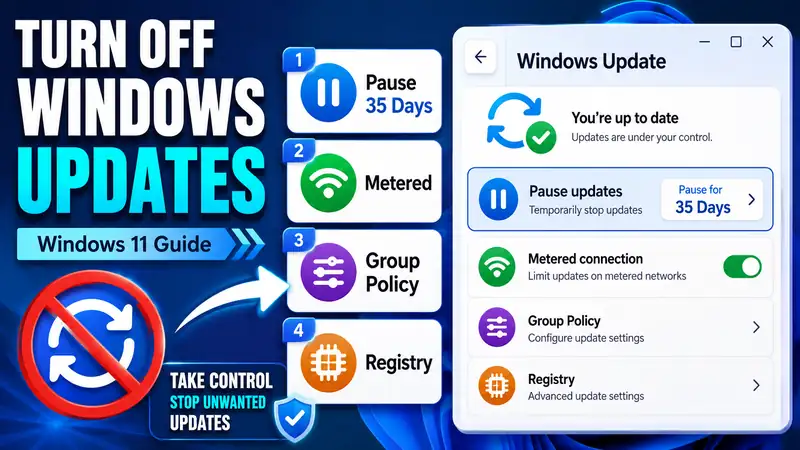
Next in the series: How to Turn Off Windows Update — A Step-by-Step Guide