How to Clear Windows Update Cache Safely in Windows 11: SoftwareDistribution & catroot2
If you need to clear Windows Update cache in Windows 11, the safest approach is to start small. Do not immediately delete or rename every Windows Update folder you can find. First reset only the downloaded update files, then clear the full SoftwareDistribution cache if the same download keeps failing, and only move to a catroot2 reset when the problem clearly persists.
For many download-related problems, you can clear Windows Update cache by stopping the Windows Update service, removing the contents of C:\Windows\SoftwareDistribution, starting the service again, and checking for updates. Microsoft also documents a smaller command-line fix that removes only SoftwareDistribution\Download when corrupted download files are suspected. That smaller reset is a good first choice because it changes less.
Quick answer: start with the smallest repair that matches the symptom. Clear only the Download cache first, clear the full SoftwareDistribution cache if failures repeat, and use a SoftwareDistribution + catroot2 rename only as an advanced next step. You usually do not need an aggressive “reset everything” script just to clear Windows Update cache.
① When Should You Clear Windows Update Cache?
You should clear Windows Update cache when the failure looks like a local download or update-file problem. If the Windows Update service is disabled, the system drive is full, or Windows itself is damaged, deleting cached files may not address the real cause.
| Symptom | Is cache reset a good fit? | What to check first |
|---|---|---|
| Download repeatedly stops at the same percentage | High | Run the Windows Update troubleshooter, then clear the download cache if it repeats |
| The same update repeatedly downloads and fails | High | SoftwareDistribution download files |
0x8007000d with suspected update-file corruption | High | Troubleshooter, then Windows Update cache |
0x80070570 during update installation | High when corrupted or partial downloads are suspected | Clear SoftwareDistribution\Download using Microsoft’s command sequence |
0x80246007 | Possible, but the code alone does not prove cache corruption | Download/BITS behavior and whether the update actually downloaded |
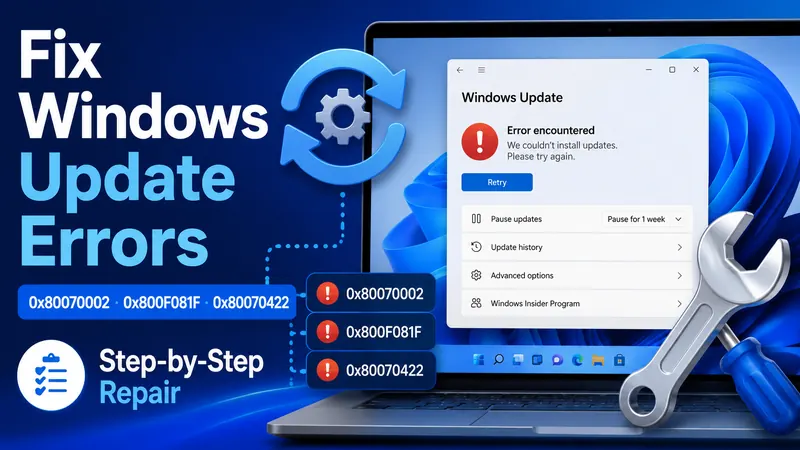
0x80070422 | Low | Windows Update service status |
| PC started malfunctioning after an update installed | Low | Repair, a follow-up update, or uninstall/reinstall options rather than cache |
| C: drive is nearly full | Secondary only | Free storage space before troubleshooting the update engine |
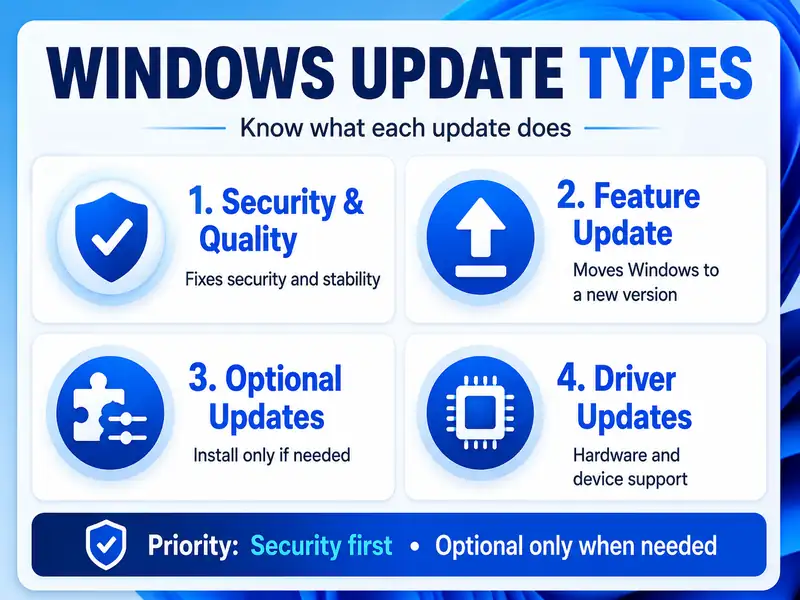
Microsoft currently describes 0x8007000d as an update-file or cache-corruption problem and includes clearing the Windows Update cache in its troubleshooting flow. Microsoft’s error reference describes 0x80246007 more narrowly as “the update hasn’t been downloaded,” so treat that code as a download clue rather than automatic proof that you must clear Windows Update cache.
Related guide: Windows Update Errors — Causes and Step-by-Step Fixes
② Before You Clear Windows Update Cache, Check These Four Things
Most mistakes happen before the actual reset. Before you clear Windows Update cache, confirm these basics so you do not interrupt an update that is still working or change more of Windows than necessary. A safe attempt to clear Windows Update cache should be deliberate, not something you run automatically every time Windows Update is slow.
- Make sure an update is not actively installing. Do not force-delete cache files while Windows is in the middle of a real installation or restart phase.
- Use an administrator account. Stopping update services and running the advanced commands requires elevated permissions.
- Connect laptop power. A restart or component repair can take longer than expected.
- Verify every path before pressing Enter. Only work with the specific Windows Update folders shown in this guide.
Clearing the cache is also different from uninstalling an installed update. When you clear Windows Update cache, you are removing or rebuilding local download and servicing data so Windows can obtain fresh copies. You are not using the Windows Update “Uninstall updates” feature to roll back an already installed security or quality update. That distinction matters every time you clear Windows Update cache.
For command-line troubleshooting, Microsoft recommends administrator permissions and warns that advanced Windows Update reset procedures are for users who are comfortable working at the command line. For a specific 0x80070570 workflow, Microsoft Learn also advises backing up the operating-system disk before troubleshooting. That is a useful safety habit before an advanced reset.
③ Level 1: Clear Only the Windows Update Download Cache
If a download was interrupted or a downloaded update file appears corrupted, the smallest way to clear Windows Update cache is to reset only SoftwareDistribution\Download. Microsoft Learn uses this exact approach for Windows Update error 0x80070570.
Open Command Prompt as administrator, then run these commands one at a time:
net stop wuauserv
net stop bits
rd /s /q %windir%\SoftwareDistribution\Download
net start bits
net start wuauserv
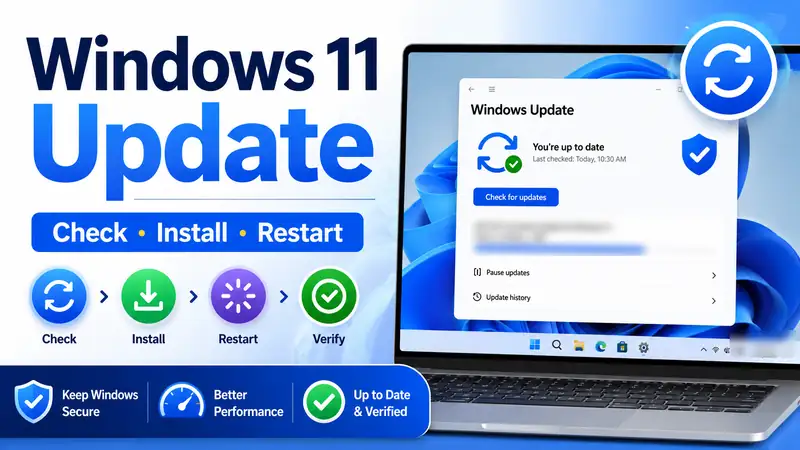
After the commands finish, restart the PC and open Settings > Windows Update > Check for updates. Windows will download fresh copies of any update files that are still required. If the original failure was caused by an incomplete download, this is often enough to clear Windows Update cache without touching the broader update database.
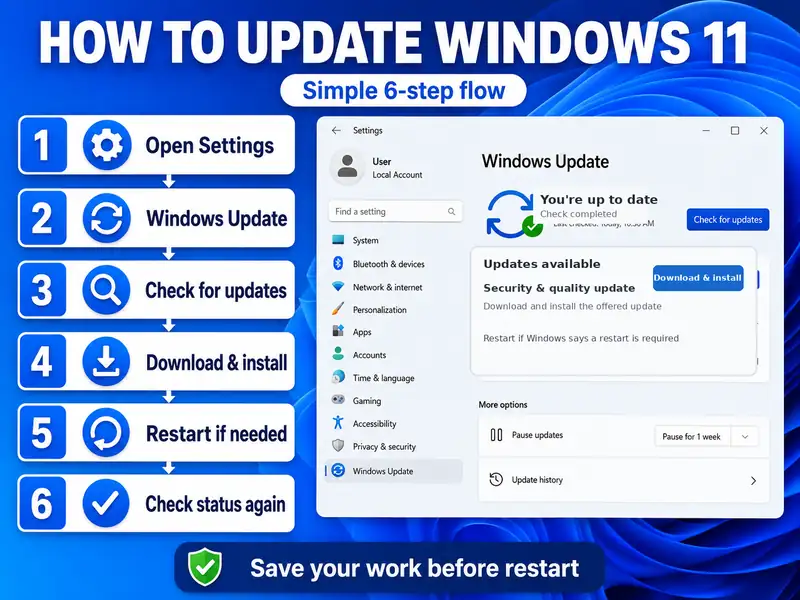
Why start with Download instead of the whole cache?
If the real problem is a damaged or incomplete download, there is no benefit in changing a wider set of Windows Update data first. This Level 1 method lets you clear Windows Update cache where the suspected damage is located while leaving the rest of the local update data alone.
Microsoft Learn: Troubleshoot Windows Update Error 0x80070570
④ Level 2: Clear the Full SoftwareDistribution Cache
If the same update still fails after the smaller reset, Microsoft Support provides a broader way to clear Windows Update cache: stop the Windows Update service and delete the files and folders inside C:\Windows\SoftwareDistribution.
- Press Windows + R.
- Type
services.mscand press Enter. - Find Windows Update.
- Right-click it and select Stop.
- Open File Explorer and go to
C:\Windows\SoftwareDistribution. - Select the files and folders inside SoftwareDistribution and delete them.
- Return to Services, right-click Windows Update, and select Start.
- Restart the PC, then run Check for updates.
Windows recreates the local structures it needs when the update system runs again. The first scan after you clear Windows Update cache can take longer than usual because Windows may need to rebuild local information and download update files again. That slower first scan does not mean the attempt to clear Windows Update cache failed.
Microsoft: Troubleshoot problems updating Windows
⑤ Level 3: Reset SoftwareDistribution and catroot2 Safely
If you still cannot clear Windows Update cache successfully enough to stop repeated update failures, move to an advanced reset of the update folders and core services. This is where catroot2 becomes relevant. At this stage, you clear Windows Update cache by rebuilding a wider set of update working folders rather than only removing downloaded packages.
Do not treat catroot2 as the first folder to delete. A safer advanced pattern is to stop the relevant services and rename the update folders. Windows can then create fresh folders when the services start again, while the previous state remains available temporarily under the renamed folder. Use this wider method to clear Windows Update cache only after the smaller SoftwareDistribution reset has failed.
net stop wuauserv
net stop bits
net stop cryptsvc

ren %windir%\SoftwareDistribution SoftwareDistribution.old
ren %windir%\System32\catroot2 catroot2.old

net start cryptsvc
net start bits
net start wuauserv- Open Command Prompt as administrator.
- Stop Windows Update, Background Intelligent Transfer Service (BITS), and Cryptographic Services.
- Rename
SoftwareDistributiontoSoftwareDistribution.old. - Rename
catroot2tocatroot2.old. - Start Cryptographic Services, BITS, and Windows Update again.
- Restart the PC.
- Open Windows Update and run Check for updates.
Microsoft Learn documents this folder-renaming approach in current Windows Update troubleshooting. It also publishes a much more aggressive manual component-reset procedure that can delete BITS queue data, reset service security descriptors, re-register components, and reset networking. Do not jump to those broader steps simply because you want to clear Windows Update cache. Microsoft itself warns that some of those steps overwrite existing service security ACLs and should be skipped unless less invasive reset steps have failed.
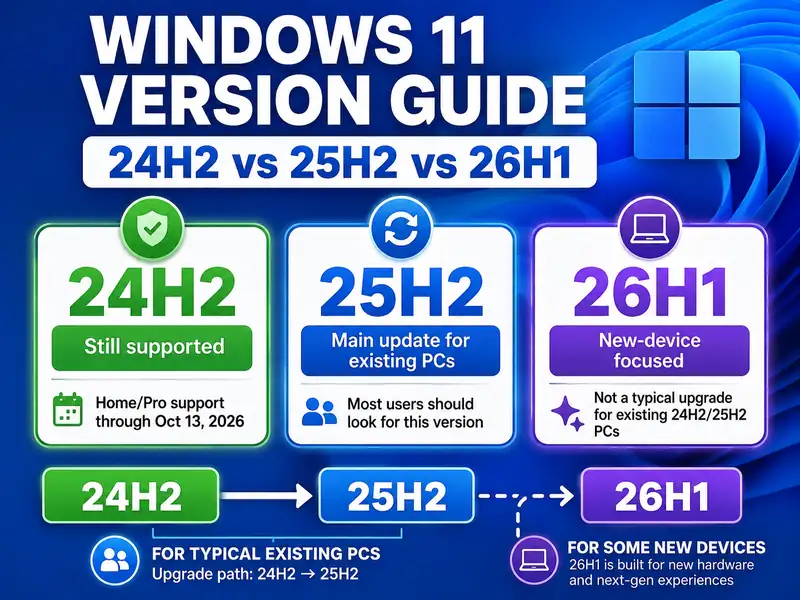
Important: use catroot2, not another similarly named Windows system folder. Do not guess the path. If a command does not match the path shown here, stop and re-check it before continuing.
Microsoft Learn: Windows Update component reset example
Microsoft Learn: Additional resources for Windows Update
⑥ Delete vs Rename: Which Windows Update Reset Is Safer?
There is more than one way to clear Windows Update cache. The best option depends on how wide a reset you actually need.
| Method | Scope | Main advantage | Best use |
|---|---|---|---|
Delete SoftwareDistribution\Download | Downloaded update files only | Smallest change | Interrupted or corrupted download suspected |
Delete contents of SoftwareDistribution | Broader local Windows Update cache | Simple GUI method documented by Microsoft Support | Repeated download/install errors after basic troubleshooting |
Rename SoftwareDistribution | Separates the whole local update folder | Preserves the old folder temporarily | Advanced reset when a wider rebuild is needed |
Rename catroot2 | Extends the reset into update component metadata used during servicing | Useful when SoftwareDistribution alone did not solve the problem | Persistent Windows Update component errors |
For a beginner, the practical rule is simple: clear Windows Update cache in the smallest useful scope, test Windows Update, and expand the repair only if the same symptom remains. This makes it easier to identify which change actually solved the problem. If Level 1 works, there is no reason to clear Windows Update cache again at Level 2 or Level 3.
⑦ What Should Happen After You Clear Windows Update Cache?
After you clear Windows Update cache, Windows may need to download fresh copies of update files and recreate local folders. That is normal. The goal is not to permanently remove SoftwareDistribution or catroot2; the goal is to let Windows rebuild clean working data. A successful attempt to clear Windows Update cache should end with normal scanning and installation, not with the folders staying deleted forever.
- Windows Update can download fresh copies of files that were removed.
- A new
SoftwareDistributionorcatroot2folder can appear automatically. - The first update scan can take longer than usual.
- The same corrupted local download should no longer be reused.
- Installed Windows updates are not being uninstalled by this cache-reset process.
The best test is functional: open Settings > Windows Update > Check for updates. If Windows scans normally, downloads the needed update, installs it, and restarts successfully when required, the attempt to clear Windows Update cache did what it was supposed to do. You do not need to clear Windows Update cache again just because the rebuilt folders reappear.
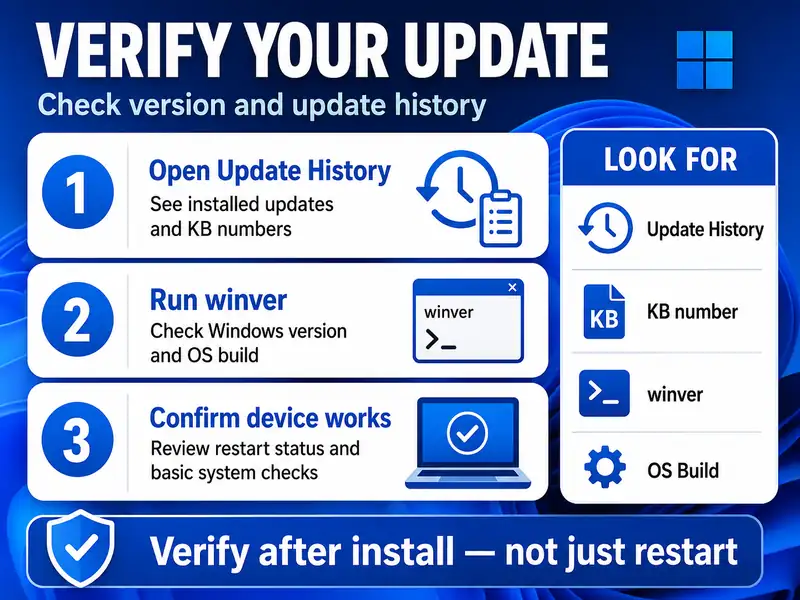
⑧ When Clearing the Windows Update Cache Will Not Fix the Problem
Do not keep trying to clear Windows Update cache if the symptom points somewhere else. A cache reset is a download/local-update-data repair tool, not a universal Windows repair command. If the service is disabled or Windows system files are damaged, another attempt to clear Windows Update cache simply repeats the wrong repair.
| Problem type | Better next step |
|---|---|
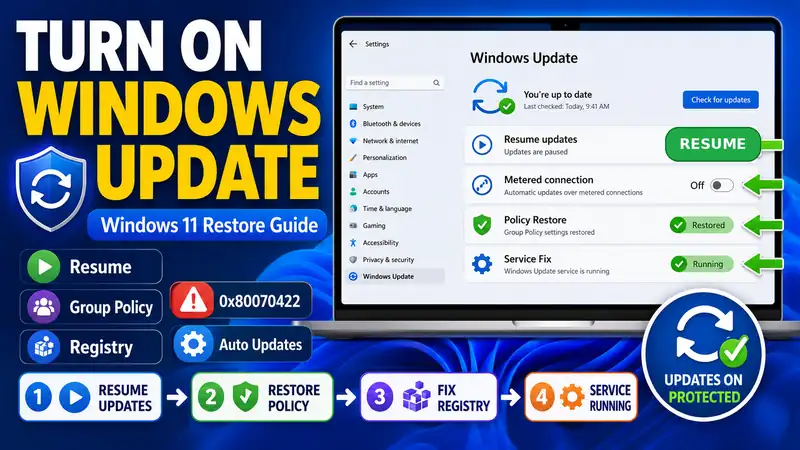
0x80070422 or update service disabled | Restore the Windows Update service instead of repeating cache deletion |
| System-file or component-store corruption | Use DISM and then SFC when the evidence points to Windows corruption |
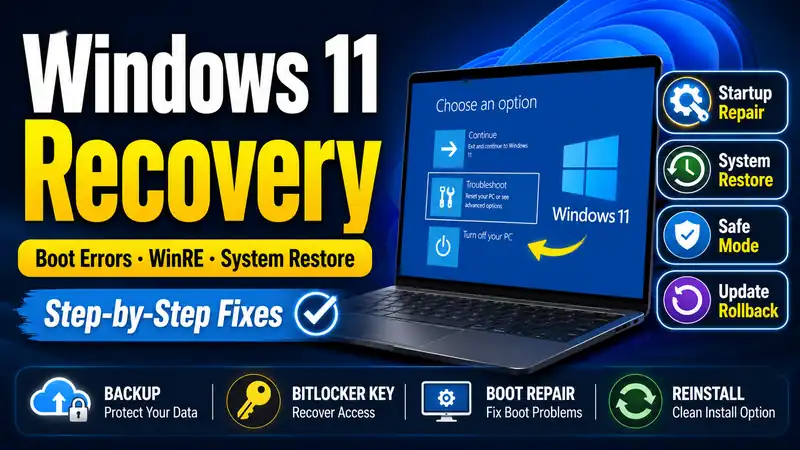
| Windows Update remains badly damaged after folder resets | Consider the current Windows repair/reinstall path rather than endless cache resets |
| PC malfunctioned after an update installed | Check a follow-up fix, repair install, recovery, or uninstall options as appropriate |
| Insufficient SSD space | Free enough storage for download, installation, and rollback files |
| Work or school PC under policy | Ask IT before changing managed services or update folders |
If you already managed to clear Windows Update cache once and the exact same failure immediately returns, record the error code and change troubleshooting direction. Microsoft’s current flow also points users toward the Get Help Windows Update troubleshooter before deeper manual repairs.
Microsoft: Windows Update troubleshooting
Related guide: Windows Update Errors — Causes and Step-by-Step Fixes
⑨ When Can You Delete SoftwareDistribution.old and catroot2.old?
If the advanced reset created SoftwareDistribution.old and catroot2.old, you do not need to delete those backup folders immediately. First confirm that Windows has created fresh folders and that Windows Update can scan, download, install, and restart normally.
Once you have successfully used Windows Update after the reset and no rollback to the previous cache state is needed, the old folders may no longer be useful. If an .old folder already exists and a rename command fails, do not blindly overwrite it. Check why the previous reset folder is still there before you clear Windows Update cache again. Repeatedly renaming the same folders is not a better way to clear Windows Update cache.
⑩ Mistakes to Avoid When You Clear Windows Update Cache
- Do not delete cache files while an update is actively installing. Wait for the update operation to finish or stop the documented service first.
- Do not force-delete SoftwareDistribution while the service still has files locked. Stop Windows Update before the broad GUI cache-clear step.
- Do not start by deleting catroot2. Use the smaller SoftwareDistribution reset first, then rename
catroot2only when the problem persists. - Do not confuse catroot with catroot2. Follow the documented path exactly.
- Do not run a huge internet “reset script” as the first repair. Some scripts change service ACLs, network settings, DLL registrations, and other unrelated configuration.
- Do not repeat the same cache reset indefinitely. If one clean reset fails, inspect the error code, system files, storage, update service, and Windows version instead.
- Do not modify a managed company or school PC without approval. WSUS, Intune, Windows Update for Business, or other policies may control the device.
❓ Windows Update Cache FAQ
Q. Will clearing Windows Update cache delete my personal files?
A. No. The procedures in this guide target Windows Update working folders such as SoftwareDistribution and catroot2, not your Documents, Pictures, or other personal folders. However, these are Windows system locations, so verify the path carefully before you clear Windows Update cache.
Q. Can I delete the SoftwareDistribution folder itself?
A. Microsoft Support’s beginner-oriented cache-clear procedure stops the Windows Update service and deletes the files and folders inside C:\Windows\SoftwareDistribution. Microsoft Learn also documents command-line reset methods that remove or rename the folder. If your goal is simply to clear Windows Update cache, use the least invasive method that matches the failure.
Q. Do I have to clear catroot2 every time?
A. No. For a normal corrupted download, start with SoftwareDistribution\Download or the broader SoftwareDistribution cache. Use the catroot2 rename as a later component-reset step when the problem continues. You do not need to touch it every time you clear Windows Update cache.
Q. Will Windows download the update files again after a cache reset?
A. Yes. If an update still applies to the PC, Windows Update can download fresh copies after you clear Windows Update cache. Make sure the PC has a stable internet connection and enough free storage. This fresh download is one of the main reasons to clear Windows Update cache when a package is incomplete or corrupted.
Q. Is clearing the cache the same as uninstalling an update?
A. No. To clear Windows Update cache is to rebuild or remove local update working data. Uninstalling an update removes an already installed update from Windows. Use the uninstall or recovery path when the problem began after an update was successfully installed.
Q. What if 0x8007000d still appears after the cache is cleared?
A. Run the Windows Update troubleshooter if you have not already done so, then check whether the error persists after a clean update scan. If you already managed to clear Windows Update cache correctly and the same code returns, move to system/component repair rather than repeating the deletion. DISM and SFC become more relevant when Windows corruption is suspected. One successful attempt to clear Windows Update cache is enough to test whether stale local update files were the cause.
Final Thoughts: Clear Windows Update Cache from the Smallest Scope First
The safest way to clear Windows Update cache is to widen the reset only when the smaller repair fails. Start with SoftwareDistribution\Download for a suspected corrupted download. If the same update continues to fail, clear the full SoftwareDistribution cache. Only then consider renaming both SoftwareDistribution and catroot2 as an advanced component-folder reset. This staged approach is the easiest way to clear Windows Update cache without over-resetting Windows.
The most important rule is to stop the documented services before changing files that Windows Update is using. After you clear Windows Update cache, start the services again, restart the PC, and verify the result with Settings > Windows Update > Check for updates.
If the exact same error returns after one clean attempt to clear Windows Update cache, stop repeating the reset. Check the Windows Update service, free storage, DISM/SFC results, device-management policy, or the need for a repair install. A cache reset is most useful when the failure is actually in the downloaded update data—not when the entire Windows servicing stack has another problem.
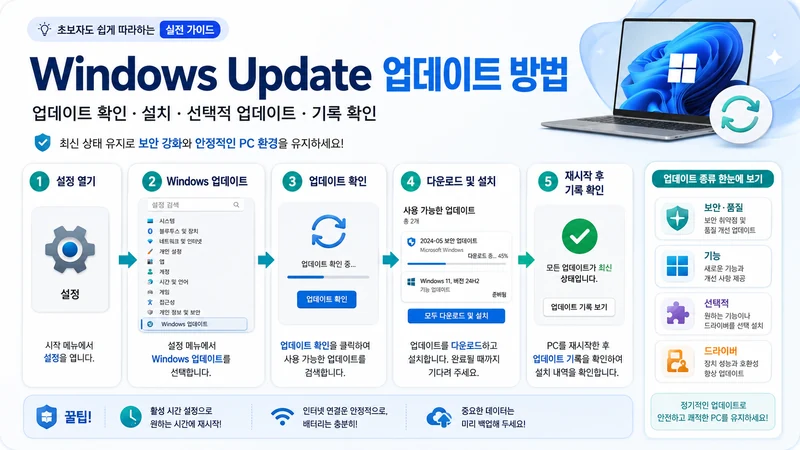
Next guide: How to Use Windows Update in Windows 11: Check, Install & Optional Updates