Windows Bootable USB Errors | Fix USB Detection, UEFI, SSD & GPT/MBR Problems
Windows bootable USB errors rarely come from one single cause. A USB drive may appear normally in File Explorer but be missing from the Boot Menu. You may select the USB and still land in the existing Windows installation. Windows Setup may open correctly, yet the SSD is missing, or the installation may stop with a GPT/MBR partition-style warning.
The safest troubleshooting order is check the USB itself → try another port and the one-time Boot Menu → confirm UEFI boot → recreate the installation media → check storage drivers → verify the target disk’s partition style. Changing several BIOS settings at once or wiping a disk too early can make Windows bootable USB errors harder to diagnose and can turn a simple boot problem into a data-loss problem.
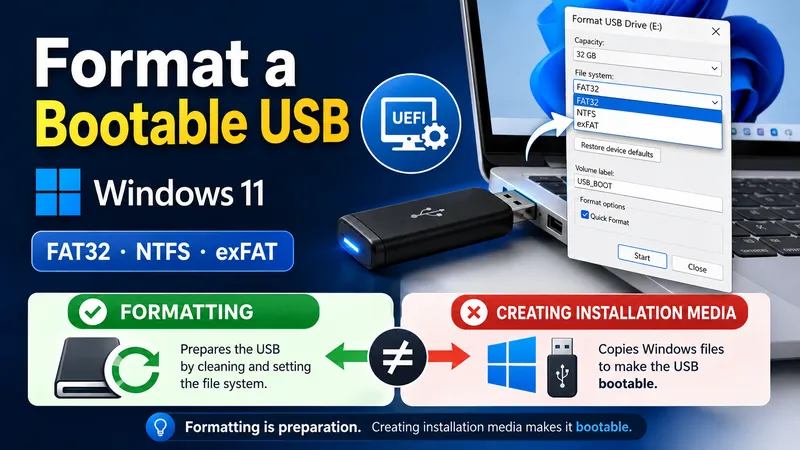
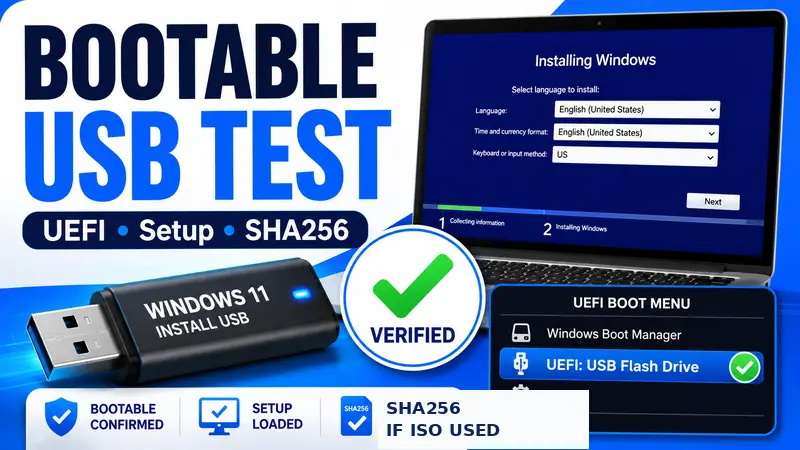
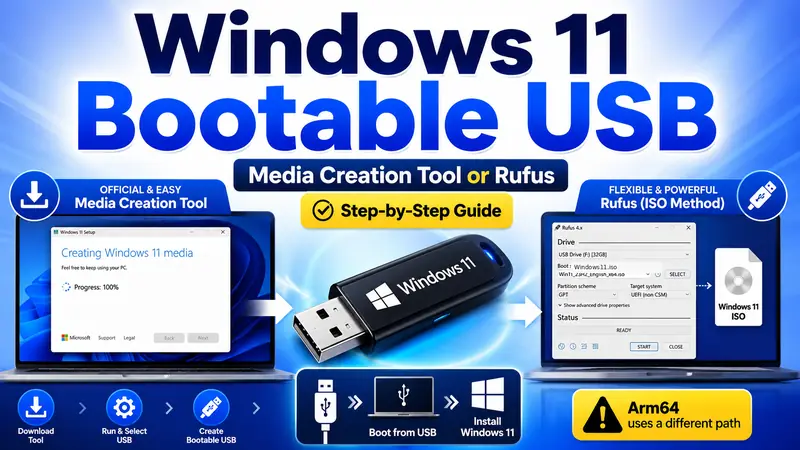
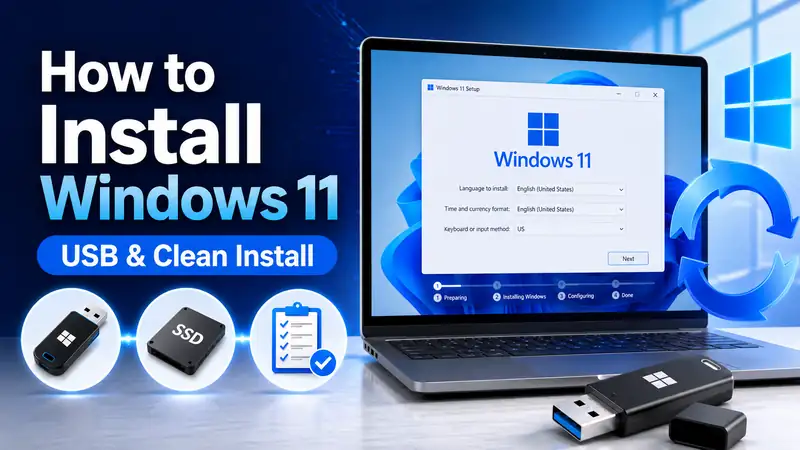
Scope of this guide: This article is for a Windows 11 installation USB that has already been created but fails somewhere during boot or setup. Creating a bootable USB from scratch, formatting it, and checking whether the USB was created correctly are covered in separate guides. This keeps Windows bootable USB errors separate from the media-creation process itself.
① Windows bootable USB errors: identify the symptom before changing settings
Start by identifying how far the process gets. The point where it fails tells you which part of the chain is most likely responsible. This is the fastest way to narrow down Windows bootable USB errors without making unnecessary firmware or disk changes.
| Current symptom | Most likely area | First thing to do |
|---|---|---|
| USB is not recognized on another PC either | USB flash drive or port | Try another USB port and another computer |
| USB appears in Windows but not in the Boot Menu | Boot Menu, UEFI recognition, or media creation | Check the one-time Boot Menu and the UEFI USB entry |
| Selecting USB still starts the existing Windows installation | Wrong boot entry or invalid boot files | Select the UEFI USB entry again, then consider recreating the media |
| Windows Setup opens but the SSD is missing | Storage controller, VMD, RAID, or RST driver | Confirm the SSD is visible in firmware, then check the PC maker’s storage driver |
| GPT/MBR warning appears on the target disk | Firmware mode and partition-style mismatch | Confirm UEFI boot and the target disk’s partition style |
| File-copy errors or repeated installation failures | Corrupt media, failing USB, bad download, RAM, or storage | Recreate official media, preferably on a different USB |
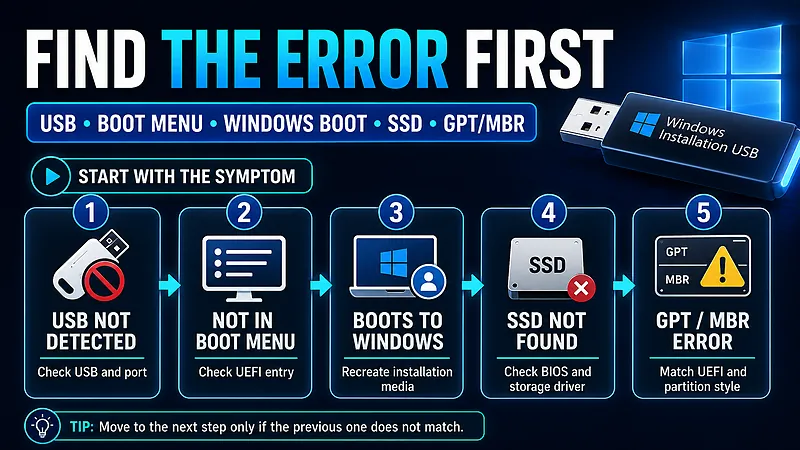
The failure stage matters more than the error wording
If the USB never appears as a boot option, there is no reason to start with partition commands. If Windows Setup already opens, the USB is at least bootable enough to launch the installer. Treating Windows bootable USB errors as a sequence of stages usually saves far more time than reacting to a single error message.
② Start with a five-minute check: USB, ports, accessories, and backup
- Connect the USB directly: avoid a hub or docking station while troubleshooting. Use a built-in USB port on the PC.
- Test the USB on another computer: if File Explorer cannot detect it anywhere, troubleshoot the flash drive before changing firmware settings.
- Disconnect unnecessary external drives: this simplifies the boot-device list and reduces the chance of selecting the wrong disk later in Setup.
- Back up important files: Windows bootable USB errors can eventually lead to reinstall or partition work, so protect personal data before you reach destructive steps.
- Confirm the exact PC model: Boot Menu keys, BIOS labels, and storage-driver packages vary by manufacturer and model.
Microsoft currently recommends a blank USB flash drive with at least 8 GB of space for Windows installation media, and the media-creation process deletes the drive’s existing contents. If the installation USB itself is questionable, recreating it on a known-good PC with Microsoft’s official Media Creation Tool is one of the cleanest ways to rule out damaged boot files.
Microsoft Support: Create installation media for Windows
Related guide: How to Back Up Windows 11 — Beginner-Friendly Practical Guide.
③ Windows bootable USB errors: USB not showing in the Boot Menu
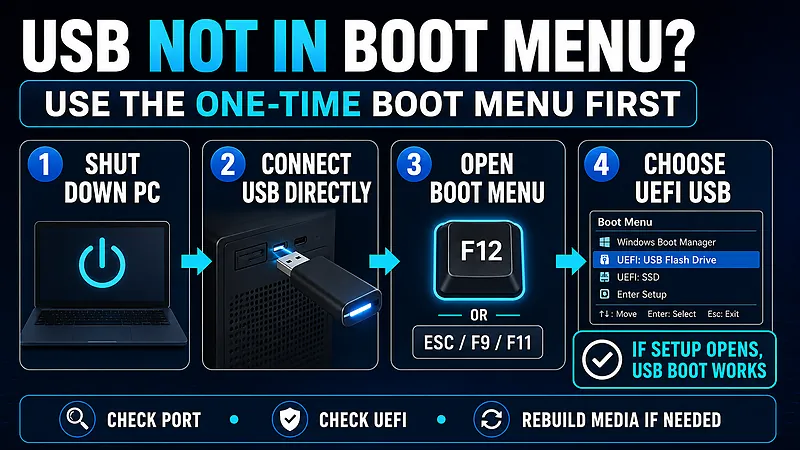
If the USB looks normal in Windows but does not appear as a startup option, treat it as one of the common Windows bootable USB errors and use the PC’s one-time Boot Menu before permanently changing the boot order. Microsoft notes that the startup key varies by manufacturer and model and is commonly one of the function keys from F1 through F12 or the DEL key.
- Shut down the PC completely.
- Connect the Windows installation USB directly to the computer.
- Power on the PC and press the manufacturer’s Boot Menu key.
- Look for the USB in the device list.
- If the same drive appears more than once, choose the entry that identifies the device as UEFI.
- Check whether Windows Setup appears.
Microsoft says that if you boot from installation media and Windows Setup does not appear, the PC may not be configured to start from that drive. That is the point to check the manufacturer’s boot instructions rather than assuming all Windows bootable USB errors require formatting or partition changes.
Microsoft Support: Reinstall Windows with the installation media
Do not make USB the permanent first boot device unless you need to
A permanent boot-order change can leave the USB ahead of Windows Boot Manager after the first installation restart. For one-time troubleshooting, the temporary Boot Menu is simpler and reduces another source of Windows bootable USB errors.
④ UEFI vs. Legacy: troubleshoot Windows 11 in UEFI mode first
On many modern PCs, the same USB can appear as both a UEFI device and a Legacy/BIOS device. Microsoft generally recommends installing Windows in modern UEFI mode because it supports newer firmware and security features. Windows 11 also requires UEFI firmware that is Secure Boot capable, plus TPM 2.0.
That means switching to Legacy/CSM or disabling Secure Boot should not be the automatic response to Windows bootable USB errors. If you are using official Windows media, first check whether the USB boots through its UEFI entry. Use model-specific manufacturer guidance only when that hardware requires an exception.
| Check | Recommended baseline | What to avoid |
|---|---|---|
| Boot mode | Use UEFI first for Windows 11 | Switching to Legacy/CSM without knowing the current disk layout |
| Secure Boot | Keep the normal setting with official media | Disabling it as the first generic troubleshooting step |
| TPM | Windows 11 requires TPM 2.0 | Confusing a Windows 11 eligibility issue with a USB boot failure |
Microsoft Support: Windows 11 system requirements
Microsoft Learn: Boot to UEFI mode or Legacy BIOS mode
⑤ Windows bootable USB errors: USB selected, but Windows still starts
If you choose the USB but end up back in the installed copy of Windows, this is another form of Windows bootable USB errors. Work through the boot path one item at a time:
- Return to the Boot Menu and confirm that you selected the USB rather than Windows Boot Manager.
- If the same USB has multiple entries, choose the UEFI USB entry.
- If the PC still skips the installer, recreate the installation media with Microsoft’s official tool.
- If the problem continues, try a different USB flash drive and a different physical USB port.
This isolates Windows bootable USB errors without changing UEFI, Secure Boot, CSM, and storage settings all at once. A media rebuild or a second USB is often a better diagnostic test than a large set of firmware changes.
Related guide: How to Create a Windows Bootable USB — Step-by-Step Guide.
⑥ Windows bootable USB errors: “No bootable device” or “Insert boot media”
Messages such as No bootable device, No bootable medium, or Insert boot media usually mean the firmware could not find valid boot files on the selected device. Seeing files on the USB in File Explorer does not prove that the drive can actually start Windows Setup.
- Check whether the USB appears in the Boot Menu on another known-good PC.
- Recreate the drive with official Microsoft installation media.
- If possible, build the media on a different USB flash drive.
- Select the UEFI entry for the USB in the Boot Menu.
- Check the manufacturer’s firmware documentation if USB boot is restricted or disabled.
If the media is valid, Windows Setup should load when the PC starts from it. Repeated “no bootable” messages keep Windows bootable USB errors in the media/firmware part of the troubleshooting chain rather than the SSD or partition part.
Using a Snapdragon or Windows on Arm PC? Check the architecture
Arm-based Windows 11 PCs need installation media that matches the device architecture. Microsoft now provides Windows 11 Arm64 ISO files and documents how they can be used to create bootable media. Microsoft also states that the Windows Media Creation Tool does not currently create Arm64 bootable media.
Microsoft recommends using recovery media from the device manufacturer when it is available because it includes drivers tested for that device. Snapdragon X Series systems can boot Windows media without additional boot drivers, but older Snapdragon generations may require manufacturer drivers to be added to the image. If x64 media is used on the wrong architecture, the result can look like another set of Windows bootable USB errors even though the USB itself is not defective.
Microsoft Learn: Windows 11 Arm ISO files
⑦ Windows bootable USB errors after Setup opens: the SSD is missing
Once Windows Setup has opened, some Windows bootable USB errors are actually storage-detection problems rather than boot failures. If the Where do you want to install Windows? screen does not show the SSD or HDD, the storage controller or its driver may be the real issue.
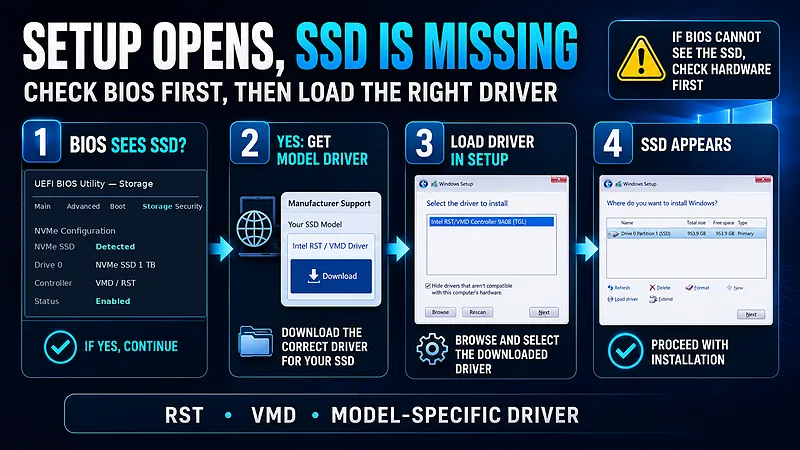
- Restart the PC and check whether the SSD is visible in BIOS/UEFI.
- If the SSD is missing there too, investigate the drive, slot, cable, or hardware connection before looking for Windows drivers.
- If firmware sees the SSD but Windows Setup does not, open the PC or motherboard manufacturer’s support page and look for the model-specific storage, RAID, Intel RST, or VMD driver.
- Prepare that driver according to the manufacturer’s instructions and use Load driver in Windows Setup.
On some Intel-based systems, VMD or Intel Rapid Storage Technology can prevent the retail Windows installer from seeing the drive until the correct storage driver is loaded. Dell’s current support guidance, for example, documents this on affected systems using 11th through 14th generation Intel platforms and instructs users to load the correct IRST/VMD driver for the specific model. Other manufacturers can use different packages, so the safest rule is to prefer the PC maker’s driver over a generic download.
Dell Support example: storage drives not found during Windows installation
If BIOS cannot see the SSD, do not start with Windows drivers
A disk that is missing from Windows Setup and a disk that is missing from firmware are not the same problem. If BIOS/UEFI cannot detect the SSD, Windows bootable USB errors are no longer the main suspect. Hardware detection comes first.
⑧ Windows bootable USB errors with GPT/MBR: match firmware mode and disk layout
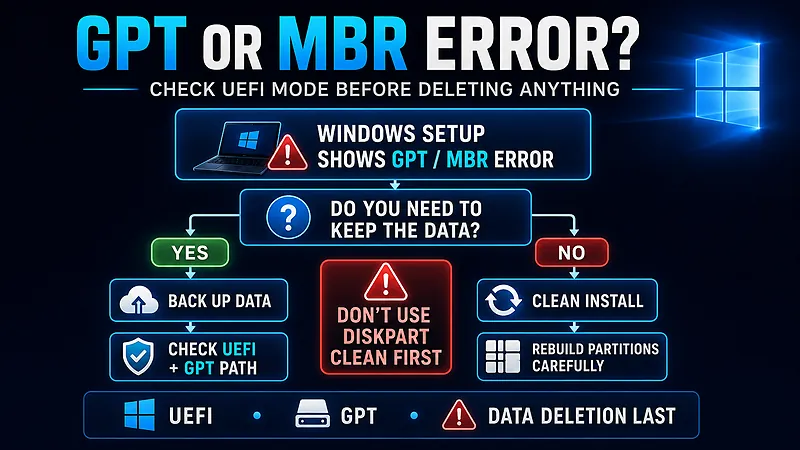
If Windows Setup reports that the selected disk is not using the expected GPT or MBR partition style, Windows bootable USB errors may be the wrong diagnosis because the installation USB may be working perfectly. The mismatch is usually between the firmware mode used to start Setup and the partition style of the target disk.
Microsoft explains that when Windows Setup is started in UEFI mode, the target drive must be configured for a UEFI-compatible GPT installation path. Microsoft also documents MBR2GPT as an option for converting certain disks while preserving data, while reformatting or deleting partitions erases data. That distinction is critical when diagnosing Windows bootable USB errors.
| Situation | What it usually means | Safer next step |
|---|---|---|
| Setup booted in UEFI, target disk is MBR | Firmware mode and partition style may not match | Back up data → confirm UEFI boot → decide between supported conversion and a clean install |
| Existing data must be preserved | Deleting partitions is high risk | Do not wipe the disk during Setup; review backup and supported non-destructive conversion options |
| A full clean install is intentional | The target disk can be rebuilt | Verify the exact disk → confirm backup → recreate partitions only after you are certain data can be erased |
Important: the widely shared diskpart clean command removes partition information from the selected disk. Selecting the wrong disk can destroy access to data on another drive. It should not be the first response to Windows bootable USB errors, especially when the user has not confirmed a clean installation and a complete backup.
Microsoft Learn: Windows Setup and MBR/GPT partition styles
Decide whether the data must survive before deleting anything
A clean install and a data-preserving repair are two different jobs. If the files on the target drive matter, stop before deleting partitions. The safest Windows bootable USB troubleshooting flow always puts destructive disk work near the end, not the beginning.
⑨ Windows bootable USB errors during file copy or installation
If Setup opens and the SSD is visible, Windows bootable USB errors that appear during file copying should be approached differently. When installation stops at different points, move away from boot order and toward media integrity and hardware stability.
- Recreate the USB with Microsoft’s official Media Creation Tool.
- If possible, use a different USB flash drive.
- Try another built-in USB port rather than a hub.
- Disconnect unnecessary USB devices.
- If failures continue with fresh media, consider memory and storage diagnostics.
Failures that move around from one percentage to another can point more strongly to damaged media or unstable hardware than to a simple boot-order issue. If the failure is always before Setup loads, return to UEFI and media creation instead. Keeping those stages separate prevents Windows bootable USB errors from becoming a guessing game.
⑩ When should you change Secure Boot?
Windows 11 requires firmware that is Secure Boot capable, so turning Secure Boot off should not be the first generic fix for Windows bootable USB errors. With official Windows installation media, try the normal UEFI boot path first.
There are hardware-specific or custom-media exceptions, but those should come from the PC manufacturer or another authoritative source for the exact device. In routine Windows bootable USB troubleshooting, changing Secure Boot before confirming the USB, UEFI entry, and media integrity usually adds another variable without identifying the original problem.
⑪ Six-step Windows bootable USB troubleshooting order
| Step | Check | What the result tells you |
|---|---|---|
| 1 | Does the USB work on another PC and another port? | If not, troubleshoot or replace the USB first |
| 2 | Does the USB appear in the Boot Menu? | If not, check UEFI recognition and media creation |
| 3 | Does the UEFI USB entry open Windows Setup? | If not, recreate the installation media |
| 4 | Is the SSD visible in Windows Setup? | If not, compare BIOS detection with the manufacturer’s storage-driver guidance |
| 5 | Is there a GPT/MBR warning? | Check that firmware mode and partition style match the intended install |
| 6 | Do file errors continue during installation? | Recreate media on another USB, then consider hardware diagnostics |
The biggest advantage of this order is that data deletion comes last. Many Windows bootable USB errors can be narrowed down through port checks, the Boot Menu, UEFI selection, or recreating the installation media long before partition deletion becomes relevant.
Next guide: Windows 11 USB Boot Guide — UEFI, Boot Menu, and Boot Order Setup.
⑫ Mistakes to avoid while fixing Windows bootable USB errors
- Do not delete partitions because the USB is missing from the Boot Menu. Those are different stages of the process.
- Do not change several firmware options at once. Simultaneously changing UEFI/CSM, Secure Boot, and storage mode makes the real cause harder to identify.
- Do not disable Secure Boot automatically. Check the normal Windows 11 UEFI path first.
- Do not install unrelated storage drivers. Start with the PC or motherboard manufacturer’s model-specific package.
- Do not use
diskpart cleanas the first fix. It is destructive. - Do not trust one USB forever. If the media is suspicious, rebuild it on a different flash drive and compare the result.
❓ Frequently asked questions
Q. If the Windows installation USB appears in File Explorer, is it definitely bootable?
A. No. File Explorer only proves that Windows can read the drive. A valid installation USB must also appear as a bootable device in firmware and successfully start Windows Setup. This distinction explains many Windows bootable USB errors.
Q. If the USB is missing from the Boot Menu, should I make it first in BIOS boot order?
A. Try the one-time Boot Menu first. If the USB does not appear there either, check the media, UEFI entry, physical port, and model-specific USB boot settings before making a permanent boot-order change.
Q. If Windows Setup cannot see the SSD, does that mean the SSD has failed?
A. Not necessarily. If BIOS/UEFI sees the drive but Windows Setup does not, a model-specific storage controller driver such as an RST/VMD package may be required. If firmware cannot see the SSD either, investigate hardware detection first.
Q. Should I format the disk when a GPT/MBR error appears?
A. First decide whether the existing data must be preserved. A clean install can involve rebuilding partitions after backup, but a PC with important files should not be wiped just to make the error disappear.
Q. Will disabling Secure Boot always make the USB boot?
A. No. Windows 11 expects UEFI firmware that is Secure Boot capable, and official installation media should normally be tested with the standard security configuration first. Secure Boot is not a universal fix for Windows bootable USB errors.
Q. Can I recreate the installer on the same USB?
A. Yes, but if Windows bootable USB errors keep returning, using a different flash drive is a better cross-check. If the same problem appears with fresh official media on another USB, you can move your attention toward firmware, storage, or hardware.
Conclusion: narrow the problem from USB → UEFI → SSD → partition style
The fastest way to fix Windows bootable USB errors is to avoid treating every failure as a bad USB. Check whether the drive works on another PC, whether it appears in the Boot Menu, whether the UEFI USB entry starts Windows Setup, whether Setup can see the SSD, and only then whether GPT/MBR alignment is blocking installation.
If Windows Setup already opens, the bootable USB has done a large part of its job. A missing SSD points you toward firmware detection or a model-specific storage driver. A GPT/MBR warning points you toward firmware mode and disk layout. Separating those stages is the core of reliable Windows bootable USB troubleshooting.
Most importantly, keep destructive actions at the end. Recreating installation media, selecting the correct UEFI entry, and loading an approved manufacturer storage driver are all safer checks than deleting partitions. That final safeguard matters because Windows bootable USB errors can be frustrating enough to tempt users into destructive fixes too early.