How to Reset a Router | A Safe Step-by-Step Factory Reset Guide
If you need to know how to reset a router safely, the most important step is not pressing the Reset button—it is deciding whether a factory reset is actually necessary, saving the settings you may need later, using the correct reset method for your model, and then rebuilding the internet and WiFi connection in the right order. A factory reset can remove custom settings such as your WiFi name and password, WAN configuration, DHCP and DNS changes, port forwarding, VPN settings, parental controls, and mesh configuration.
It also helps to separate two terms that are often used interchangeably: reboot and factory reset. A reboot simply restarts the router while keeping its configuration. A factory reset returns the router to its default state and requires you to set it up again. If your internet connection is only temporarily unstable, start with a reboot and basic WAN checks. Save a factory reset for cases where you genuinely need a clean configuration, have lost access to the admin interface, or are preparing the device for a new owner or a completely new setup.
Key rule: A factory reset is not a universal “fix everything” button. It is a deliberate decision to erase the current configuration and start over. Back up or record anything you may need before you reset.
① How to Reset a Router: Decide Whether You Really Need a Factory Reset
A lot of router advice jumps straight to factory reset, but many connection problems do not require one. Match your situation to the closest case below before you erase anything.
| Current situation | Factory-reset priority | What to try first |
|---|---|---|
| The internet dropped once or speeds suddenly feel slow | Low | Reboot, check the WAN cable, modem/ONT, and ISP status |
| Only one phone or computer cannot connect | Low | Check that device’s WiFi, IP, VPN, and network settings |
| You forgot the router admin password and there is no supported recovery method | High | Check the manufacturer’s password/account recovery options, then consider a reset |
| Many settings were changed and the network is difficult to restore | Medium to high | Back up the configuration and record WAN details before resetting |
| You are selling, giving away, or completely redeploying the router | High | Check account, cloud, mesh, and backup status before wiping the device |
| A standard reset did not restore the router correctly | Model-specific | Check the manufacturer’s official hard factory reset procedure for the exact model |
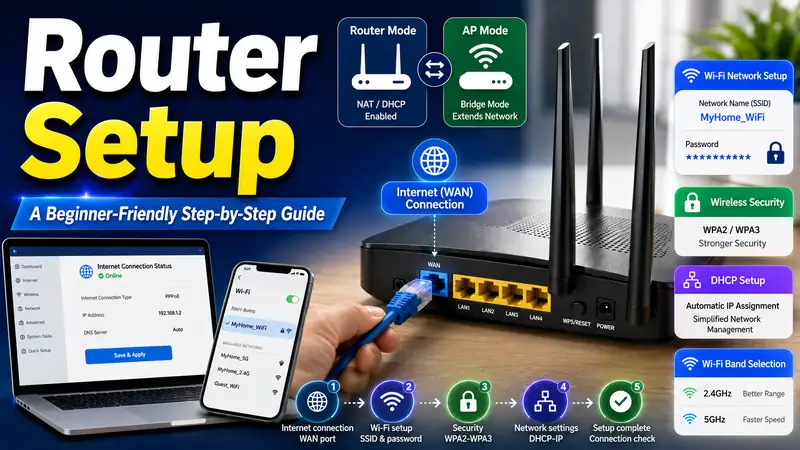
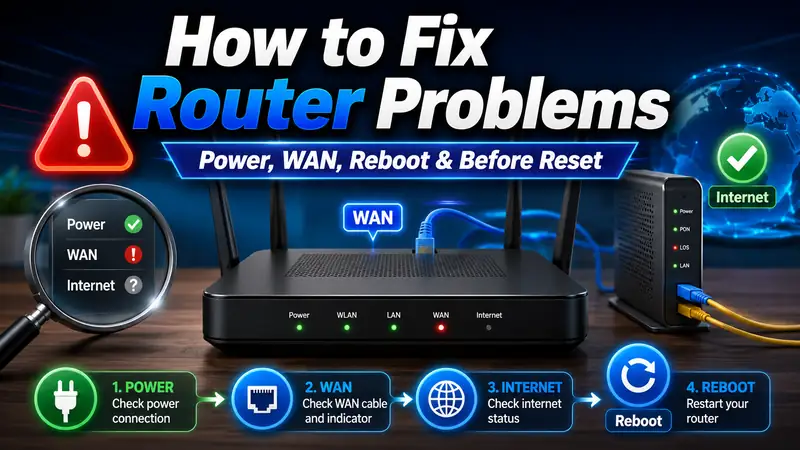
If the problem is simply “WiFi works but there is no internet,” or several devices suddenly went offline, start with How to Fix Router Problems | A Step-by-Step Troubleshooting Guide instead of wiping the router. If your goal is to rebuild everything from scratch after the reset, use How to Set Up a Router | A Beginner-Friendly Step-by-Step Guide for the reconfiguration stage.
② Save the settings you may need after the reset
A factory reset can erase the information you need to get back online. If your network uses PPPoE, a static IP, port forwarding, VPNs, reserved addresses, IPTV, or a mesh system, record those details before you reset.
- Internet connection type — Dynamic IP/DHCP, PPPoE, or Static IP
- PPPoE credentials — username and password supplied by your ISP, if required
- Static IP information — IP address, subnet mask, gateway, DNS, and any provider-specific values
- Current WiFi settings — SSID, password, and 2.4 GHz / 5 GHz / 6 GHz configuration
- Port forwarding and VPN rules — especially for NAS, cameras, gaming, or remote access
- DHCP reservations — fixed local addresses used by printers, servers, NAS devices, or smart-home equipment
- Mesh configuration — primary node, satellite nodes, app account, and cloud association
- IPTV, VoIP, or ISP-specific settings — VLAN or other service-specific configuration
If the router supports configuration backup, exporting a backup file can save a lot of time. ASUS currently provides configuration export and restore through its router interface, while TP-Link’s backup guidance notes that backup files should be restored only to a compatible model and hardware version.
Official references: ASUS: Back up and restore router configuration files · TP-Link: Create and restore a router backup file
A backup is useful—but restoring it is not always the right choice
If your goal is simply to preserve a working configuration, restoring a compatible backup may make sense. But if you are resetting because the configuration itself became messy or conflicted, restoring the entire old backup can bring the same problem back. In that situation, keep the important values for reference and rebuild the router manually.
③ Understand reboot, factory reset, and hard factory reset
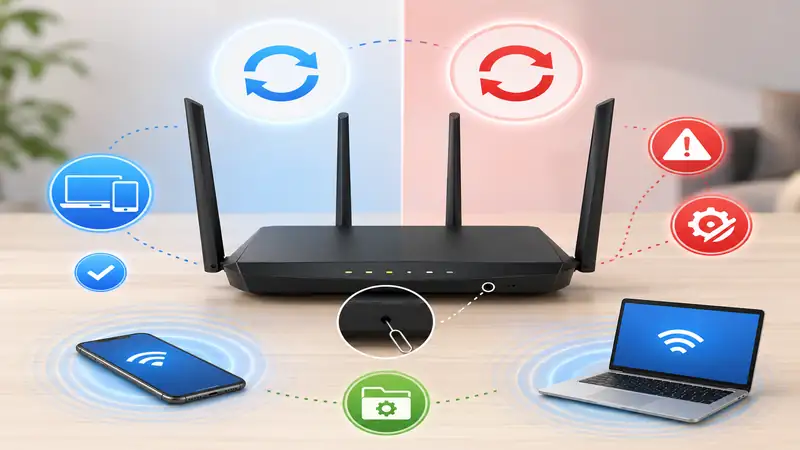
Reboot
The router restarts, but your WiFi name, password, and other settings remain. This is the better first step for temporary glitches, minor dropouts, or a router that has been running for a long time.
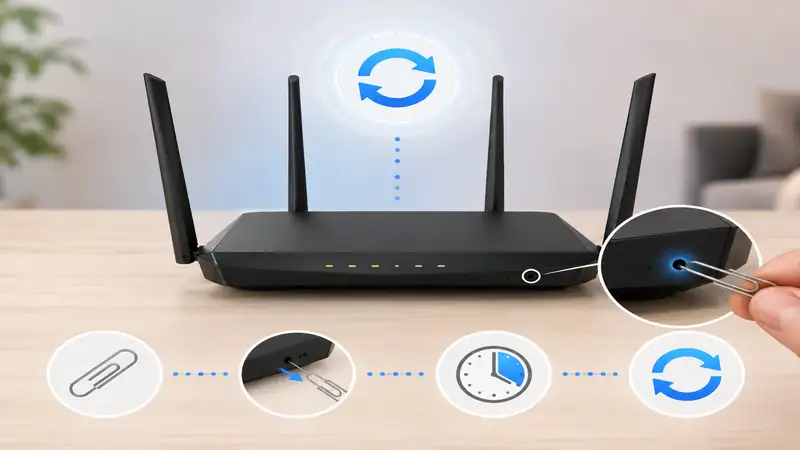
Standard Factory Reset
This returns the router’s customized settings to factory defaults through the admin interface or the router’s Reset button. Most normal “start over” situations should use the standard reset procedure for the exact model.
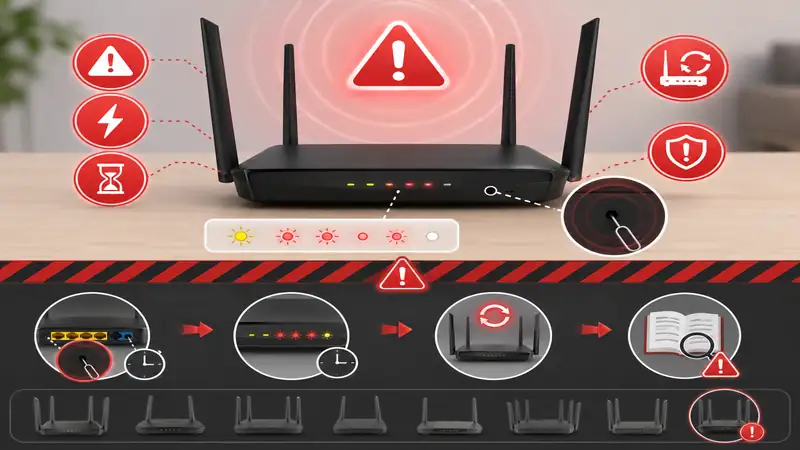
Hard Factory Reset
Some manufacturers provide a model-specific forced reset procedure when a normal reset does not work. Button combinations and LED sequences can vary significantly, so this is not a generic method to copy from another router.
ASUS currently separates its standard reset procedure from model-specific hard factory reset methods. Its official support page recommends trying the standard reset first and using a hard factory reset only when the normal process does not restore the router properly. ASUS: When Standard Reset Isn’t Working — Hard Factory Reset model list
④ If you can still log in, resetting from the admin interface is easier to follow
If you still know the administrator password and can open the router’s management page, using the software reset option is often the clearest method because you can see exactly which command you are confirming. Menu names vary by manufacturer, but common labels include Administration, System, Backup & Restore, Restore, Factory Default, or similar terms.
- Connect a phone or computer to the router.
- Open the official management address or app listed for your model.
- Back up the configuration or record the settings you need to keep.
- Open the system or administration section and find the factory-reset option.
- Review the warning or reset scope, then confirm the reset.
- Keep the router powered on while it resets and reboots.
- Reconnect using the router’s default WiFi or a LAN cable and begin setup again.
ASUS, for example, currently places its standard factory reset under Administration → Restore/Save/Upload Setting. ASUS also notes that the reset returns settings such as internet configuration, SSID, and wireless password to defaults. ASUS: Reset a router to factory default settings
⑤ If you cannot log in, use the physical Reset button for your model
If you have lost access to the management page or forgotten the admin password and there is no supported recovery option, the physical Reset or WPS/Reset button may be the right method. The critical rule here is simple: there is no universal hold time that applies to every router.
TP-Link’s current router guidance shows several possible button designs, including a dedicated Reset button, a combined WPS/Reset button, and a recessed pinhole. Its current general router reset guide instructs users to check the exact router because the button location and behavior can differ between models and generations.
- Find the exact model name and hardware version of the router.
- Locate the button labeled Reset, RESET, or WPS/RESET.
- Open the official manual or support page for that exact model.
- Check whether the router should be powered on or off before the procedure begins.
- Follow the specified hold time and LED condition.
- Release the button when the official instructions say the reset has been triggered.
- Wait for the router to finish rebooting before disconnecting power.
For a current manufacturer example, see TP-Link: How to Factory Reset Your Router.
Use care with recessed reset holes. A paperclip or pin should press the button—not be pushed deeply into the device. If you are not certain that you have found the correct hole, check the product diagram or manual first.
⑥ Do not copy a “10-second rule” from another router
You will see instructions online that say to hold Reset for 5, 8, 10, or 15 seconds. Those differences exist because router models, button functions, LED sequences, and firmware generations are not identical. Some products use a dedicated Reset button, some combine WPS and Reset, and some mesh systems use a much shorter press.
| Risky shortcut | Why it can fail | Safer approach |
|---|---|---|
| Use the same “10-second reset” on every router | Button behavior and reset timing can differ by model | Check the official instructions for the exact model |
| Keep holding because you do not know what the LEDs mean | You may trigger another button function or miss the intended release point | Know the expected LED sequence before you start |
| Unplug the router while it is restoring | The reset or reboot process may not complete correctly | Keep power connected until the official process finishes |
| Start with a hard factory reset | Forced reset methods are model-specific and often unnecessary | Use standard factory reset first; escalate only if the manufacturer says to |
This model-specific approach is also reflected in current manufacturer documentation: ASUS maintains separate hard-reset methods for different router families, while TP-Link publishes different reset procedures for conventional routers, xDSL modem routers, and Deco mesh units. See ASUS’s hard factory reset model list, TP-Link’s xDSL modem-router reset guide, and TP-Link’s Deco reset guide.
⑦ Mesh WiFi systems need extra care
A mesh system is not always reset the same way as a single standalone router. The primary node, satellite nodes, mobile app, and cloud account may all be part of the network state. Depending on the product, resetting one node, removing a node from the app, deleting the entire network, and unlinking an account can be different actions.
TP-Link’s current Deco guidance explicitly separates rebooting from resetting. It also says that if you remove an entire Deco system through the app, expansion units should be removed first and the primary unit last. A Deco unit’s physical reset process is different from a standard Archer router, which is exactly why router-wide timing rules are unsafe. TP-Link: Reset or Reboot a Deco Whole-Home WiFi System
Google Nest Wifi and Google Wifi are another good example of why mesh and app-managed systems need their own instructions. Google notes that a factory reset erases current device settings and can also affect the app or account relationship depending on how the reset is performed. Google Home: Factory reset your Wifi device
⑧ Be careful with ISP-owned gateways, modem-router combos, and ONTs
An ISP-provided device may look like an ordinary WiFi router while also handling modem, fiber ONT, phone, IPTV, VLAN, or provider-management functions. Factory-resetting that equipment can affect more than your WiFi settings.
- Confirm whether the equipment is rented or managed by the ISP.
- Check whether IPTV, VoIP, VLAN, or other provider-specific services depend on the device.
- Make sure you have any PPPoE or special WAN information you would need to reconnect.
- Check the ISP’s support instructions before resetting provider-managed hardware.
The same caution applies to routers in offices, schools, hotels, and shared networks. Do not factory-reset managed network equipment unless you are authorized to do so, because it may affect many users and security policies.
⑨ After the reset, restore internet access before rebuilding everything else
After a successful factory reset, the old SSID may disappear, the router may broadcast a default network again, and the management page may return to its first-time setup state. The easiest way to recover is to restore the WAN connection first, then rebuild WiFi and reconnect devices.
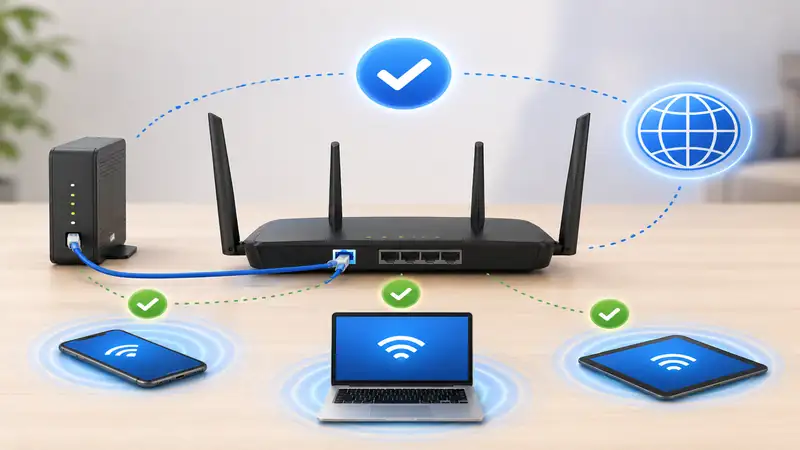
1. Restore the WAN connection
Reconnect the modem, ONT, or wall internet line to the WAN port. Then choose the real connection type—Dynamic IP, PPPoE, or Static IP—and enter only the values supplied by your ISP or network administrator.
[Recommended image: Body image 2-2 — 5-router-wifi-security-reconnect.webp]
2. Rebuild WiFi and admin security
Create the SSID and WiFi password again, and set a separate router administrator password. Recheck the security mode and WiFi bands needed by your devices.
[Recommended image: Body image 2-3 — 6-router-device-reconnect-success.webp]
3. Reconnect your devices
Reconnect phones and computers first, then TVs, printers, NAS devices, cameras, and smart-home products. Reusing the old SSID and password may allow some devices to reconnect automatically, but changes to security or band settings can still require manual setup.
If you need the full post-reset configuration process, continue with How to Set Up a Router | A Beginner-Friendly Step-by-Step Guide, which covers Router Mode vs AP Mode, WAN types, WiFi security, DHCP, NAT, bands, and final testing.
⑩ Decide whether to restore a backup or configure the router from scratch
| Why you reset the router | Best recovery approach | Why |
|---|---|---|
| Selling or giving away the device | Do not restore the old backup | Leave the router ready for a new owner to configure from scratch |
| Lost administrator access | Reconfigure manually or use a trusted compatible backup | Choose the option that does not recreate the access problem you were trying to solve |
| Temporary reset with an otherwise healthy configuration | A compatible backup can save time | Complex port, VPN, reservation, or policy settings do not need to be recreated manually |
| You want to eliminate configuration conflicts | Reconfigure from scratch first | Restoring the old configuration can also restore the problem |
Before restoring a backup, confirm that it is intended for the same model and compatible hardware or firmware environment. ASUS currently states that its configuration files are intended for the same router model, and TP-Link’s backup guidance specifies the same model and hardware version for the referenced workflow. Keep the router powered on while a restore is in progress.
⑪ If the router resets successfully but the internet does not come back
If the factory reset completed normally but there is still no internet access, the router may simply have lost the WAN settings that were previously stored. Work through the connection from the outside in instead of resetting the router again.
- Confirm that the incoming Ethernet cable is in the WAN or Internet port.
- Check whether the modem or ONT has reached its normal online state.
- Open the router’s management page and check whether a WAN IP has been assigned.
- Confirm whether your service uses Dynamic IP, PPPoE, or Static IP.
- If PPPoE is required, re-enter the ISP-provided username and password.
- Check whether IPTV, VLAN, MAC registration, or another provider-specific setting is required.
- Compare internet access on both a phone and a computer connected to the same router.
If those checks still do not restore service, return to How to Fix Router Problems and use the modem-bypass and WAN-IP troubleshooting flow to separate a router configuration problem from an ISP or upstream problem.
⑫ How to tell whether the factory reset actually worked
- Your previous custom SSID disappears or the router returns to its default setup network.
- Your previous administrator login no longer behaves as it did before the reset.
- The router completes its normal boot sequence and the status LEDs settle into a ready state.
- The management interface offers the first-time setup or default configuration flow.
- The router receives a WAN address again after the internet settings are restored.
- Phones and computers can join the newly configured WiFi network.
- The settings remain in place after one normal reboot.
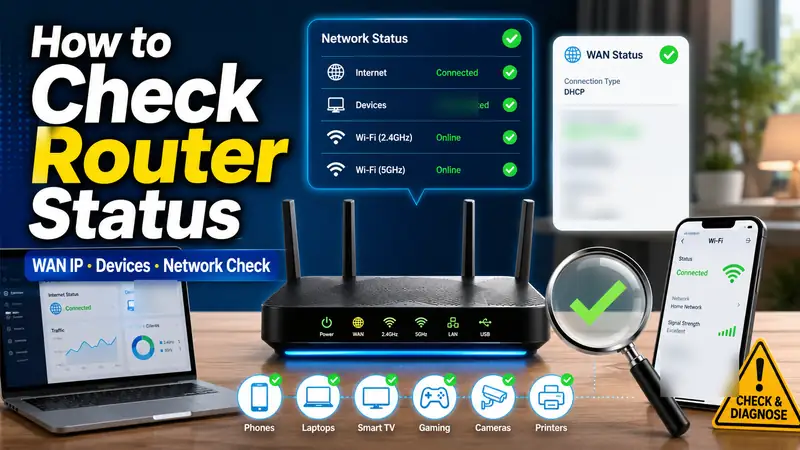
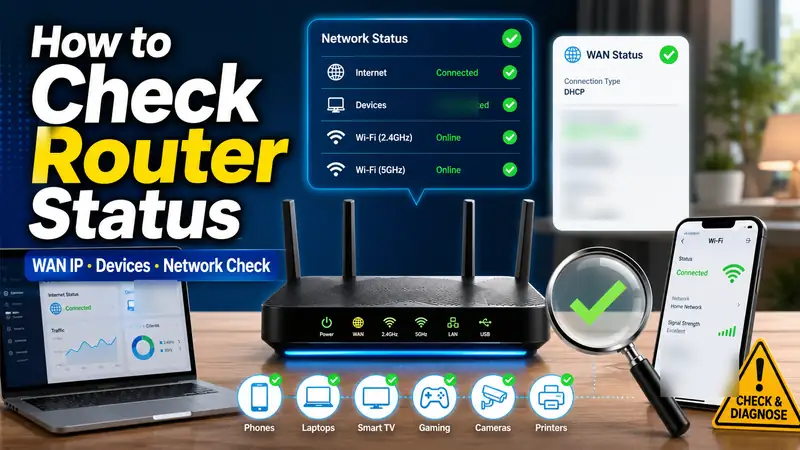
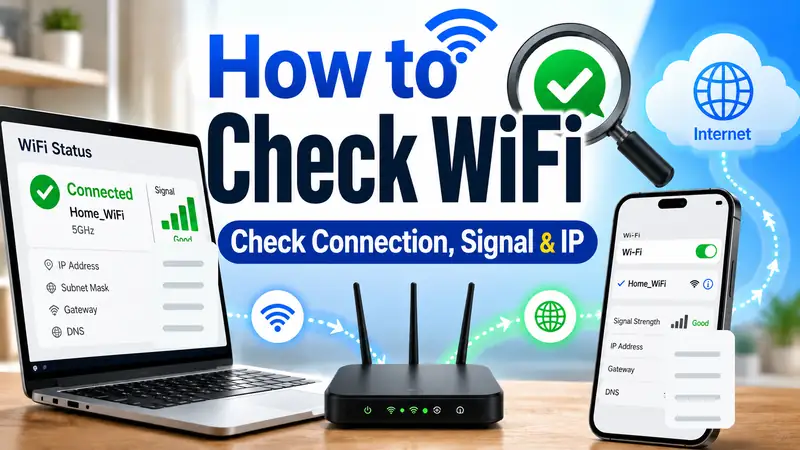
The next useful cluster article is How to Check Router Status | A Beginner-Friendly Network Check Guide, where the power, WAN, IP, WiFi, and multi-device status can be verified after a reset or fresh setup.
Router reset checklist at a glance
| Step | What to do | How to avoid mistakes |
|---|---|---|
| 1 | Decide whether a factory reset is actually needed | Use reboot and WAN troubleshooting first for temporary connection issues |
| 2 | Record or back up the current configuration | Save PPPoE, Static IP, port forwarding, DHCP reservation, and mesh details |
| 3 | Identify the exact router model | Use the official hold time and LED sequence for that model |
| 4 | Perform a standard factory reset | Use the official admin-interface or Reset-button procedure |
| 5 | Wait for the router to finish rebooting | Do not interrupt power during the reset process |
| 6 | Restore WAN, WiFi, and administrator security | Get internet access working before rebuilding optional features |
| 7 | Reconnect devices and verify the network | Test phones, computers, wired devices, and important smart-home equipment |
| 8 | Use hard factory reset only if standard reset fails | Follow only the model-specific manufacturer procedure |
❓ Frequently asked questions
Q. Will resetting my router erase the WiFi password?
A. A factory reset usually restores customized router settings to their defaults, which typically includes the SSID, WiFi password, and administrator settings you changed. NETGEAR, for example, states that a factory reset deletes personalized settings including the username, password, WiFi network name, and security settings. NETGEAR: Perform a factory reset on a router
Q. Is a factory reset the best first step when the internet stops working?
A. No. A factory reset will not fix an ISP outage, failed modem/ONT, or disconnected WAN cable. Compare another device, check the WAN link, inspect the upstream equipment, and review the WAN status before deciding to erase the router configuration.
Q. If I forgot the router admin password, do I have to factory-reset it?
A. Not always. Some routers support account-based recovery, app-based authentication, or another recovery method. Check the manufacturer’s official options first. If there is no supported way to regain administrator access, a factory reset may be necessary.
Q. How long should I hold the Reset button?
A. Use the timing specified for your exact model. Even within the same brand, reset-button type, hold time, and LED release condition can differ. Mesh products can use completely different timing from conventional routers. Do not treat one number from a generic tutorial as a universal rule.
Q. Should I restore my backup immediately after a factory reset?
A. It depends on why you reset the router. If you only needed to preserve a healthy configuration, a compatible backup can save time. If you reset the router specifically to eliminate a bad or conflicting configuration, rebuilding the settings manually is safer because restoring the old backup may also restore the problem.
Q. Does resetting one mesh unit reset the entire mesh network?
A. Not necessarily. Mesh systems vary in how primary nodes, satellite nodes, apps, and cloud accounts are handled. Some systems require individual node removal or a separate network-delete action. Use the support guide for the exact mesh product family rather than a generic router reset procedure.
Final takeaway: what you do before and after the reset matters most
A safe factory reset is a complete workflow: decide whether a reset is necessary → back up or record important settings → identify the exact model → use the standard reset procedure → restore WAN access → rebuild WiFi and security → reconnect devices → verify the network. The Reset button itself is only one step in that process.
If the problem is only a temporary loss of internet access, troubleshoot the router before resetting it. If you have completed the factory reset and need to rebuild the network, move to the router setup guide. Once the router is configured again, use the next router-status guide to verify WAN, IP, WiFi, and multi-device connectivity.