Windows 11 Recovery Guide: Fix Boot Errors with WinRE & System Restore
Windows 11 recovery should not begin with a reset or a full reinstall. The safer approach is to first identify what the PC can still do: Does Windows reach the desktop? Did the problem begin after an update, driver, or app installation? Or is the machine stuck before sign-in? Once you know the current state, you can start with the least disruptive repair method and move to stronger recovery options only when needed.
If Windows still starts, Windows 11 recovery can often begin with a restart, Windows Update, built-in troubleshooters, DISM and SFC, or Microsoft’s option to reinstall the current Windows version while keeping apps, files, and settings. If Windows will not boot, the Windows Recovery Environment—usually called Windows RE or WinRE—becomes the main repair hub. From there, Startup Repair, System Restore, Uninstall Updates, and Safe Mode are usually worth trying before Reset this PC or a USB reinstall.
① Start Windows 11 Recovery by Identifying the Symptom
The most important Windows 11 recovery decision is not which button to click. It is figuring out which recovery path matches the problem you actually have. Microsoft’s current recovery guidance also separates startup failures, recent app changes, update problems, and more serious system damage into different recovery options.
| Current symptom | Try first | Then consider |
|---|---|---|
| Windows starts, but errors or freezes keep returning | Restart, Windows Update, troubleshooters, DISM + SFC | Reinstall the current version through Windows Update |
| The issue began after installing an app or driver | System Restore or Safe Mode | Remove or roll back the recent app or driver |
| The issue began after Windows Update | Check for a newer corrective update | Reinstall current Windows version, uninstall the update, or use System Restore |
| Windows will not boot or keeps loading | WinRE Startup Repair | System Restore, Uninstall Updates, or Safe Mode |
| Built-in recovery tools do not solve the problem | Reset this PC | Reinstall Windows from installation media |
Use the least destructive repair first
A good Windows 11 recovery sequence moves from low-impact tools to high-impact ones. Resetting a PC may fix a software problem, but it can also mean reinstalling applications and rebuilding settings that did not need to be removed.
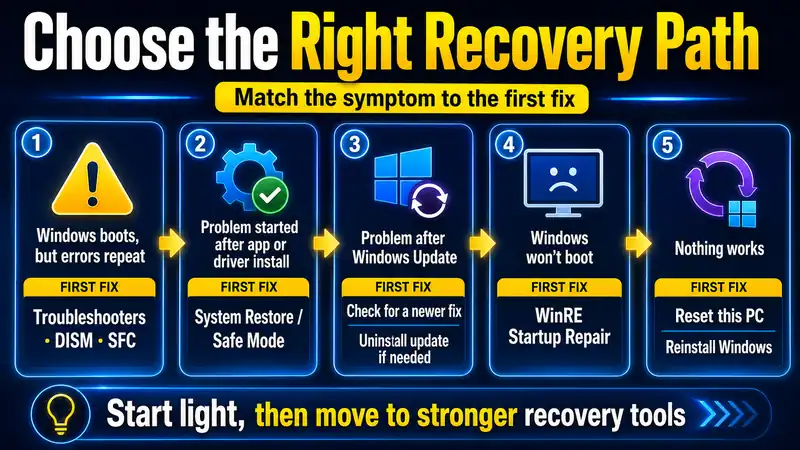
On the other hand, if Windows cannot start at all, repeatedly opening troubleshooters inside Settings is not an option. Matching the tool to the symptom saves time and lowers the chance of unnecessary data loss.
② Before Windows 11 Recovery, Protect Your Data and BitLocker Key
Startup Repair and System Restore are generally much less disruptive than a reset or clean install, but a serious Windows 11 recovery job can eventually reach those stronger options. Prepare for that possibility before you start.
- Back up important files if Windows still starts. Copy anything you cannot easily replace before you experiment with more aggressive repair steps.
- Keep a laptop connected to power. Do not let the machine shut down during a restore, reset, or reinstallation.
- Find your BitLocker recovery key. Some WinRE tools can require the key on an encrypted device. Microsoft explains where to retrieve it in Find your BitLocker recovery key.
- Remember when the problem started. A recent driver, app, firmware change, or Windows update can point directly to the right recovery method.
- Check the storage device if the symptoms look physical. If an SSD or HDD disappears from BIOS/UEFI, repeatedly disconnects, or reports hardware errors, treat that as a storage problem rather than assuming Windows itself is the only cause.
Related guide: Windows 11 Backup Guide — A Practical Step-by-Step Walkthrough for Beginners
③ If Windows Still Boots, Begin with Light Windows 11 Recovery
Step 1: Restart and check Windows Update
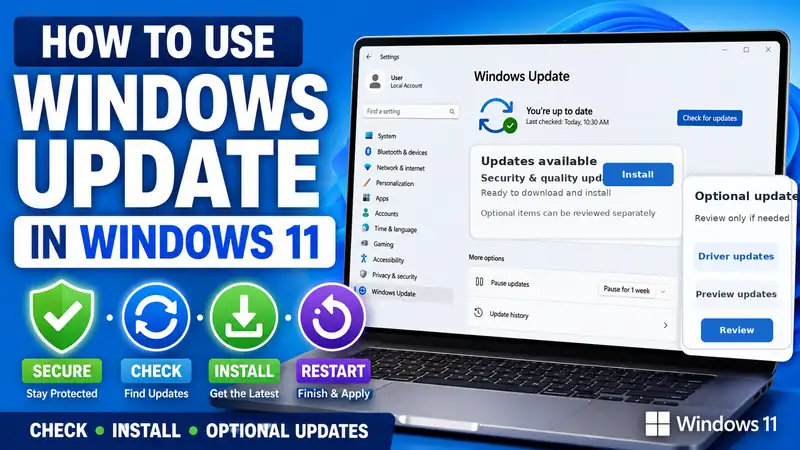
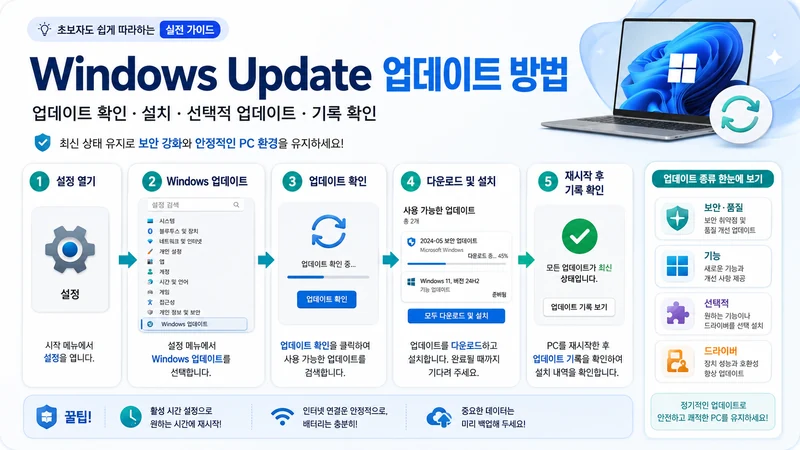
During Windows 11 recovery, a temporary service failure, pending restart, or incomplete update can sometimes look more serious than it is. Restart the PC, then open Settings > Windows Update > Check for updates. If the problem began after an update, check whether Microsoft has already released a newer cumulative or corrective update before removing the previous one.
Step 2: Use the built-in troubleshooter for a specific feature
If only one area—such as networking, audio, printing, or Windows Update—is failing, targeted troubleshooting is usually a better Windows 11 recovery starting point than repairing the whole operating system. Windows 11 routes many automated troubleshooting tasks through the Get Help experience.
Step 3: Run DISM first, then SFC
When Windows features behave unpredictably or corrupted system files are suspected, Microsoft’s current guidance is to run DISM before SFC. This Windows 11 recovery step repairs the component source first, then scans protected system files.
- Type
cmdin Windows Search. - Right-click Command Prompt and select Run as administrator.
- Run the DISM command below and wait for it to finish.
DISM.exe /Online /Cleanup-image /RestorehealthFor this Windows 11 recovery step, after DISM completes successfully, run:
sfc /scannowDo not close Command Prompt before SFC reaches 100%. If Windows reports that damaged files were repaired, restart the PC and test whether the original issue still occurs.
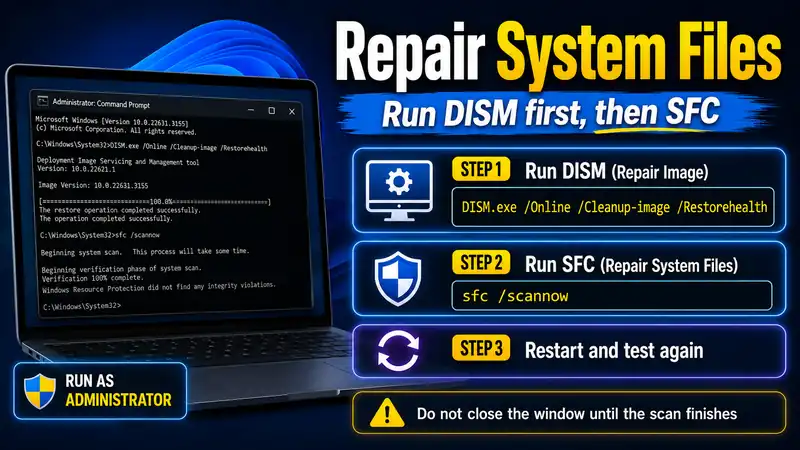
Why the DISM → SFC order matters
DISM repairs the Windows component image that SFC may rely on when replacing corrupted protected files. Microsoft’s official System File Checker guidance explicitly instructs users to run DISM before sfc /scannow.
④ Reinstall the Current Windows Version Without Resetting the PC
Windows 11 includes a particularly useful Windows 11 recovery option for a PC that still boots: Fix problems using Windows Update. It reinstalls the same Windows version, repairs system files and components, and preserves your apps, files, and settings.
- Open Settings > System > Recovery.
- Find Fix problems using Windows Update.
- Select Reinstall now.
- Review the restart option and start the reinstall.
- Keep the PC connected to both the internet and a reliable power source.
- Restart the PC after the repair install finishes if it does not restart automatically.
Microsoft says this process reinstalls the current Windows version while preserving apps, files, and settings. That makes it an important Windows 11 recovery step to consider before Reset this PC when the machine is still usable. The option can be unavailable on work- or school-managed devices and on systems where update policies prevent it.
See Microsoft’s guide to reinstalling the current version of Windows for the current menu path and limitations.
⑤ If Windows Will Not Boot, Enter Windows RE (WinRE)
If the PC cannot reach the desktop or keeps restarting, Windows 11 recovery moves into the Windows Recovery Environment. WinRE is the built-in troubleshooting environment that contains Startup Repair, System Restore, Uninstall Updates, Startup Settings, Command Prompt, Reset this PC, and other advanced tools.
Open WinRE from Settings
- Open Settings > System > Recovery.
- Next to Advanced startup, select Restart now.
- After the restart, select Troubleshoot > Advanced options.
Open WinRE from the sign-in screen
Hold Shift while selecting Power > Restart. Windows should restart into the recovery environment instead of a normal boot.
When Windows repeatedly fails to start
During Windows 11 recovery, Windows can enter Automatic Repair and WinRE automatically after repeated startup failures. Microsoft also documents a forced-entry method that interrupts startup twice and allows the third start to open Automatic Repair. Use forced shutdown only for the purpose of reaching recovery when normal startup is already failing—not as a routine way to turn off a healthy PC.
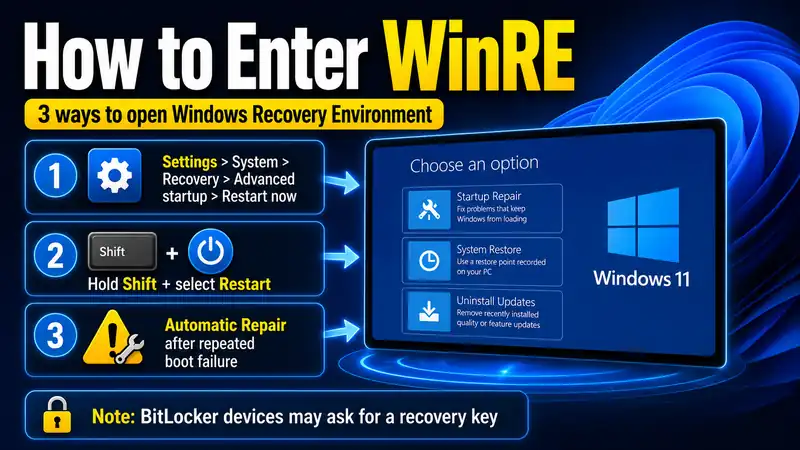
Microsoft’s Windows Recovery Environment guide also explains how to enter WinRE from a recovery drive or Windows installation media. If the device is encrypted, have the BitLocker recovery key available because some recovery tools can request it.
⑥ For Boot Failures, Try Startup Repair First
For Windows 11 recovery when the PC stops at the logo, repeatedly restarts, or otherwise fails during startup, Startup Repair is usually the first WinRE tool to try. Microsoft specifically recommends it for systems that do not start or keep loading.
- Enter Windows RE.
- Select Troubleshoot > Advanced options > Startup Repair.
- Provide the requested account or BitLocker information if prompted.
- Let Windows scan for startup-related problems.
- Restart and test whether Windows can boot normally.
Startup Repair can diagnose common boot problems such as damaged boot configuration data or corrupted startup-related system files. It is useful, but it is not a universal Windows 11 recovery tool: it will not fix a physically failing SSD or every third-party driver and application issue.
Microsoft provides a dedicated Startup Repair guide for the current Windows 11 recovery workflow.
⑦ Use System Restore When the Problem Started After a Recent Change
If the system became unstable after a new driver, application, or system setting change, System Restore can be a better Windows 11 recovery choice than resetting the entire PC.
In Windows 11 recovery, System Restore is not the same as deleting personal files and reinstalling Windows. It rolls system files, registry settings, installed programs, and other system state back to a selected restore point. Apps, drivers, and configuration changes made after that restore point can be affected, while personal documents are not the target of the restore.
- In Windows, run
rstrui.exe, or enter Windows RE if the PC will not start normally. - In WinRE, select Troubleshoot > Advanced options > System Restore.
- Choose a restore point from before the problem began.
- Use Scan for affected programs when available to see what may change.
- Start the restore and do not interrupt power while it is running.
If no restore point exists, this Windows 11 recovery method is not available. Microsoft’s System Restore documentation explains both the normal Windows and WinRE paths.
⑧ If the Problem Followed Windows Update, Remove the Update Carefully
If a specific update is strongly linked to the failure and a newer corrective update has not solved it, uninstalling that update can be part of Windows 11 recovery. Microsoft currently recommends trying the Windows Update reinstall option first on Windows 11 when appropriate, because removing a security update can re-expose vulnerabilities that the update was meant to fix.
When Windows still starts
For Windows 11 recovery while Windows still starts, open Settings > Windows Update > Update history > Uninstall updates, then review the updates that Windows allows you to remove.
When Windows will not start
In Windows RE, open Troubleshoot > Advanced options > Uninstall Updates and use the option Windows provides for the recent update.
Security note: Do not remove a security update casually. Use this step when the timing and symptoms give you a reasonable basis to suspect the update, then check Windows Update again after recovery for a corrected release.
For the current Windows 11 menu path, see Microsoft’s How to uninstall a Windows Update guide.
Related guide: Windows Update Errors — Causes and Step-by-Step Fixes
⑨ When Safe Mode Helps with Windows 11 Recovery
Safe Mode is useful when Windows fails in normal mode but may still start with only essential drivers and services. This can help narrow a Windows 11 recovery problem to a recent driver, startup program, service, or third-party application.
- Enter Windows RE.
- Select Troubleshoot > Advanced options > Startup Settings > Restart.
- After the PC restarts, choose Enable Safe Mode or another Safe Mode option that fits the problem.
- Remove or roll back a recent driver, application, or startup item if there is a clear connection to the failure.
- Restart normally and test again.
For Windows 11 recovery, Microsoft explains that Safe Mode starts Windows with a limited set of essential files and drivers. If the problem does not occur there, that result helps narrow the cause rather than proving that Windows itself is damaged beyond repair. See Windows Startup Settings for the current options.
⑩ If Recovery Tools Fail, Compare Reset and Reinstallation
If Startup Repair, System Restore, update rollback, Safe Mode, and a repair reinstall do not solve the issue, Windows 11 recovery may need to move to Reset this PC or installation media. These options have different effects on apps, settings, and personal files, so do not treat them as interchangeable.
| Recovery method | Personal files | Apps & settings | Best use |
|---|---|---|---|
| Reinstall current version through Windows Update | Kept | Kept | Windows still boots and system files or update components may be damaged |
| System Restore | Not the target of the restore | Rolled back to the restore-point state | Problems began after a recent app, driver, or system change |
| Reset this PC — Keep my files | Kept | Apps removed; settings reset | Windows is badly damaged, but you want to keep personal files |
| In-place reinstall from installation media | Can be kept | Can be kept depending on selection | A stronger reinstall is needed while Windows still runs |
| Clean install | Deleted if you erase the target drive | Removed | You intentionally need a completely fresh Windows environment |
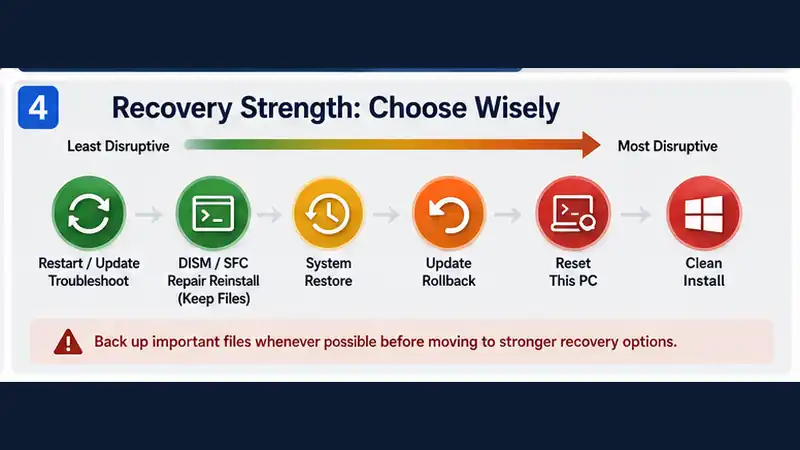
Choose by how much you need to preserve
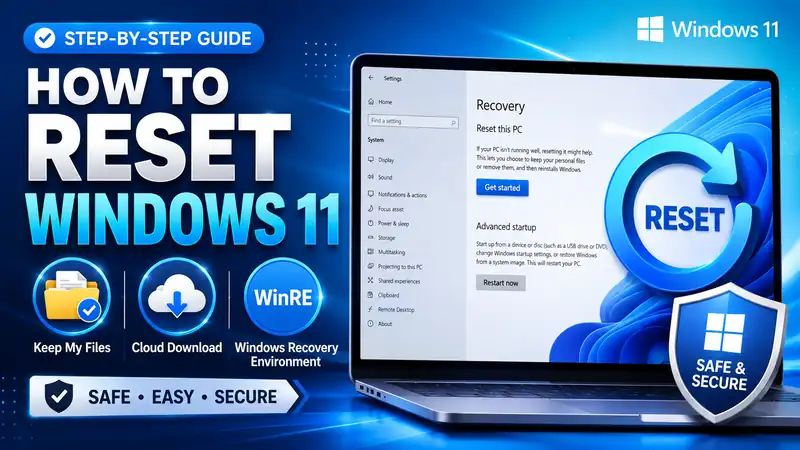
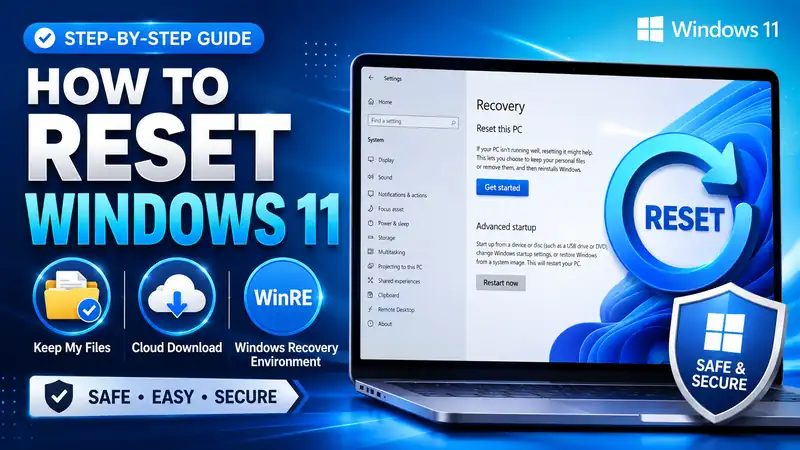
The stronger the Windows 11 recovery method, the more likely it is to remove applications or require you to rebuild the PC environment. Microsoft’s Reset your PC guidance explains that Keep my files reinstalls Windows while preserving personal files but removing apps and resetting settings. It also offers Cloud download and Local reinstall options.
Next in the series: Windows 11 Reset Guide — How to Reset Safely Without Costly Mistakes
Related guide: How to Install Windows 11 — USB & Clean Install Guide for Beginners
⑪ When You Need Installation Media or a Recovery Drive
If the built-in WinRE environment cannot load, the storage device has been replaced, or the recovery environment itself is damaged, external media can become an important Windows 11 recovery tool.
In Windows 11 recovery, installation media is not only for formatting a PC. Microsoft documents two different uses. If Windows still runs, you can open the installation media in File Explorer and run setup.exe to perform an in-place reinstall with options to keep personal files and apps, keep personal files only, or keep nothing. If Windows will not boot, you can boot from installation media and choose Repair my PC to reach Windows RE.
- Windows still runs: consider an in-place reinstall from
setup.exe. - Windows will not boot: boot from installation media and use the recovery environment.
- The storage drive was replaced: use installation or recovery media to rebuild Windows as appropriate.
See Microsoft’s reinstall Windows with installation media guide for the current keep-options and reinstall workflow.
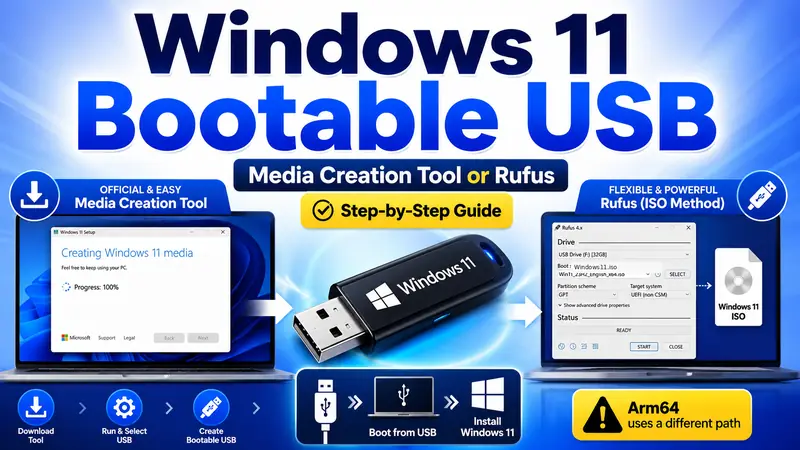
Related guide: How to Create a Windows Bootable USB — Step-by-Step Guide
⑫ Windows 11 Recovery Mistakes to Avoid
- Do not delete partitions as your first reaction. Many startup and system-file problems can be repaired without erasing a drive.
- Do not force the PC off during System Restore, reset, or reinstallation. Interrupting a write-heavy recovery process can leave Windows in a worse state.
- Do not begin encrypted-device recovery without access to the BitLocker key. WinRE can request it for certain tools.
- Do not change BIOS settings, drivers, services, and registry values all at once. One change at a time makes it much easier to identify the real cause.
- Do not depend on an unknown “one-click repair” utility before trying built-in Windows tools and the PC manufacturer’s official guidance.
- Do not assume every boot problem is a Windows problem. A failing SSD, RAM fault, unstable power, or other hardware issue can produce symptoms that software recovery cannot permanently fix.
❓ Windows 11 Recovery FAQ
Q. Does Windows 11 recovery delete my files?
A. It depends on the Windows 11 recovery method. Startup Repair and System Restore serve different purposes from Reset this PC, while the Windows Update reinstall option is designed to keep apps, files, and settings. Reset and clean-install options can remove apps, settings, or personal data depending on what you select, so always read the impact before continuing.
Q. What should I try first if Windows 11 will not boot?
A. For Windows 11 recovery when Windows will not boot, enter WinRE and try Startup Repair first. If it does not solve the problem, use the timing of the failure to decide between System Restore, Uninstall Updates, or Safe Mode before moving to a reset or full reinstall.
Q. Should I run DISM or SFC first?
A. Microsoft’s current guidance is to run DISM first, then SFC. DISM repairs the Windows image source used for component repair, and SFC then scans and repairs protected system files.
Q. Is System Restore the same as Reset this PC?
A. No. System Restore returns system files and settings to a restore point and can roll back recent apps or drivers. Reset this PC reinstalls Windows and can remove apps and reset settings even when you choose to keep personal files.
Q. What should I do if Windows stopped booting after an update?
A. Start with WinRE Startup Repair. If the timing clearly points to a recent update, you can consider Uninstall Updates from Advanced options. If Windows still boots, Microsoft recommends considering the current-version reinstall through Windows Update before removing a security update.
Q. Is a recovery drive the same as Windows installation media?
A. No. A recovery drive is created as recovery media for Windows and can be used to recover or reinstall the system, while Windows installation media is designed to install or reinstall Windows and can also provide access to WinRE. Neither replaces a separate backup of your personal files.
Final Thoughts: Windows 11 Recovery Should Escalate One Step at a Time
The most useful Windows 11 recovery rule is simple: preserve as much as you can for as long as you can. If Windows still boots, start with a restart, updates, targeted troubleshooting, DISM and SFC, then consider reinstalling the current Windows version through Windows Update. If the issue followed a recent app or driver change, System Restore may be a better fit.
If Windows will not boot, move into WinRE and start with Startup Repair. From there, use System Restore, Uninstall Updates, or Safe Mode when the symptoms point in that direction. Reset this PC and installation media belong later in the Windows 11 recovery sequence, after less destructive options have failed. Recovery is not the same thing as formatting, and keeping that distinction in mind can save both data and hours of unnecessary setup work.