How to Speed Up WiFi | A Practical Guide for Beginners
If you’re trying to figure out how to speed up WiFi, the best place to start is not by changing random router settings. First, figure out where the slowdown is actually happening.
A simple way to do that is to test the same device in three places: a wired or internet-line baseline → right next to the router → the room where WiFi feels slow. Those three results can tell you whether the bottleneck is your internet service, the wireless link, the router’s coverage, or just one device.
This guide starts with the fixes that cost nothing, then moves through router placement, 2.4 GHz vs. 5 GHz vs. 6 GHz, channel settings, firmware and device checks, wired connections, and mesh WiFi. If your device cannot connect at all, start with “How to Connect to WiFi | A Step-by-Step Guide for Beginners.” If the connection keeps dropping or says “no internet,” use the companion WiFi troubleshooting guide instead.
① Start with a 5-minute test: find the bottleneck before changing anything
WiFi speed is not determined by your internet plan alone. Your actual performance depends on the internet connection, router hardware, distance, walls and doors, nearby wireless interference, the band you are using, and the WiFi capabilities of the device itself.
That is why one speed-test result is not enough to tell you what is wrong.
- Test 1 — establish a baseline: If possible, connect a computer to the router with Ethernet and run a speed test. If a wired test is not practical, check whether your ISP gateway or router app has a built-in internet speed test.
- Test 2 — move next to the router: Use the same device close to the router and connect to 5 GHz or another faster supported band.
- Test 3 — test the problem area: Move to the room or desk where WiFi normally feels slow and test again.
- Keep the conditions similar: Use the same device and test service when possible, and pause large downloads, cloud backups, VPNs, or game updates while testing.
| Test result | Most likely cause | What to check first |
|---|---|---|
| Wired connection is also slow | Internet service, modem/ONT, WAN connection, router wired performance | ISP line status, Ethernet cable, WAN link speed |
| Wired is fast, but Wi-Fi is slow next to the router | Band selection, channel congestion, router settings, device Wi-Fi capability | 5 GHz or 6 GHz, automatic channel selection, firmware and drivers |
| Fast next to the router, slow in another room | Distance, walls, router placement, weak coverage | Move the router, then consider Ethernet or mesh Wi-Fi |
| Only one device is slow | Device Wi-Fi hardware, drivers, power saving, VPN, background traffic | Compare with another device in the same spot |
The difference between the three tests matters more than one headline number. If the wired result is already poor, changing WiFi settings may not solve the problem. If speeds are good next to the router but drop sharply in another room, coverage is the more likely issue.
② Try these six fixes before buying new hardware
For most homes, this is the most practical order to follow:
- Move the router to a more central, open location.
- Use 5 GHz or 6 GHz for nearby high-bandwidth devices.
- Update router firmware and device software or WiFi drivers.
- Leave channel selection on automatic unless congestion is clearly a problem.
- Check for heavy downloads, cloud sync, backups, or uploads using bandwidth.
- If distant rooms are still slow, compare Ethernet, mesh WiFi, and other coverage options.
This order keeps you from spending money before you know whether the problem is actually the router. Google’s current guidance for Nest Wifi and Google Wifi also recommends testing distance, physical barriers, device frequency, and mesh-point placement when WiFi performance is poor. Google Home & Nest Help: Improve WiFi speed and performance
③ Router placement can make a bigger difference than people expect
A router placed on the floor, inside a cabinet, behind a TV, or at one far end of the home may work perfectly in the same room and still perform poorly elsewhere.
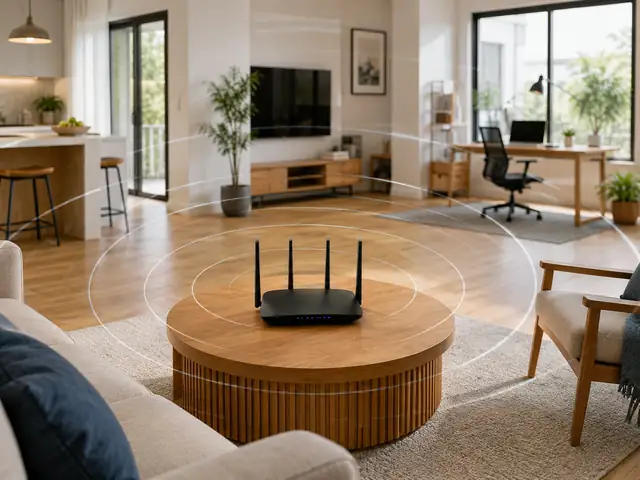
Keep it reasonably central
Place the router closer to the rooms where WiFi is used most often instead of at one edge of the home.
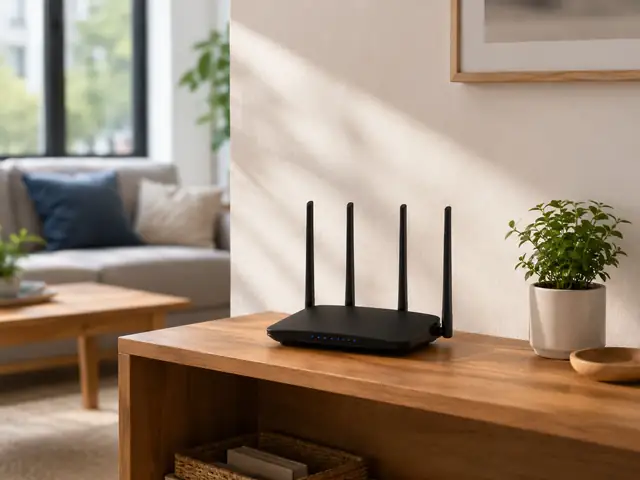
Keep it out in the open
An open shelf or desk is generally better than a closed cabinet, a spot behind large appliances, or a location surrounded by metal furniture.
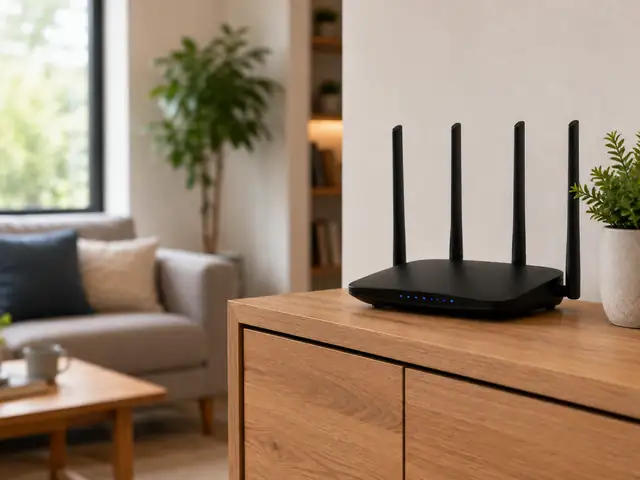
Avoid placing it too low
Try the router above floor level in a clear area with fewer nearby obstacles. A higher, open position often works better than placing it on the floor.
You do not need to chase a perfect “magic height.” The goal is simply to reduce unnecessary walls, furniture, and other obstacles between the router and the places where you actually use WiFi.
④ 2.4 GHz, 5 GHz, or 6 GHz? Choose based on distance, not just speed
For laptops, phones, TVs, and game systems close to the router, 5 GHz is often the better first choice because it can provide higher throughput in a less crowded environment.
If both your router and device support WiFi 6E or WiFi 7, you may also have access to 6 GHz. That extra spectrum can be useful for high-speed connections at shorter range. On the other hand, 2.4 GHz can still be the better choice in distant rooms or when the signal has to pass through more walls.
| Band | Speed and congestion | Range and obstacles | Good place to start |
|---|---|---|---|
| 2.4 GHz | Often more crowded and lower throughput | Usually better reach through distance and walls | Distant rooms, IoT devices, weak 5 GHz areas |
| 5 GHz | Often better for higher throughput nearby | More sensitive to walls and distance | Laptops, TVs, gaming, video calls, large transfers |
| 6 GHz | Additional spectrum and wider channels on supported hardware | Requires compatible devices and is more sensitive to obstacles | Nearby Wi-Fi 6E or Wi-Fi 7 devices |
Do not assume that the newest band will always be fastest everywhere. The best choice is the one that gives you the strongest combination of speed and stability at the location where the device is actually used. Microsoft’s current home-network guidance compares 2.4 GHz, 5 GHz, and 6 GHz in the same practical way: 2.4 GHz offers longer reach, while 5 GHz and 6 GHz can provide higher throughput at shorter range. Microsoft Support: Wi-Fi and your home layout
⑤ Channels and channel width: “maximum” is not always better
In apartments, offices, and other dense areas, many nearby routers may be competing for the same wireless spectrum. That can reduce performance even when your router and internet plan are both capable of higher speeds.
However, manually changing channels and channel widths without a reason can make things worse. If automatic channel selection is working well, it is usually the best starting point.
- Channel: Leave it on automatic first. Consider manual changes only when repeated congestion is confirmed.
- 2.4 GHz channel width: 20 MHz is usually the safer starting point in crowded environments.
- 5 GHz and 6 GHz channel width: Automatic settings are usually fine for most users.
- Wider channels: They can increase peak throughput, but they also use more spectrum and may be less stable in busy areas.
The goal is not to choose the biggest number in the router menu. The goal is to find the setting that gives you the best real-world balance of speed, stability, and interference. Apple’s router guidance recommends automatic channel selection, 20 MHz on 2.4 GHz, and automatic or all supported channel widths on 5 GHz and 6 GHz. Apple Support: Recommended settings for Wi-Fi routers and access points
⑥ If only one device is slow, the router may not be the problem
If your phone is fast on the same WiFi network but an older laptop is slow, the bottleneck may be the laptop’s wireless adapter, driver, WiFi standard, power-saving settings, VPN, or background traffic.
| Situation | What to check | What it usually means |
|---|---|---|
| Only one device is slow | Wi-Fi standard, drivers, OS updates, power saving, VPN, background downloads | Check the device before replacing the router |
| Several devices slow down together | Internet line, router load, congestion, large downloads or uploads | A shared network bottleneck is more likely |
| New devices are fast, older ones are not | Older device Wi-Fi standard and supported bands | Client hardware may be the limiting factor |
| Only slow when VPN is on | VPN server location, load, encryption overhead, routing | The VPN may be the bottleneck rather than Wi-Fi |
Cloud photo uploads, game downloads, system updates, backups, and large file transfers can also make an otherwise healthy connection feel slow. Pause those tasks before running a comparison test.
⑦ Update the router and the devices connected to it
Firmware updates do not magically double WiFi speed, but they can improve stability, compatibility, roaming behavior, security, and support for newer wireless features.
- Check the router’s admin page or manufacturer app for firmware updates.
- On Windows, install current Windows updates and check the PC or wireless-adapter manufacturer for driver updates.
- Keep Android, iPhone, iPad, and Mac operating systems reasonably current.
- After updating, repeat the same speed test in the same location and on the same band.
If you need to revisit the SSID, password, security mode, or band configuration itself, go back to “How to Set Up WiFi | A Step-by-Step Guide for Beginners.”
⑧ If only distant rooms are slow, compare Ethernet and mesh WiFi
If speeds are good next to the router but poor in a bedroom, office, or another floor, upgrading the internet plan may not help much. The bigger issue is coverage.
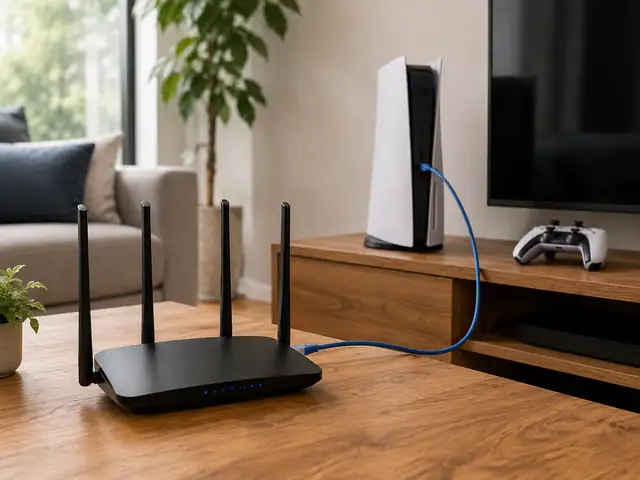
Use Ethernet when practical
For stationary devices such as desktop PCs, TVs, and game systems, Ethernet can remove much of the performance loss caused by wireless interference and distance.
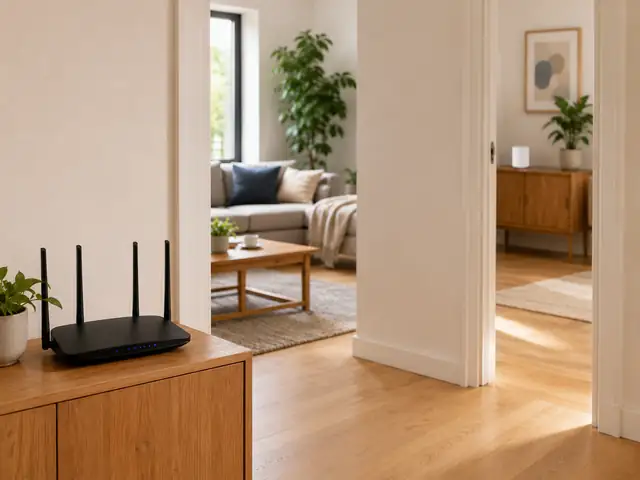
Consider mesh for larger homes
For multiple rooms or floors, mesh WiFi can extend coverage more effectively than trying to push one router beyond its practical range.
Mesh placement matters too. A mesh node that is placed too far from the main router may receive a weak connection and simply pass that weak connection on to your devices. Place nodes where they still have a solid link to each other.
⑨ When a router upgrade actually makes sense
If your wired internet speed is good but several modern devices are still slow even right next to the router, the router itself may be the limiting factor.
- Your router uses an older WiFi standard than most of your main devices.
- The WAN or LAN ports cannot keep up with your internet plan.
- Performance drops sharply when many devices are active at the same time.
- Your home is too large or complex for a single router and would benefit from mesh.
- The manufacturer no longer provides security or firmware updates.
Buying a WiFi 6, 6E, or 7 router does not automatically make every device faster. Newer features only help when both the router and the client device support them, and the real-world improvement depends on distance, interference, antenna design, and the device’s own hardware. Microsoft notes that WiFi 7, WiFi 6/6E, and features such as MLO require compatible router and client hardware. Microsoft Support: Faster and more secure Wi-Fi in Windows
⑩ Five changes that can actually make WiFi worse
- Forcing the widest channel width everywhere: In a crowded environment, this can create more interference and reduce stability.
- Changing channels repeatedly without testing: A manual channel can perform worse than the router’s automatic choice.
- Expecting a DNS change to increase WiFi throughput: DNS can affect how quickly names are resolved, but it does not increase the raw wireless link speed.
- Factory-resetting the router too early: You may erase IPTV, port-forwarding, security, or ISP-specific settings without solving the actual problem.
- Adding an extender before testing the basics: If WiFi is already slow next to the router, adding more coverage hardware is unlikely to fix the root cause.
✅ What to do first, based on the symptom
| Symptom | First step | Then check |
|---|---|---|
| Slow even next to the router | Compare with wired speed | 5 GHz/6 GHz, automatic channel, device capability |
| Only slow in another room | Move the router | 2.4 GHz, Ethernet, mesh Wi-Fi |
| Slow mainly at night | Test the same location at different times | Local wireless congestion vs. ISP congestion |
| Only the laptop is slow | Compare another device in the same spot | Drivers, power saving, VPN, Wi-Fi standard |
| Several rooms are slow | Check wired speed and speed next to the router | Router performance, placement, mesh design |
❓ Frequently asked questions
Q. Will switching to 5 GHz always make WiFi faster?
A. No. 5 GHz is often faster close to the router, but it loses signal more quickly through distance and walls. In a far room, 2.4 GHz may actually be more stable. Test both bands in the same location.
Q. Should I restart my router every day for better speed?
A. A restart can clear a temporary problem, but a router that needs daily reboots to maintain normal performance may have another issue. Check firmware, overheating, load, line quality, and hardware age instead of treating daily restarts as the fix.
Q. Should I force 2.4 GHz to channel 1, 6, or 11?
A. Those non-overlapping channels are commonly used in 2.4 GHz environments, but the best choice depends on local regulations, your router, and nearby networks. For most beginners, automatic channel selection is the better starting point unless congestion is clearly identified.
Q. Will a faster internet plan fix slow WiFi in a distant room?
A. Not necessarily. If speeds are already good next to the router but poor only in a distant room, coverage is more likely to be the issue. Improve router placement first, then consider Ethernet or mesh WiFi.
Q. Will upgrading to a WiFi 7 router make every device faster?
A. No. Older devices still operate within the limits of their own WiFi hardware. The biggest gains from newer WiFi standards require compatible devices and a network environment where those features can actually be used.
Conclusion: faster WiFi comes from fixing the right bottleneck
When WiFi is slow, do not start by buying a new router. Start with three measurements:
wired baseline → next to the router → normal problem area
Once you know where performance drops, fix that specific part of the network instead of changing everything at once.
A practical order is:
improve router placement → choose the right 2.4/5/6 GHz band → keep channel settings stable → update the router and devices → check background traffic → use Ethernet or mesh WiFi when coverage is the real problem.
If you first need to make sure the device can join the network, go to “How to Connect to WiFi | A Step-by-Step Guide for Beginners.” If you need to change the router’s SSID, password, security mode, or bands, use “How to Set Up WiFi | A Step-by-Step Guide for Beginners.” If the bigger problem is dropped connections or “connected, no internet,” continue with the WiFi troubleshooting guide.