How to Check Router Status | A Beginner-Friendly Network Check Guide
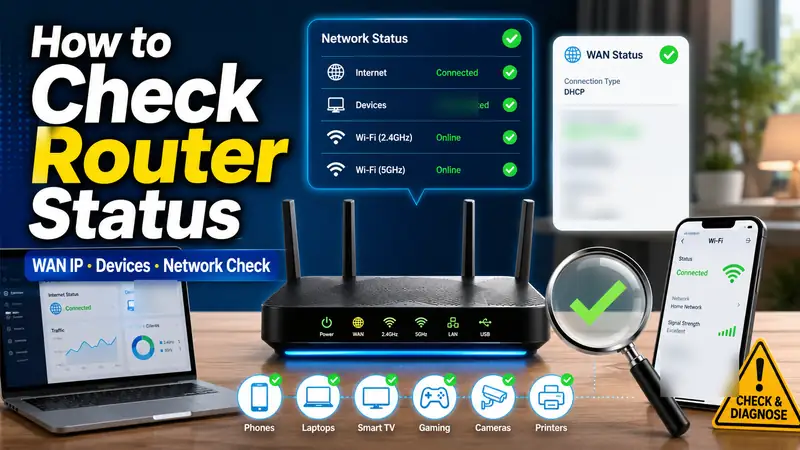
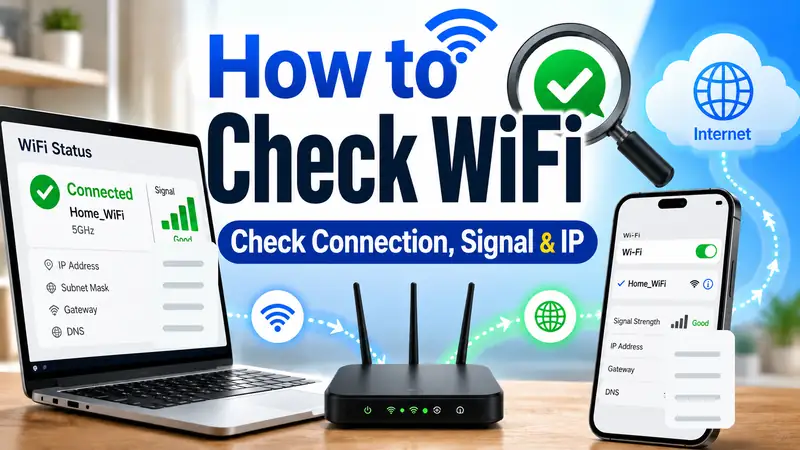
If you want to know how to check router status, do not stop at the WiFi icon on your phone or laptop. A reliable check follows the connection in order: ① router power and WAN → ② the phone or computer → ③ the router dashboard and WAN IP → ④ connected devices → ⑤ default gateway, outside internet access, and DNS. That sequence helps you separate a problem with one device from a router problem, an upstream modem or ONT problem, or an ISP connection issue.
A device can be connected to WiFi while the internet is still unavailable. The WiFi link only tells you that the device can communicate with the wireless network; the router may still have lost its WAN connection farther upstream. That is why how to check router status is really a three-part test: device → router → internet.
The fastest rule of thumb
If several devices on the same router lose internet access at the same time, start with the router, WAN link, modem/ONT, and ISP side. If only one device is affected, start with that device’s WiFi, IP, VPN, proxy, or security settings.
① How to Check Router Status: 5 Things to Check First
You do not need to dig through every advanced setting right away. The quickest way to apply how to check router status is to start with five basic checks.
- Power — Has the router finished booting normally?
- WAN / Internet — Is the modem, ONT, or wall Ethernet connection plugged into the WAN/Internet port?
- WiFi — Is your device actually connected to the SSID you intended to use?
- Compare another device — Does another phone or computer on the same network have the same problem?
- Router dashboard — Does the router show the Internet/WAN connection as active, and does it have a WAN IP?
| What you find | Most likely area | What to check next |
|---|---|---|
| Only one device has no internet | That phone, laptop, or PC | Reconnect WiFi, review IP settings, VPN/proxy, and device network settings |
| Several devices have WiFi but no internet | Router WAN, modem/ONT, or ISP connection | WAN IP, cable, modem/ONT status |
| Ethernet works but WiFi is unstable | Wireless signal, channel, band, or device compatibility | Signal strength, 2.4/5/6 GHz, distance, interference |
| The router admin page will not open | Device-to-router local connection | Default gateway, LAN cable, current network, correct admin address |
| The admin page opens and a WAN IP is present | DNS, a specific service, browser, VPN, or device setting | Test gateway → outside IP → domain name in that order |
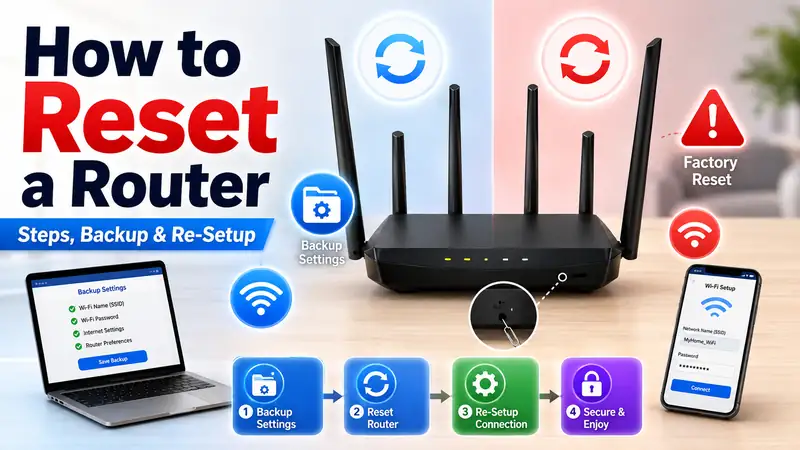
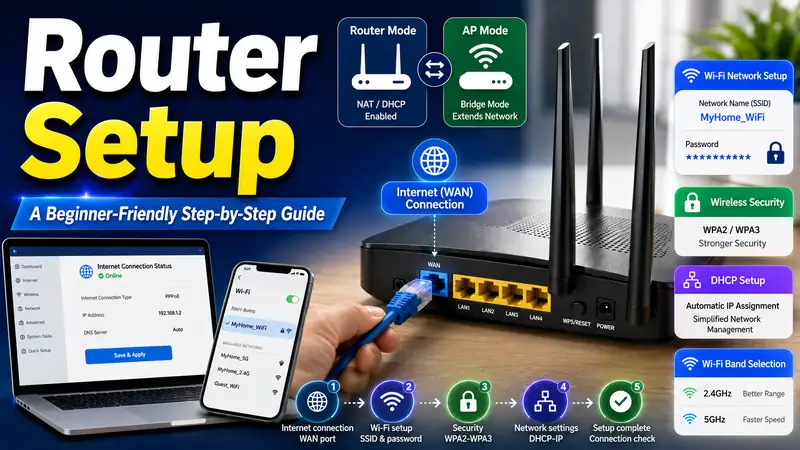
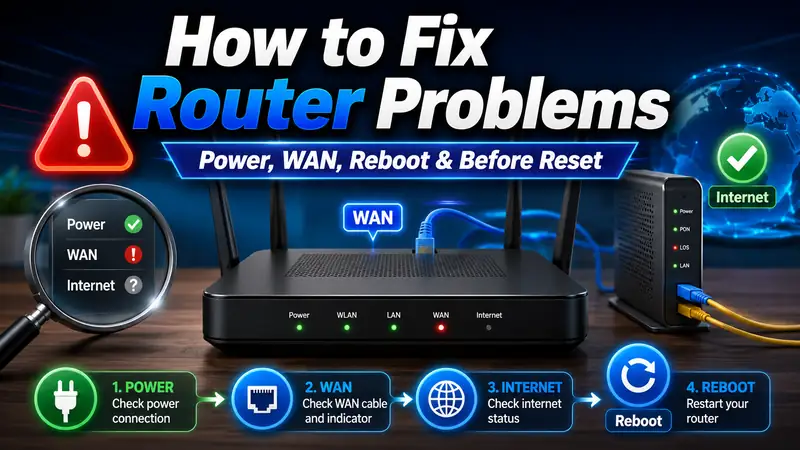
If the internet is already down, use this page to identify the failing section first. Once you know where the problem sits, continue with How to Fix Router Problems | A Step-by-Step Troubleshooting Guide. If the router needs to be configured from scratch, use How to Set Up a Router | A Beginner-Friendly Step-by-Step Guide. If the configuration has to be erased completely, move to How to Reset a Router | A Safe Step-by-Step Factory Reset Guide.
② Read Router LEDs by Function, Not by Color Alone
The LEDs on the front of a router are useful clues, but color alone is not enough to declare the router healthy or broken. Brands and models use different colors and blink patterns. A better how to check router status workflow is to identify which function the light represents, then compare the behavior with the manual for the exact model.
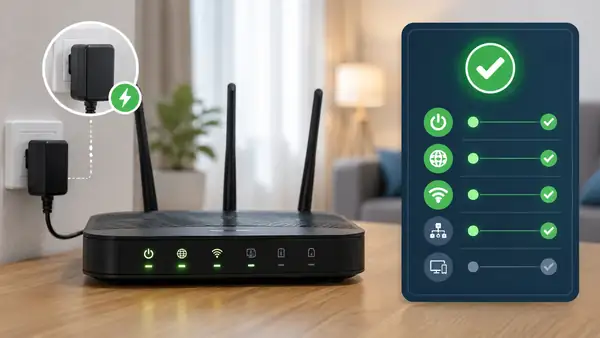
Power and system status
If the power light is completely off or the router never finishes booting, check the power adapter, outlet, and router hardware before changing internet settings. The model manual is the best reference for the normal boot pattern.
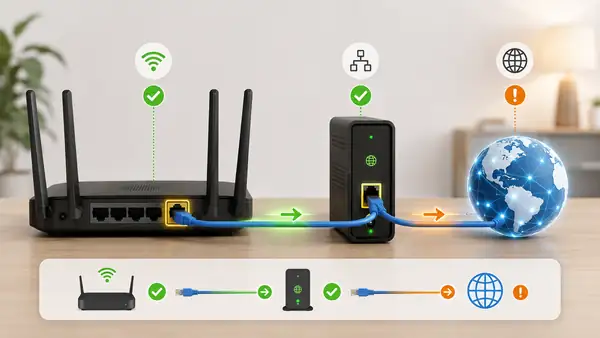
WAN and Internet status
If the WAN or Internet indicator looks abnormal, confirm that the modem, ONT, or wall connection is plugged into the correct WAN port. Then compare the physical link with the Internet/WAN status shown in the router dashboard.
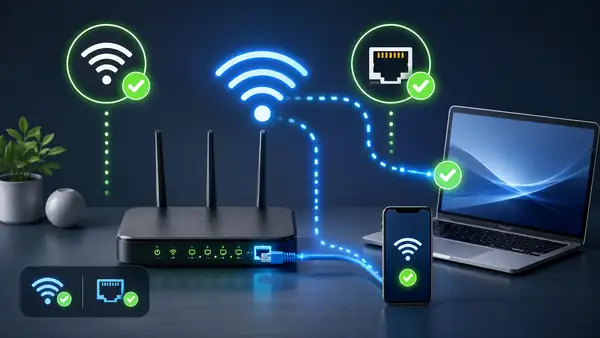
WiFi and LAN status
If wireless appears to be off or one LAN port is not linking, check the wireless function, Ethernet cable, port, and connected device. Do not rely on the LED alone; compare it with a real connection test.
③ Find the Router Admin Address from the Default Gateway
Guessing 192.168.0.1 or 192.168.1.1 is less reliable than checking the default gateway your device is actually using. The local router address can differ when the network uses an ISP gateway, Access Point Mode, mesh WiFi, or a customized LAN range.
Find the default gateway in Windows 11
Open Command Prompt and run ipconfig. Microsoft documents that the command displays the IPv4 and IPv6 addresses, subnet mask, and default gateway for your network adapters. The default gateway for the active connection is often the router or upstream gateway you need to inspect.
Microsoft Learn: ipconfig command
Find the router address on a Mac
On a Mac, go to System Settings → Wi-Fi → Details for the connected network. Apple’s current Wi-Fi settings documentation shows the connection’s IP address and Router address in this area, along with TCP/IP and DNS controls.
Apple Support: Wi-Fi settings on Mac
TP-Link also notes that a router’s web management page is a local interface: your device needs to be connected to the router, but the internet connection itself does not have to be working for the local login page to open. That makes admin-page access a separate diagnostic clue from internet access. TP-Link: Router Login and Web Management Page
④ Check the WAN IP to See Whether the Router Reached the Upstream Network
One of the most useful parts of how to check router status is the WAN IP. ASUS documents that a successful Internet Status view shows the router as connected and displays a WAN IP, while the interface can also distinguish conditions such as an unplugged network cable, ISP DHCP failure, invalid credentials, or an IP conflict. TP-Link similarly uses the WAN section of the router status page as an important check when WiFi is connected but internet access is not working.
| WAN status | What it usually means | What to do next |
|---|---|---|
| A WAN IP is displayed | The router received an address from the upstream network | Check outside connectivity, DNS, or the affected device |
| WAN IP is blank or not assigned | The router may not be receiving addressing information upstream | Check WAN cable, modem/ONT, WAN type, and ISP service |
| WAN IP is in a private range such as 192.168.x.x or 10.x.x.x | The router may be behind another router or ISP gateway | If internet works, this is not automatically an error; check the network layout |
| Router says connected but only some sites fail | DNS, browser, VPN, or service-specific issue is possible | Separate outside-IP testing from domain-name testing |
A private WAN address does not automatically mean the router is broken. If your own router sits behind an ISP gateway or another router, receiving a private WAN address can be normal. It matters more when you need inbound features such as port forwarding, remote access, or a VPN server, because double NAT or carrier-grade NAT (CGNAT) can affect those use cases.
Official references: ASUS: Internet Status in the Router GUI · TP-Link: WiFi Connected but No Internet — Check WAN Status
⑤ Review the Connected Devices List
If the WAN side looks healthy, the next how to check router status step is to review the client list. This tells you whether your phone, computer, TV, printer, NAS, game console, or smart-home device is actually connected to the router—and whether the router identifies it as wired or wireless.
ASUS currently documents its Network Map → Clients view as a place to see connected devices and separate them into Online, Wired, and Wireless groups. Depending on the router model, additional details can include MAC address, wireless band, signal information, and link data.
ASUS: Check Devices Connected to Your Router
- Your device is missing → Check whether it joined another SSID, a guest network, an upstream router, or a different mesh node.
- Your device appears but has no internet → The local WiFi link may be working; move back to WAN and upstream checks.
- An unfamiliar device appears → Do not identify it by name alone; compare its MAC address, vendor information, and your own smart-home devices.
- An old device still appears → Check whether the dashboard is showing current online clients or retained offline/history entries.
If you are worried about an unknown device, verify that it is genuinely unfamiliar before resetting the entire network. Then review the WiFi password, router administrator password, and any device-blocking controls provided by your router.
⑥ Check the Device IP Address and Default Gateway
A complete how to check router status process also checks the client device. Your computer or phone needs to receive a usable local IP address and a gateway from the network. On Windows 11, you can view the IPv4 address in the connected WiFi or Ethernet properties, or use ipconfig in Command Prompt.
Microsoft’s current Windows networking guidance explains that connection status and network properties can be viewed in Network & Internet settings, while ipconfig provides the current TCP/IP configuration values. Microsoft Support: Essential Network Settings and Tasks in Windows
On iPhone or iPad, Settings → Wi-Fi shows which network is currently selected. Open the network details when you need additional connection information. Apple Support: Connect to Wi-Fi on iPhone or iPad
⑦ Test Gateway → Outside Internet → Domain Name
If the router dashboard says the WAN is connected but the internet still behaves strangely, extend how to check router status into a simple path test. On Windows, check the default gateway first, then test an outside IP address, then a domain name. The goal is not to prove everything with one ping; it is to see how far communication gets.
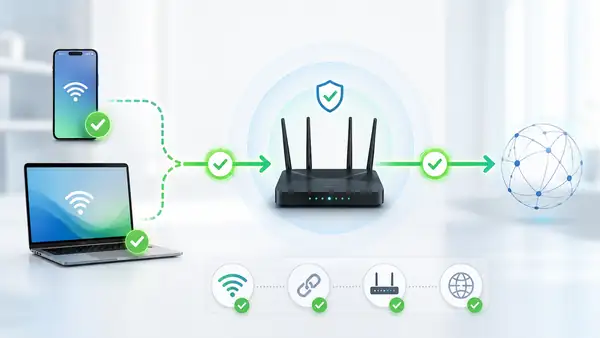
1. Device → router
Check whether the device can communicate with its default gateway. If this local step fails, focus on WiFi signal, the LAN cable, the device IP configuration, and the local router connection.
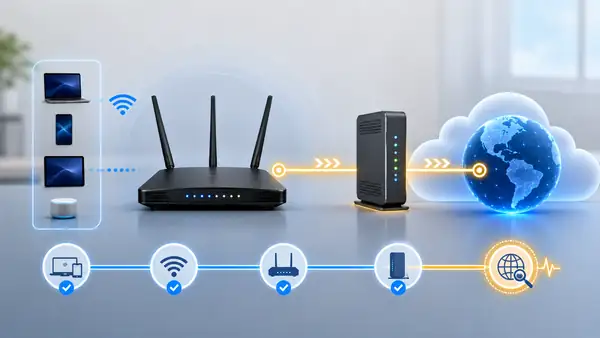
2. Router → outside internet
If the local gateway works but outside connectivity does not, focus on the WAN link, modem/ONT, and ISP side. Some routers also provide their own built-in Ping or diagnostic utility.
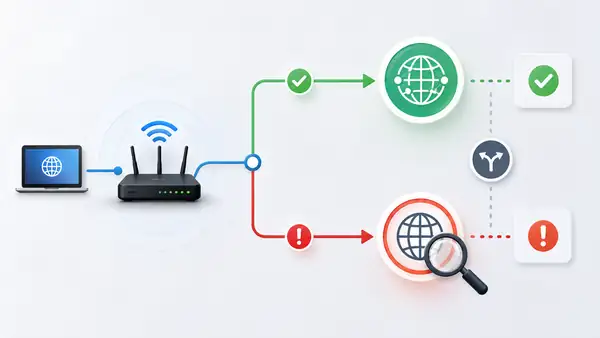
3. IP → domain name
If an outside IP address is reachable but domain names fail, DNS becomes a stronger suspect. Remember that some hosts or firewalls block ping, so one failed ping by itself is not enough to prove a network outage.
TP-Link’s router diagnostic documentation describes Ping as a tool for testing connectivity, reachability, and name resolution. It also notes that if an IP address can be reached while a domain name cannot, DNS is one possible cause. TP-Link: Confirm Router Internet Connectivity with Diagnostic Tools
⑧ In Double-Router, AP, or Mesh Networks, Identify the Real Router First
When an ISP gateway sits in front of your own router, or when you use Access Point Mode or a mesh system, there may be more than one device that looks like “the router.” In these networks, how to check router status starts with identifying which device actually performs WAN routing, NAT, and DHCP.
| Network layout | Device to check first | Main point |
|---|---|---|
| One personal router | That router | WAN IP, DHCP, connected devices, WiFi status |
| ISP gateway + personal router in Router Mode | Both devices | Upstream LAN → downstream WAN, address ranges, possible double NAT |
| ISP router + personal router in AP Mode | Upstream main router | The upstream device usually handles WAN and DHCP |
| Mesh WiFi | Mesh app or primary node | Separate primary-node internet status from satellite-node link status |
In a double-router layout, a downstream router with a WAN address such as 192.168.x.x may simply be receiving a private address from the upstream router. If ordinary internet access works, that alone is not a fault. The layout becomes more important when you need port forwarding, inbound VPN access, or other services that depend on the path from the public internet to a device inside your home.
⑨ Do Not Declare the Router Healthy from a Single Signal
A common mistake in how to check router status is to stop after one green LED, one WAN IP, or one successful WiFi connection. A router is much more likely to be working normally when several independent checks agree.
- The router completes its normal boot sequence.
- The WAN/Internet port has a valid physical connection upstream.
- The router dashboard shows an active internet state or a usable WAN IP.
- Phones and computers receive usable local IP addresses and a default gateway.
- More than one device can reach the internet.
- The wired and wireless connections you actually use both work.
- The connected-device list broadly matches the devices you expect to be online.
ASUS, for example, distinguishes Connected, cable unplugged, ISP DHCP failure, invalid credentials, and IP conflict in the router’s Internet Status view, and shows the WAN IP when the connection succeeds. Combining dashboard status with real-device testing is more reliable than trusting any one indicator. ASUS: Network Map Internet Status
⑩ Use This Checklist After Setup or a Factory Reset
After installing a new router or rebuilding one after a factory reset, how to check router status becomes the final verification step. Do not stop when one website opens—test the network the way you actually use it.
- Confirm that your phone can see and join the intended SSID.
- Confirm that a computer on the same network can reach the internet.
- Open the router dashboard and check Internet/WAN status and WAN IP.
- Check the 2.4 GHz, 5 GHz, or 6 GHz bands that your devices actually use.
- Test wired LAN devices such as a PC, TV, or NAS if you have them.
- Check that important devices appear in the client list.
- Compare WiFi behavior near the router and in the rooms where you normally use it.
- Perform one normal reboot and make sure the settings and internet connection return properly.
If the WAN is healthy but only one part of the home has weak WiFi, the router itself may be fine and the real issue may be coverage. In that case, move to a WiFi signal or mesh coverage guide rather than resetting the router again.
Router Status Results at a Glance
| Check point | What a healthy result looks like | Where to look if it fails |
|---|---|---|
| Power / boot | Normal boot completes and the router reaches a stable ready state | Power adapter, outlet, router hardware |
| WAN / Internet | Physical WAN link plus connected internet status in the dashboard | WAN cable, modem/ONT, ISP |
| WAN IP | Router receives an address from the upstream network | DHCP, PPPoE, Static IP, upstream device |
| Device IP / gateway | Device has a usable local address and default gateway | DHCP, WiFi, LAN, client settings |
| Connected devices | Expected wired/wireless clients appear in the list | SSID, guest network, AP/mesh connection point |
| Real internet use | Web and apps work on multiple devices | WAN, DNS, VPN, browser, ISP |
❓ Frequently Asked Questions
Q. If the router admin page will not open, is the router broken?
A. Not necessarily. Your device may be connected to another network, the router’s local address may have changed, or an AP, mesh, or double-router setup may mean you are looking at a different gateway. Check the current default gateway first with ipconfig on Windows or the Router address in Wi-Fi details on a Mac.
Q. Is a WAN IP that starts with 192.168 always a problem?
A. No. A downstream router can legitimately receive a private WAN IP from an upstream ISP gateway or another router. Normal browsing may work perfectly. The private WAN becomes more important when you need inbound port forwarding, remote access, or another service affected by double NAT.
Q. Why can WiFi show connected when the internet is down?
A. WiFi can remain connected between the device and router even when the router has lost its WAN connection, the modem or ONT is offline, the ISP has a problem, or DNS is failing. The wireless link and the upstream internet link are separate parts of the path.
Q. In how to check router status, which numbers should I look at first?
A. Start with the client device’s IPv4 address and default gateway, then check the router’s WAN IP. Those values help you see whether the device received a local address from the network and whether the router received an address from upstream.
Q. Should I immediately block an unfamiliar device?
A. First check whether it is a TV, printer, smart plug, speaker, camera, or another device whose name is not obvious. If the device is genuinely unknown, change the WiFi password and router administrator password as appropriate, then use the manufacturer’s access-control or blocking feature if needed.
Final Takeaway: How to Check Router Status from Device → Router → Internet
Once you understand how to check router status, you do not have to reboot or factory-reset the router every time the internet behaves strangely. Compare multiple devices first, check router power and WAN status, open the router dashboard, review the WAN IP and client list, then verify the device IP, gateway, outside connection, and DNS in order.
The result tells you what to do next. If the configuration is wrong, move to the router setup guide. If you truly need a clean start, use the factory-reset guide. If the router or upstream internet path is failing, use the router troubleshooting guide. That cluster keeps diagnosis, setup, reset, and recovery separate instead of repeating the same broad advice on every page.