How to Use Windows Update in Windows 11: Check, Install & Optional Updates
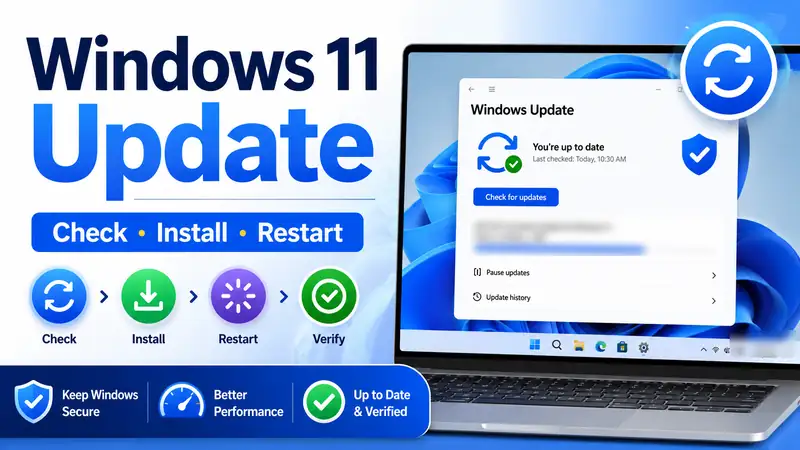
The basic way to use Windows Update in Windows 11 is simple: open Settings > Windows Update, select Check for updates, install what Windows offers, and restart if required. The part that confuses many beginners is that security updates, feature updates, optional updates, and driver updates do not all mean the same thing. Once you know which updates are routine and which ones deserve a closer look, updating Windows becomes much easier.
For most people, the safest routine for Windows Update in Windows 11 is: check for updates, install the normal required updates, restart when Windows asks, and then review Update history. Optional updates and optional drivers should be treated separately. Install them when they solve a specific problem or provide something you actually need, rather than selecting every item simply because it appears in the list.
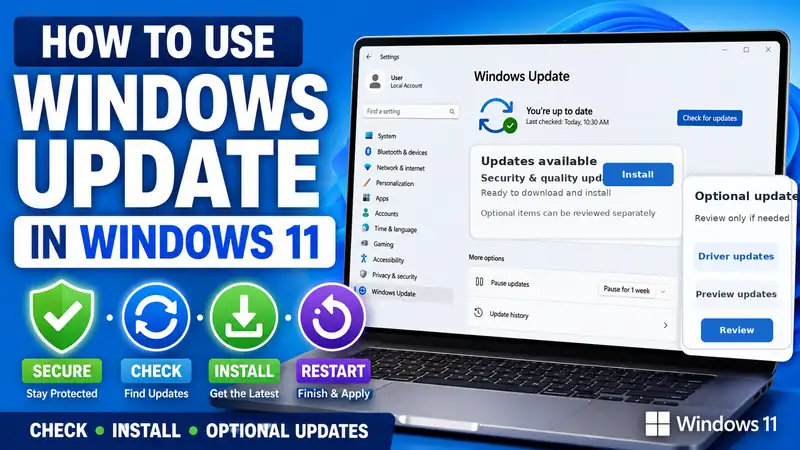
Beginner shortcut: Settings → Windows Update → Check for updates → install the offered required updates → restart if needed → check Update history. That single routine covers most everyday use of Windows Update in Windows 11.
① What Types of Updates Appear in Windows Update?
Before you decide what to install, it helps to know what Windows Update in Windows 11 is showing you. The four categories below have different purposes and different levels of urgency.
🛡 Security and quality updates
These are the routine updates most users should prioritize. They include security fixes, reliability improvements, bug fixes, and cumulative changes from earlier releases. Windows Update in Windows 11 delivers these regular monthly security and quality updates, and the cumulative model means the newest applicable update normally includes the fixes delivered in earlier updates for that release.
⬆ Feature updates
A feature update moves Windows 11 to a newer supported version and can change more of the operating system than a normal monthly update. Moving an eligible existing PC from Windows 11 24H2 to 25H2 is an example. A feature update through Windows Update in Windows 11 may appear with its own Download & install option rather than behaving exactly like a routine quality update.
🧩 Optional updates
Optional updates can include non-security preview changes, drivers, and other items that require a user decision. Seeing an optional update in Windows Update in Windows 11 does not mean there is something wrong with the PC. In many cases, a stable system can simply leave an optional item alone unless there is a clear reason to install it.
🖥 Driver updates
Windows can automatically install recommended drivers, while optional driver updates can be reviewed manually. Microsoft specifically notes that optional drivers are not installed automatically. This is why driver choices inside Windows Update in Windows 11 should be considered separately from normal security updates.
② Five Things to Check Before Using Windows Update
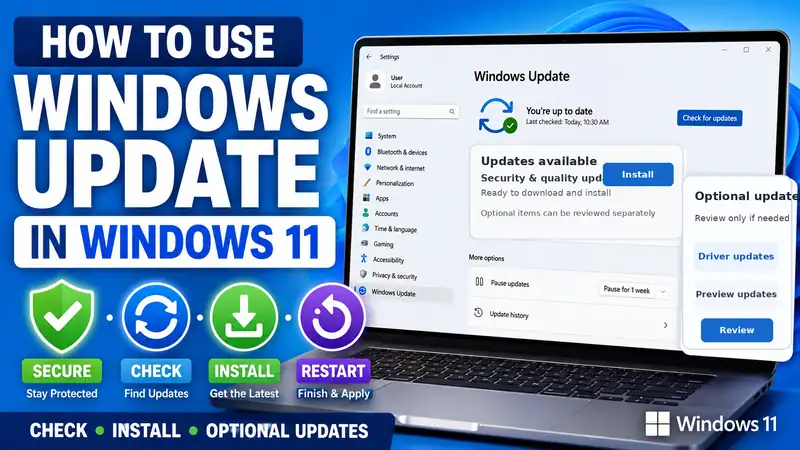
You usually do not need a long preparation routine before Windows Update in Windows 11, but five quick checks can prevent the most avoidable interruptions. A few minutes of preparation can make Windows Update in Windows 11 much less disruptive on a laptop or work PC.
- Connect power on a laptop. A feature update or restart can take longer than expected.
- Use a stable internet connection. Larger downloads are less likely to be interrupted.
- Check free space on C:. Windows needs room for download, installation, temporary files, and recovery data.
- Save important work. Some updates require a restart to finish.
- Check whether updates are paused. If the page says updates are paused, resume them before expecting a normal scan.
Related guide: How to Turn On Windows Update in Windows 11: Resume Automatic Updates & Restore Defaults
③ How to Use Windows Update in Windows 11 Step by Step
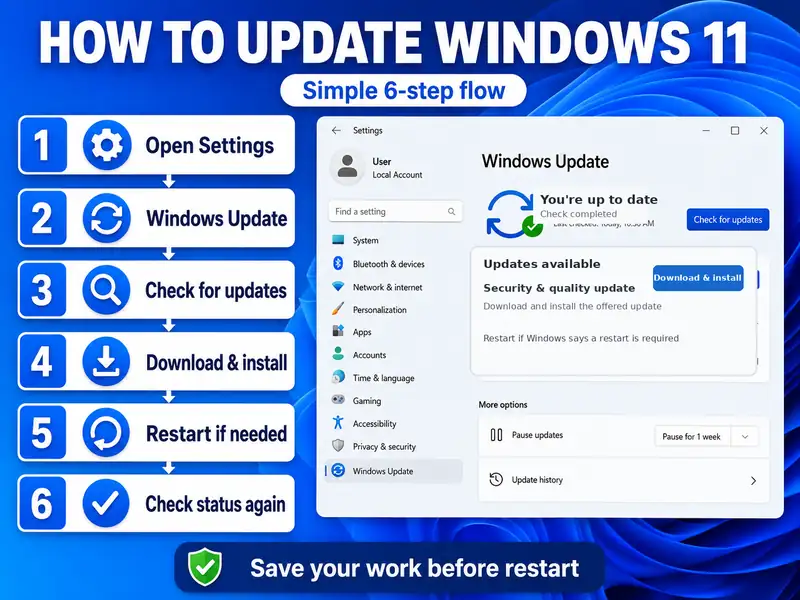
This is the normal workflow for Windows Update in Windows 11 when the PC starts correctly and is connected to the internet.
- Open Start > Settings. You can also press Windows + I.
- Select Windows Update.
- Select Check for updates.
- If updates are available, select Download & install when that option appears, or let the normal automatic download continue.
- Wait for the download and installation to finish.
- If Windows shows Restart required, save your work and restart the PC.
- After the restart, return to Settings > Windows Update and check the current status again.
Microsoft: Install Windows Updates
Should you keep pressing Check for updates?
No. Once a scan starts normally, let Windows Update in Windows 11 finish checking. It is useful to run one more check after installation and restart, because an additional cumulative package, driver, or prerequisite can appear after an earlier update has completed.
④ What Does “You’re Up to Date” Actually Mean?
If Windows Update in Windows 11 says You’re up to date, the PC is generally current for the required updates Microsoft is offering to that device at that moment. It does not necessarily mean that every optional driver, preview, or feature choice has been installed. This distinction is important when you use Windows Update in Windows 11 as a health check rather than a list of every available optional item.
| Windows Update status | What it usually means | What to do next |
|---|---|---|
| You’re up to date | No required update is currently waiting for this device | Keep using the PC normally unless you have a reason to check optional updates |
| Download & install | An update is available and needs user action or approval | Review the update and install when ready |
| Restart required | Installation needs a reboot to complete | Save work and restart or schedule the restart |
| Optional updates available | Drivers or other optional items are available | Install only when there is a useful reason |
| Updates paused | New update activity is temporarily delayed | Resume updates before expecting a normal update cycle |
Think of “You’re up to date” as the current required-update status for Windows Update in Windows 11, not as proof that every possible optional item on the PC has been selected. In practice, Windows Update in Windows 11 separates the required servicing state from optional choices.
⑤ Windows 11 Versions in 2026: 25H2 and 26H1 Are Not the Same Upgrade Path
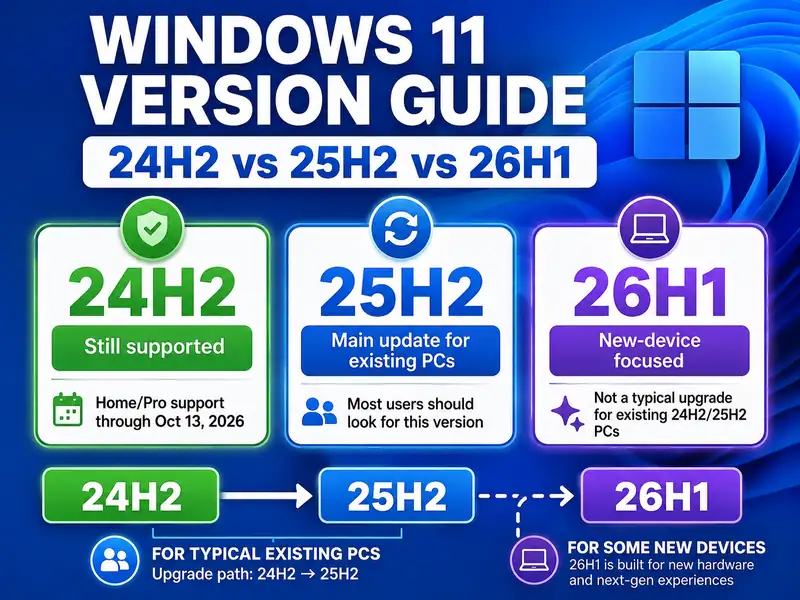
As of August 24, 2026, the version numbers shown around Windows Update in Windows 11 need a little context. Windows 11 25H2 is the current mainstream feature release for eligible existing PCs, while 26H1 is a hardware-optimized release for select new devices and is not the normal next in-place upgrade for an existing 24H2 or 25H2 PC.
| Windows 11 version | What it means in August 2026 | What a typical user should know |
|---|---|---|
| 24H2 | Still supported, but Home and Pro reach end of updates on October 13, 2026 | Eligible non-managed PCs are expected to move toward 25H2 |
| 25H2 | Current mainstream feature release for eligible existing Windows 11 devices | If Windows Update offers it to an eligible PC, review the offer and install when ready |
| 26H1 | Hardware-optimized release for select new devices with new silicon | Existing 24H2 and 25H2 PCs are not offered 26H1 as an in-place upgrade |
Microsoft’s release information explicitly says 26H1 is not designed as a feature update for existing devices. So if Windows Update in Windows 11 does not show 26H1 on a normal existing PC, that is expected behavior rather than evidence that the updater is broken. For an existing 24H2 or 25H2 PC, Windows Update in Windows 11 should be judged by the supported updates actually offered to that device.
Microsoft Learn: Windows 11 release information · Microsoft: Windows 11 version 26H1 update history
⑥ Current August 2026 Security Update: What the KB Number Tells You
As of August 24, 2026, the recent monthly security update for Windows 11 24H2 and 25H2 is KB5121003, released on August 11. The corresponding OS builds are 26100.9168 for 24H2 and 26200.9168 for 25H2. You do not need to memorize these numbers to use Windows Update in Windows 11; Windows chooses the applicable package for your version.
The KB and build numbers become useful when you are verifying whether a particular update installed or investigating a problem that started after an update. Microsoft’s KB5121003 page currently also lists an investigation into reports of certain games becoming unresponsive on systems with some RGB-related components or drivers. If a problem began immediately after this update, check the official KB page before assuming that the entire Windows Update in Windows 11 system is faulty. A single problematic KB does not mean Windows Update in Windows 11 itself should be disabled.
Microsoft: August 11, 2026 — KB5121003 for Windows 11 24H2 and 25H2
⑦ Optional Updates and Drivers: Install Them for a Reason
Optional updates are where many beginners overuse Windows Update in Windows 11. Seeing a driver or preview update in this section does not mean you must install it. The safest use of Windows Update in Windows 11 is to separate routine required updates from optional changes that need a reason.
- Open Settings > Windows Update.
- Select Advanced options.
- Under Additional options, open Optional updates.
- Expand the available update category, such as Driver updates.
- Select only the update you have a reason to install.
- Select Download & install.
Microsoft says Windows 11 automatically installs recommended drivers through Windows Update, but optional drivers are not installed automatically. If the device is working correctly, you can leave an optional driver alone. If a network adapter, graphics device, touchpad, printer, or another component has a problem, an optional driver may be worth checking.
When Windows Update in Windows 11 cannot find a newer driver and you know the hardware manufacturer has one, use the manufacturer’s official support page rather than a third-party driver download site.
Microsoft: Get recommended and optional hardware drivers
⑧ Should You Enable “Get the Latest Updates as Soon as They’re Available”?
This option is not the master on/off switch for Windows Update in Windows 11. It mainly changes how quickly your device is prioritized for eligible non-security updates, fixes, features, and improvements. You can use Windows Update in Windows 11 normally with this preference either on or off.
- Leave it Off: a good choice if stability matters more than receiving new features early.
- Turn it On: useful if you want eligible non-security improvements and feature changes as soon as Microsoft makes them available to your device.
Regular security updates continue whether this switch is on or off. So a beginner does not need to enable it just to make Windows Update in Windows 11 function normally. Leaving the toggle off does not disable Windows Update in Windows 11.
Microsoft: Get Windows updates as soon as they’re available
⑨ Use Active Hours Instead of Avoiding Updates Because of Restarts
Some updates need a restart to finish. If restart timing is the reason you dislike Windows Update in Windows 11, configure Active hours instead of disabling updates. This lets Windows Update in Windows 11 keep protecting the PC while reducing inconvenient restarts.
- Open Settings > Windows Update > Advanced options.
- Select Active hours.
- Choose automatic adjustment based on device activity, or set your own hours manually.
- If a restart is pending and Windows offers scheduling, choose a convenient restart time.
Active hours tell Windows when you normally use the PC so update restarts are less likely to interrupt you. This lets you keep Windows Update in Windows 11 working normally without treating every restart as a reason to pause or disable updates. For a frequently used work PC, this is usually better than repeatedly stopping Windows Update in Windows 11.
Microsoft: Keep your PC up to date with active hours
⑩ Use Update History and winver to Verify What Was Installed
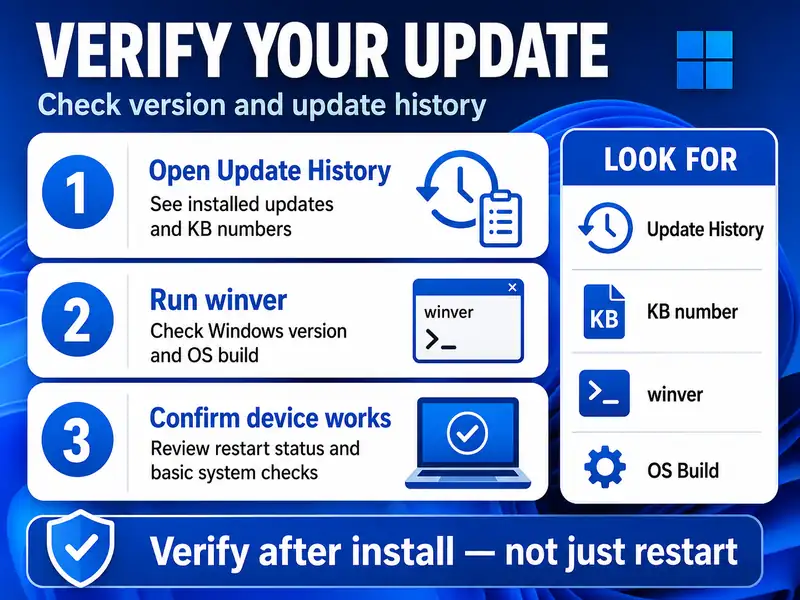
After Windows Update in Windows 11 finishes, two quick checks tell you much more than simply seeing the desktop again. Update history tells you what Windows Update in Windows 11 installed, while winver tells you the Windows version and OS build currently running.
Check Update history
Open Settings > Windows Update > Update history. This is where you can see installed quality updates, driver updates, definition updates, and other categories. The KB number and installation date are especially helpful when a problem begins after an update.
| Update history category | What it helps you confirm |
|---|---|
| Quality updates | Monthly cumulative and security update history |
| Driver updates | Drivers installed through Windows Update |
| Definition updates | Security intelligence updates such as Microsoft Defender definitions |
| Other updates | Other Windows components and servicing items |
| KB number and date | The exact update and timing to compare with a new issue |
Check the Windows version with winver
Press Windows + R, type winver, and press Enter. Windows shows the current version and OS build. You can also open Settings > System > About and look under Windows specifications.
⑪ What If Windows 11 25H2 Does Not Appear?
Feature updates are not always presented to every PC at exactly the same time. Microsoft can use device readiness, compatibility data, and safeguard holds when deciding when a feature update appears through Windows Update in Windows 11. That is why Windows Update in Windows 11 can legitimately show a different feature-update offer on two different PCs.
- Install the required updates already offered to the current Windows version.
- Restart the PC and run another update check.
- Use
winverto confirm the current Windows version. - Review Microsoft’s Windows release health information for known issues and safeguard holds.
- Do not start with an unofficial ISO or bypass tool simply because the feature update is not visible.
Microsoft currently describes Windows 11 25H2 as available for eligible devices through its rollout, while 26H1 remains a new-device hardware-optimized release. If an existing 25H2 PC never receives a 26H1 offer through Windows Update in Windows 11, that is expected. The normal goal is to follow the supported release actually offered through Windows Update in Windows 11.
Microsoft Learn: Windows 11 version 25H2 release health
⑫ If Windows Update Keeps Failing, Stop Repeating the Same Installation
If Windows Update in Windows 11 repeatedly fails during download or installation, move from “normal usage” into troubleshooting. Repeating the same failed action without recording the error rarely tells you what is wrong. At that point, troubleshooting Windows Update in Windows 11 by symptom is more useful than repeatedly clicking Download & install.
- Error code appears: move to a Windows Update error guide and use the code as the starting point.
- The same download fails repeatedly: investigate update components and cache only after normal checks.
- Updates are paused or disabled: restore the setting or policy before troubleshooting the updater itself.
- Restarts are inconvenient: use Active hours or restart scheduling rather than disabling Windows Update.
Related guide: Windows Update Errors — Causes and Step-by-Step Fixes
Related guide: How to Clear the Windows Update Cache Safely
⑬ Common Windows Update Mistakes Beginners Should Avoid
- Do not install every optional driver at once. If the hardware is working normally, an optional driver may not be necessary.
- Do not force the PC off during installation. Let Windows Update in Windows 11 finish its restart and configuration work.
- Do not read 24H2, 25H2, and 26H1 as a simple “higher number is always next” sequence. 26H1 is not an in-place upgrade for existing 24H2 or 25H2 PCs.
- Do not assume the early-update toggle is required for security updates. Normal security servicing continues when that preference is off.
- Do not guess which update caused a problem. Use Update history and the KB installation date.
- Do not use an unofficial ISO or driver site just because a feature or driver update is not visible. Start with Microsoft and the hardware manufacturer.
❓ Windows Update FAQ
Q. Where do I open Windows Update in Windows 11?
A. Open Start > Settings > Windows Update, then select Check for updates. If updates are available, use Download & install when Windows presents that option and restart if required.
Q. Do I need to install every optional update?
A. No. Optional updates can include preview changes and drivers. Use Windows Update in Windows 11 to review the details and install an optional item when it solves a problem or provides something you actually need. Keeping optional items selective is one of the easiest ways to use Windows Update in Windows 11 without unnecessary driver changes.
Q. Should an existing PC install Windows 11 25H2 or 26H1 in 2026?
A. For a typical existing eligible Windows 11 PC, 25H2 is the mainstream feature-release path. Microsoft says 26H1 is for select new devices with new silicon and is not offered as an in-place upgrade from 24H2 or 25H2.
Q. Do I always need to restart after a Windows update?
A. No. Some updates complete without a restart. When Windows Update in Windows 11 shows Restart required, save your work and restart or schedule the restart so installation can finish.
Q. Windows says “You’re up to date,” but I still see optional updates. Is that normal?
A. Yes. “You’re up to date” generally means the required updates currently offered to that device are installed. Optional drivers or preview items can still remain in a separate section of Windows Update in Windows 11. That is normal behavior for Windows Update in Windows 11.
Q. What should I do if the same update keeps failing?
A. Stop repeating the same install and record the error code. Then move to the troubleshooting path that matches the symptom: update error, disabled update setting, storage problem, damaged system files, or update-component/cache issue.
Final Thoughts: Use Windows Update in Windows 11 in the Right Order
The normal routine for Windows Update in Windows 11 is not complicated: check for updates, install the required updates Windows offers, restart when necessary, and verify the result in Update history. That is enough for most everyday security and quality updates, and it is the best default way to use Windows Update in Windows 11.
The important part is knowing when not to click everything. Optional drivers and preview updates deserve a reason before installation. Feature updates should be viewed in the context of the current Windows version and device eligibility. In August 2026, that means understanding that 25H2 is the mainstream path for eligible existing PCs while 26H1 is designed for select new hardware.
Finally, use Windows Update in Windows 11 together with Active hours, Update history, and winver. Those tools tell you when to install, when to restart, and what actually changed. If installation begins to fail repeatedly, stop treating it as a normal update task and move to targeted troubleshooting.