How to Turn On Windows Update in Windows 11: Resume Automatic Updates & Restore Defaults
To turn on Windows Update in Windows 11, start by undoing the setting that originally blocked or limited updates. If you only paused updates, open Settings > Windows Update and resume them. If a metered connection was limiting downloads, turn that network setting off. If you disabled automatic updates through Group Policy or the registry, restore those policy settings before troubleshooting anything else.
The key point is that turning on Windows Update is not the same as turning on Get the latest updates as soon as they’re available. Windows 11 can still receive normal security updates when that optional toggle is off. That switch mainly affects how quickly your PC is prioritized for eligible non-security updates, fixes, features, and improvements.
Quick rule: do not change five settings at once. To turn on Windows Update cleanly, identify the setting that stopped it, reverse that one change, restart if necessary, and then use Check for updates to verify the result.
① First, Find Out What Is Preventing Windows Update from Running
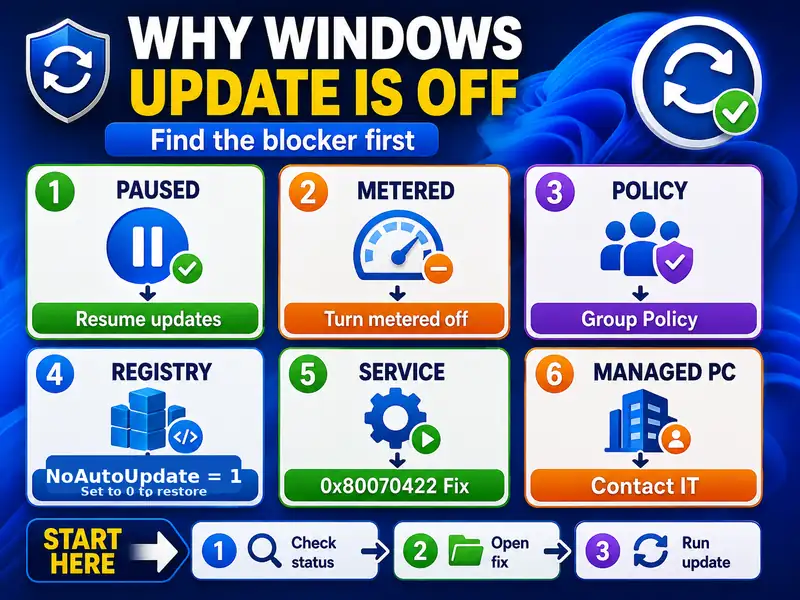
A PC can look like Windows Update is “off” for several different reasons. Before you try to turn on Windows Update, match what you see on screen to the most likely cause. The correct way to turn on Windows Update depends on whether the blocker is a pause, network setting, policy, registry value, service, or organization rule.
| What you see | Likely cause | Where to restore it |
|---|---|---|
| Windows Update shows a pause-until date | Updates were paused in Settings | Windows Update → Resume updates |
| Downloads are limited mainly on Wi-Fi, tethering, or a capped connection | Metered connection is enabled | Network properties → Metered connection Off |
| Windows notifies you before downloading updates | Group Policy option 2 or AUOptions policy | Group Policy or WindowsUpdate\AU registry policy |
| Automatic updates are disabled but manual checking still works | Configure Automatic Updates = Disabled or NoAutoUpdate=1 | Set Group Policy to Not Configured or restore the registry policy |
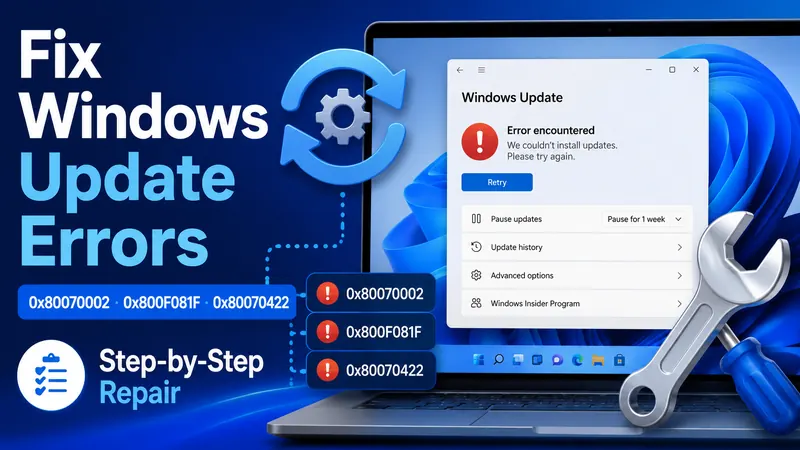
| Error 0x80070422 or a message that the update service is disabled | Windows Update service was stopped or disabled | services.msc → Windows Update service |
| “Some settings are managed by your organization” | Local or organization-managed policy | Personal PC: review your local policy; managed PC: contact IT |
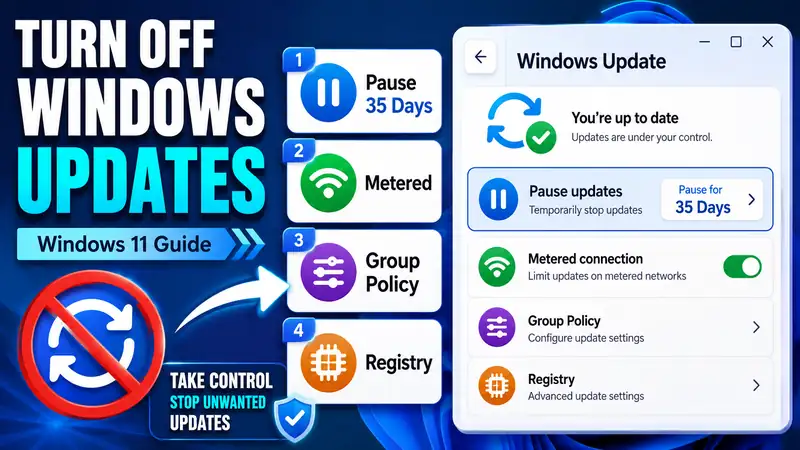
Previous guide: How to Turn Off Windows Updates in Windows 11: Pause, Group Policy & Registry
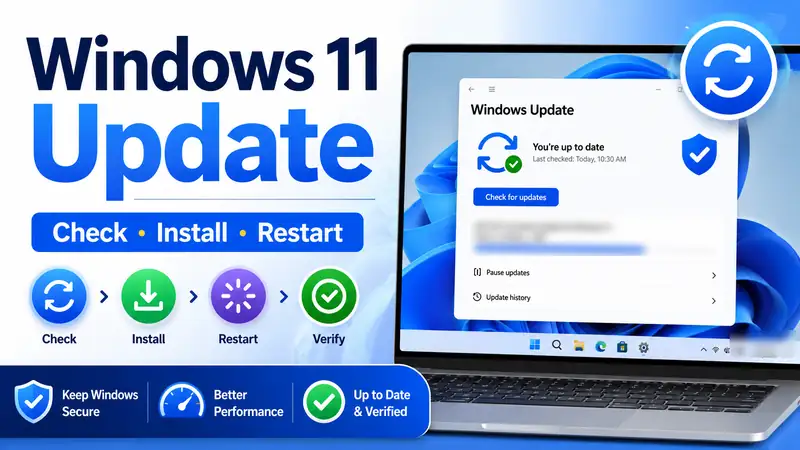
② Easiest Way to Turn On Windows Update: Resume Paused Updates
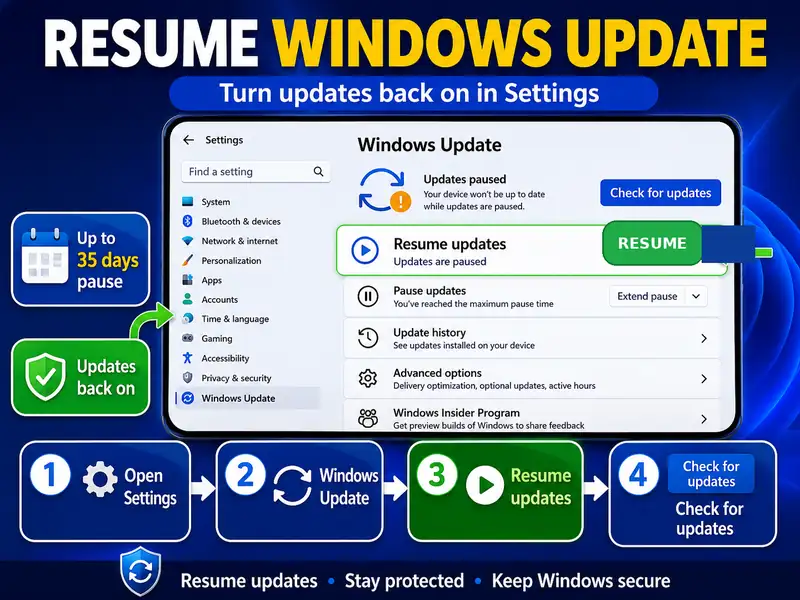
If you only paused updates from Settings, this is the easiest way to turn on Windows Update. Microsoft says a Windows 11 update pause can be resumed manually at any time; once resumed, Windows checks again and downloads and installs the latest available updates.
- Open Start > Settings.
- Select Windows Update.
- If updates are paused, select Resume updates.
- Wait while Windows checks for updates.
- If updates are available, let the download and installation continue.
- If Windows requests a restart, save your work and restart the PC.
You do not need to edit Group Policy, the registry, or Windows services to turn on Windows Update after a normal pause. Windows 11 currently allows updates to be paused for up to 35 days from the current date, but the pause is temporary and you can resume before the selected end date.
Microsoft: Pause and resume updates in Windows
③ Do You Need “Get the Latest Updates as Soon as They’re Available” Turned On?
No. You do not need this switch to turn on Windows Update in the normal sense. Microsoft states that regular security updates continue whether Get the latest updates as soon as they’re available is on or off. You can therefore turn on Windows Update while leaving this optional early-access preference off.
| Setting | Regular security updates | New features and non-security improvements | Best fit |
|---|---|---|---|
| Get the latest updates… Off | Still delivered as usual | May arrive later in the staged rollout | You want to turn on Windows Update but prefer a more conservative feature rollout |
| Get the latest updates… On | Still delivered as usual | Your device is prioritized when eligible updates become available | You want new fixes, features, and improvements sooner |
So if your goal is simply to turn on Windows Update again, restore the pause, policy, metered-connection, or service setting that was blocking it first. Treat the early-update toggle as a separate preference about rollout timing.
Microsoft: Get Windows updates as soon as they’re available
④ Turn Off Metered Connection to Restore Normal Update Downloads
If you enabled a metered connection to save mobile or tethering data, you may not need to do anything else to turn on Windows Update. Restore the current connection to non-metered and then run a manual update check. For this scenario, the network setting—not the update service—is usually the first place to turn on Windows Update downloads again.
▸ Wi-Fi
Open Settings > Network & internet > Wi-Fi, select the connected network, and turn Metered connection off.
▸ Ethernet
Open Settings > Network & internet > Ethernet, select the active connection, and turn Metered connection off.
Microsoft explains that Windows Update downloads only priority updates automatically on a metered connection. Once you return to a normal connection, open Settings > Windows Update > Check for updates to verify that you can turn on Windows Update downloads normally again. If the scan starts and available updates download, you have effectively managed to turn on Windows Update for that connection.
Microsoft: Metered connections in Windows
⑤ Windows 11 Pro: Restore Group Policy to Turn On Windows Update Automatically
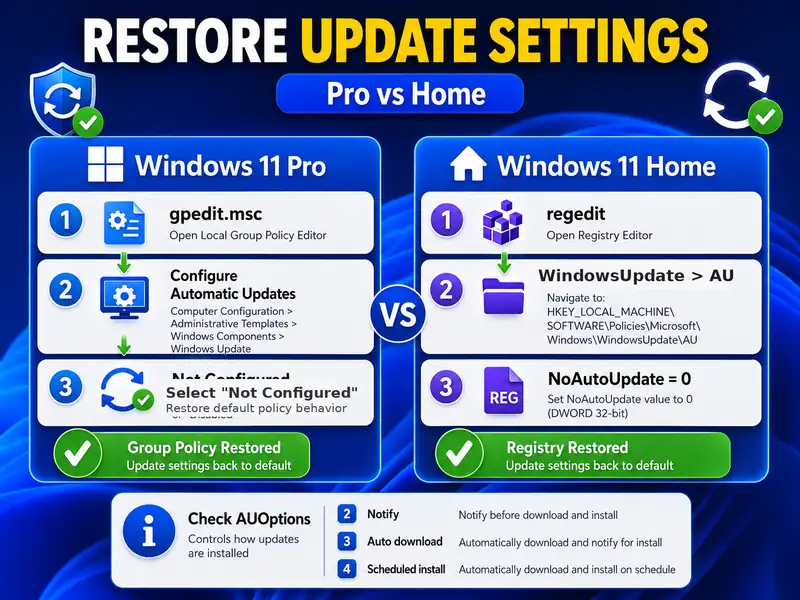
If you used Windows 11 Pro, Education, or Enterprise Group Policy to disable automatic updating or require download approval, restore that policy before you expect Windows to turn on Windows Update automatically again.
- Press Windows + R.
- Type
gpedit.mscand press Enter. - Go to Computer Configuration > Administrative Templates > Windows Components > Windows Update > Manage end user experience.
- Open Configure Automatic Updates.
- Select Not Configured.
- Select Apply > OK.
- Restart the PC.
- Open Settings > Windows Update and select Check for updates.
Not Configured does not mean “force automatic updates on” as a separate custom policy. It means Group Policy no longer specifies the automatic-update behavior at that policy level. For a normal personal PC with no other management policy, this is the cleanest way to undo a local Group Policy change, turn on Windows Update under the normal consumer behavior, and let the Settings app take control again.
If you previously used Option 2 — Notify for download and auto install, leaving that policy enabled will continue to require user action before the download. Set it to Not Configured if your goal is to turn on Windows Update with the normal consumer behavior rather than notification-only control. This distinction matters because you can turn on Windows Update manually while a policy still prevents automatic downloading.
Microsoft Learn: Configure Group Policy settings for Automatic Updates
⑥ Windows 11 Home: Restore NoAutoUpdate and Check AUOptions
If you used the documented registry policy to disable automatic updates on Windows 11 Home, you need to reverse that policy to turn on Windows Update automatically again. Microsoft Learn documents the following path and values.
HKEY_LOCAL_MACHINE\SOFTWARE\Policies\Microsoft\Windows\WindowsUpdate\AU- Press Windows + R, type
regedit, and press Enter. - Go to the registry path above.
- Find
NoAutoUpdate. - Change
NoAutoUpdatefrom 1 to 0 to enable Automatic Updates. - If you created the policy value yourself and want to return the PC to its original unmanaged state, you can also consider removing that user-created policy value after making a registry backup.
- Restart Windows.
- Open Windows Update and run Check for updates.
| Registry value | Data | Effect |
|---|---|---|
NoAutoUpdate | 0 | Automatic Updates enabled — Microsoft documents this as the default value |
NoAutoUpdate | 1 | Automatic Updates disabled |
AUOptions | 2 | Notify for download and installation |
AUOptions | 3 | Automatically download and notify for installation |
AUOptions | 4 | Automatically download and use scheduled installation behavior |
If NoAutoUpdate is already 0 but Windows still does not behave normally, check whether an AUOptions value you created earlier is still enforcing notification or scheduling behavior. Do not delete the entire WindowsUpdate registry key just to turn on Windows Update. To turn on Windows Update safely, change only values you know you created and do not alter organization-managed policies.
Microsoft Learn: Manage additional Windows Update settings
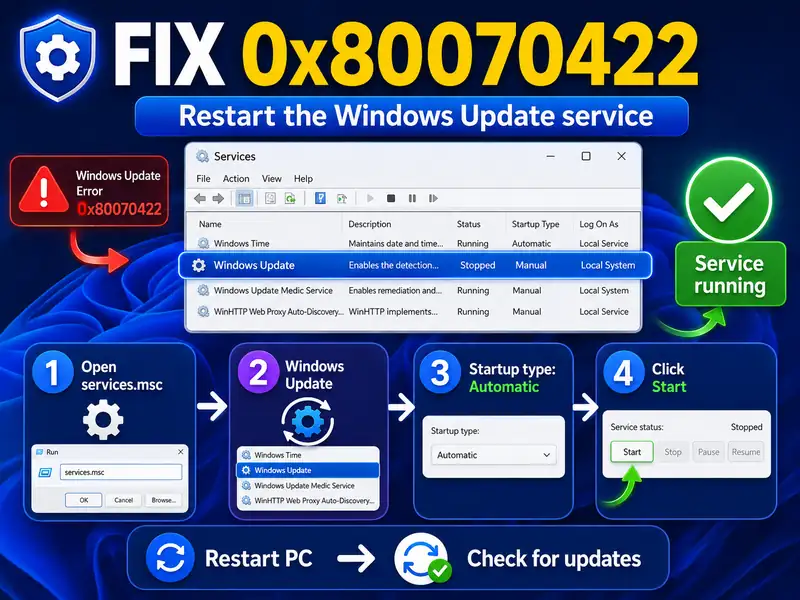
⑦ Error 0x80070422: Restore the Windows Update Service
If you tried to turn on Windows Update but Windows shows 0x80070422, the update service may have been disabled or stopped. Microsoft’s current troubleshooting page specifically identifies this code as a Windows Update service disabled/stopped condition.
- Press Windows + R.
- Type
services.mscand press Enter. - Find Windows Update.
- Right-click it and select Properties.
- For Microsoft’s 0x80070422 troubleshooting flow, set Startup type to Automatic.
- If the service is stopped, select Start.
- Select Apply > OK.
- Restart the PC and check for updates again.
This service step is most relevant when you previously changed services.msc yourself or Windows explicitly reports that the service is disabled. If you never changed the service and there is no 0x80070422-style symptom, do not change several Windows services just to turn on Windows Update. A normal PC should not need broad service changes merely to turn on Windows Update.
Microsoft: Troubleshoot problems updating Windows
⑧ Six Checks That Confirm Windows Update Is Really Back On
Do not assume that changing one switch successfully managed to turn on Windows Update. Verify the behavior from the Windows Update page. A successful scan and normal download behavior are better proof that you managed to turn on Windows Update than the absence of an error message alone.
- No active pause: Windows Update no longer shows a pause-until state.
- Update scan works: selecting Check for updates starts a normal scan.
- Available updates can download: Windows shows Download & install or an active download/install status when something is available.
- The active network is not unintentionally metered: data restrictions are not preventing normal downloads.
- No unexpected local policy remains: on a personal PC, an old “automatic updates disabled” policy message is not still present.
- Restart prompts behave normally: if an installed update needs a restart, Windows presents a restart or scheduling option.
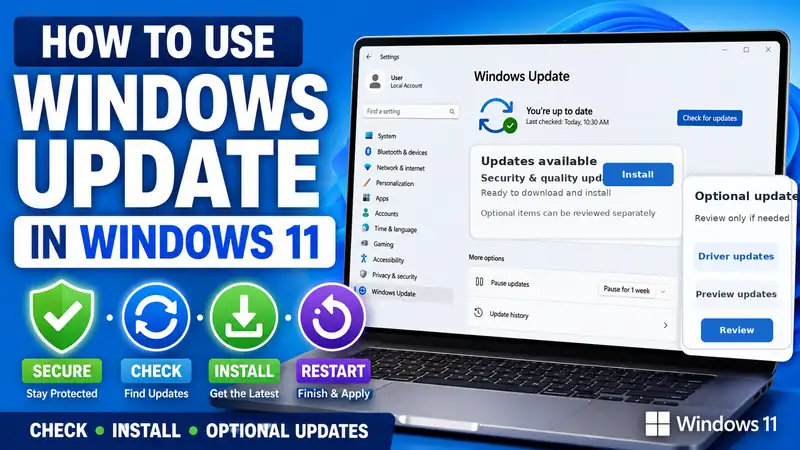
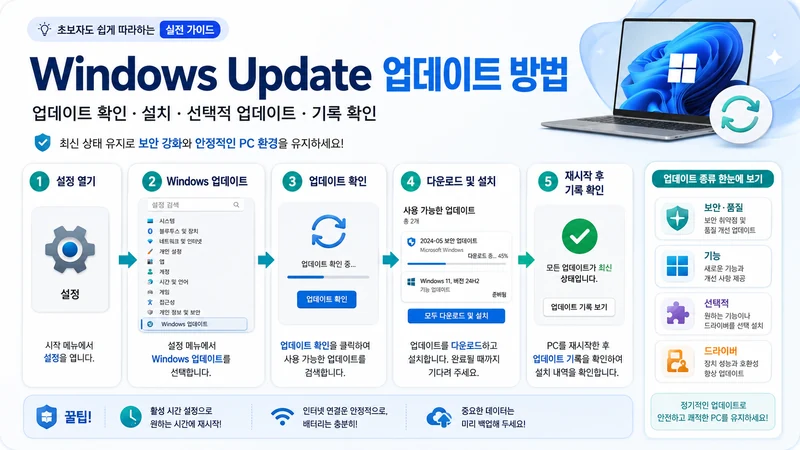
Microsoft’s normal Windows 11 workflow is simple: open Settings > Windows Update, select Check for updates, and install the updates Windows offers. If those actions work after you turn on Windows Update, the PC is back in the normal servicing flow. That functional check is the final confirmation that you successfully managed to turn on Windows Update.
Microsoft: Install Windows Updates
⑨ After You Turn On Windows Update, Use Active Hours Instead of Disabling It Again
If you originally disabled updates because of inconvenient restarts, do not immediately undo your work and disable them again after you turn on Windows Update. Use Active hours and restart scheduling instead.
- Open Settings > Windows Update > Advanced options.
- Select Active hours.
- Let Windows adjust them automatically from device activity, or select a manual range.
- When Windows offers a restart schedule for a pending update, choose a convenient time.
Microsoft also began rolling out a more predictable restart experience with updates released on and after July 28, 2026. On Windows 11 versions 24H2, 25H2, and 26H1, many updates that require a restart can be held and installed together with the monthly security update, reducing separate restart interruptions. Emergency, out-of-band, Defender intelligence, critical driver, and some other updates can still be exceptions.
This means that for many users, the better long-term strategy is to turn on Windows Update, configure Active hours, and let Windows consolidate restarts rather than repeatedly disabling the update mechanism.
Microsoft: Keep your PC up to date with active hours · Microsoft: One restart a month for Windows updates
⑩ If “Some Settings Are Managed by Your Organization” Is Still Showing
On a work or school PC, do not try to turn on Windows Update by deleting policies that may come from Microsoft Intune, Windows Update for Business, Windows Autopatch, domain Group Policy, or another management system. An administrator may intentionally control update timing for compliance or compatibility.
- Managed work/school PC: ask IT whether the device is assigned to an update ring, deferral policy, or temporary pause.
- Personal PC: review only the local Group Policy and registry settings you know you changed.
- Do not remove management profiles, VPN software, or security tools just to make Windows Update controls editable.
If a personal PC still shows the organization message after you turn on Windows Update, re-check the Group Policy and WindowsUpdate\AU registry sections above before you assume the update components themselves are damaged. An old local policy can still prevent the normal behavior you expect after you turn on Windows Update.
⑪ Everything Is Restored, but Windows Update Still Does Not Work
If you reversed the pause, metered connection, Group Policy, registry, and service changes but still cannot turn on Windows Update successfully, the problem may no longer be a disabled setting. At that point, trying repeatedly to turn on Windows Update with more policy changes can make diagnosis harder; the issue may be an actual Windows Update error.
- Restart the PC normally.
- Check the internet connection and free space on the system drive.
- Run another Windows Update scan.
- Run the Windows Update troubleshooter through Microsoft’s current troubleshooting flow.
- Write down any error code.
- If system-file damage is suspected, use the system repair path rather than changing more update policies.
- If download or update-component problems continue, move to a dedicated Windows Update error or cache-repair guide.
Related guide: Windows Update Errors — Causes and Step-by-Step Fixes
Next guide: How to Clear the Windows Update Cache Safely
⑫ Mistakes to Avoid When You Turn On Windows Update
- Do not restore every setting at once. Change one known blocker, verify the result, and continue only if needed.
- Do not treat the early-update toggle as the master Windows Update switch. Security updates can continue when it is off.
- Do not delete the entire WindowsUpdate registry branch. To turn on Windows Update, reverse only the policy values you know you created.
- Do not set multiple update-related services to Automatic without a reason. Follow the 0x80070422 service step when that symptom applies.
- Do not override a company or school policy. Local changes can conflict with centralized update management.
- Do not clear the update cache immediately after restoring settings. First check whether Windows can scan, download, and install normally.
- Do not forget why you disabled updates in the first place. If restart timing was the problem, use Active hours after you turn on Windows Update.
❓ Windows Update Enable FAQ
Q. What is the easiest way to turn on Windows Update in Windows 11?
A. If you only paused updates, open Settings > Windows Update and select Resume updates. Windows will check for the latest available updates again. If you disabled updates through policy, registry, or Services, you must reverse that specific setting first.
Q. Do I need to enable “Get the latest updates as soon as they’re available”?
A. No. You can turn on Windows Update and receive normal security updates with that optional toggle off. Turn it on only if you want your device prioritized for eligible non-security updates, fixes, features, and improvements.
Q. How do I turn on Windows Update after disabling it with gpedit?
A. Open gpedit.msc, go to Computer Configuration > Administrative Templates > Windows Components > Windows Update > Manage end user experience > Configure Automatic Updates, and set the policy to Not Configured. Restart the PC and check for updates.
Q. Is NoAutoUpdate=0 the setting that enables automatic updates?
A. Yes. Microsoft documents NoAutoUpdate=0 as Automatic Updates enabled and NoAutoUpdate=1 as disabled. If you are trying to turn on Windows Update after creating this policy yourself, restore the value carefully and check whether any AUOptions value is also enforcing a different behavior.
Q. What should I do if error 0x80070422 appears?
A. Microsoft identifies 0x80070422 as a Windows Update service disabled or stopped condition. In its troubleshooting flow, open services.msc, set the Windows Update service Startup type to Automatic, start the service if it is stopped, restart the PC, and check for updates again.
Q. Will every missed update install immediately after I turn on Windows Update?
A. Windows will scan for applicable updates and offer the updates available to that device. Not every Windows release or optional feature is offered to every PC at the same time, so the exact list can vary by hardware, compatibility, rollout stage, and update type.
Final Thoughts: Turn On Windows Update by Reversing the Setting That Blocked It
The cleanest way to turn on Windows Update is to reverse the specific control you used earlier. Resume a paused update from Settings, turn off Metered connection if it was restricting downloads, return Configure Automatic Updates to Not Configured on Windows 11 Pro, or restore NoAutoUpdate on a Home PC if you created that registry policy yourself. This one-change-at-a-time approach is the safest way to turn on Windows Update without creating a second configuration problem.
Then open Settings > Windows Update > Check for updates. If Windows can scan, download, install, and present a normal restart prompt when needed, you have successfully managed to turn on Windows Update again.
If the PC still cannot turn on Windows Update after the known blocking settings are restored, stop changing policies and treat the problem as a Windows Update error. Record the error code, use Microsoft’s troubleshooting path, and move to service, system-file, or update-component repair only when the symptoms point there.