How to Turn Off Windows Updates in Windows 11: Pause, Group Policy & Registry
If you want to turn off Windows updates in Windows 11, the safest approach is not to begin with the most aggressive setting. First decide what you are trying to prevent: downloads during a deadline, an unexpected restart, heavy data use, or automatic installation on a test PC. Windows 11 gives you several levels of control, from a temporary pause to Group Policy and registry-based automatic-update settings.
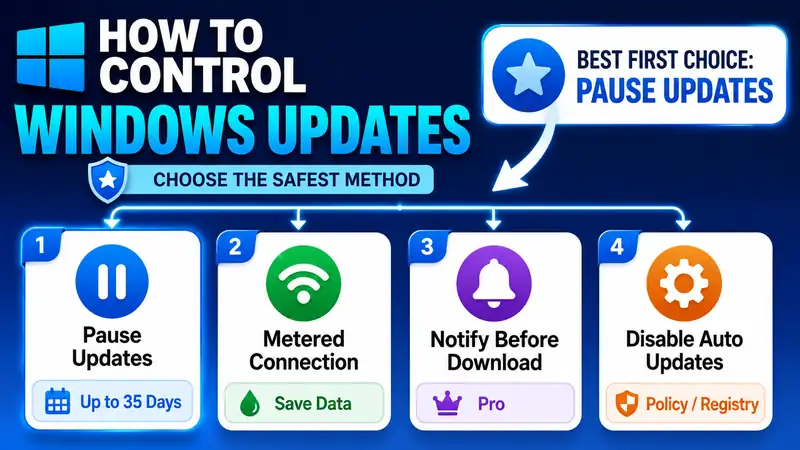
For most home users, the best way to turn off Windows updates for a short period is the built-in Pause updates feature. Windows 11 currently lets you choose a pause end date up to 35 days from today. If you only want to receive new features later, you can turn off the “Get the latest updates as soon as they’re available” switch without stopping normal security updates. If data usage is the issue, a metered connection can restrict background downloading. Windows 11 Pro, Education, and Enterprise provide more direct automatic-update control through Group Policy.
Before you disable anything: Microsoft’s consumer guidance is built around pausing, scheduling, and managing updates rather than leaving security fixes blocked indefinitely. If you turn off Windows updates for a longer period, create a routine for checking and installing security updates manually.
① Before You Turn Off Windows Updates, Decide What You Actually Need
There is no single “off” setting that is best for everyone. The right way to turn off Windows updates depends on the problem you are solving.
⏸ You only need a few quiet days
Use Pause updates. This is the easiest way to turn off Windows updates temporarily for travel, presentations, rendering jobs, testing, or a deadline.
📶 You are trying to save mobile or tethering data
Use a metered connection. It does not completely turn off Windows updates, but it reduces background data use and limits which updates download automatically.
🔔 You want approval before the download starts
On Windows 11 Pro or higher, Group Policy option 2 — Notify for download and auto install is a cleaner way to turn off Windows updates as an automatic background download while keeping manual control.
🛑 You need automatic updating disabled on a controlled PC
Group Policy or the equivalent registry policy can turn off Windows updates automatically, but you then become responsible for checking and installing updates manually.
② Compare the Ways to Turn Off Windows Updates in Windows 11
| Method | Control level | Windows 11 Home | Windows 11 Pro+ | Best use |
|---|---|---|---|---|
| Pause updates | Temporarily delays download, installation, and restart-required updates | Yes | Yes | Safest way to turn off Windows updates for a deadline, trip, meeting, or test window |
| Turn off early update priority | Slows early delivery of eligible non-security updates and features | Yes | Yes | You want new features later but normal security servicing to continue |
| Metered connection | Restricts background data use; only priority Windows updates download automatically | Yes | Yes | Tethering, capped data, or expensive connections |
| Group Policy — notify before download | Stops automatic download until the user chooses to proceed | No Group Policy Editor by default | Yes | You want to turn off Windows updates as an automatic download but still approve them regularly |
| Group Policy — Disabled | Disables automatic updating; manual Windows Update remains available | No Group Policy Editor by default | Yes | Test or validation PCs with a defined manual update routine |
| Registry policy | Configures the Automatic Updates policy directly | Yes | Yes | Advanced control when Group Policy Editor is unavailable |
③ Safest Way to Turn Off Windows Updates Temporarily: Pause for Up to 35 Days
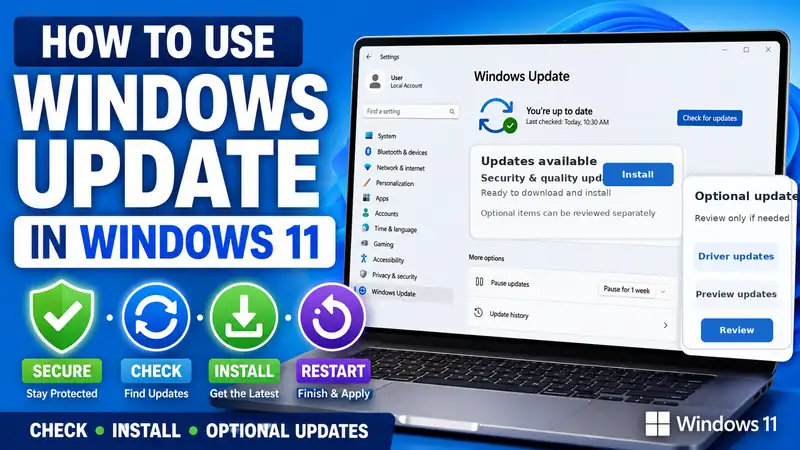
If you only need to turn off Windows updates for a limited time, Pause updates should be your first choice. Microsoft’s current Windows 11 guidance lets you select a pause end date up to 35 days from the current date.
- Open Start > Settings.
- Select Windows Update.
- Find Pause updates and choose Pick a date.
- Select an end date within the supported 35-day window.
- Confirm the pause-until date shown on the Windows Update page.
While the pause is active, Windows delays new updates and does not automatically restart to finish restart-required updates. This does not permanently turn off Windows updates. When the pause ends—or when you resume updates manually—Windows checks for available updates again.
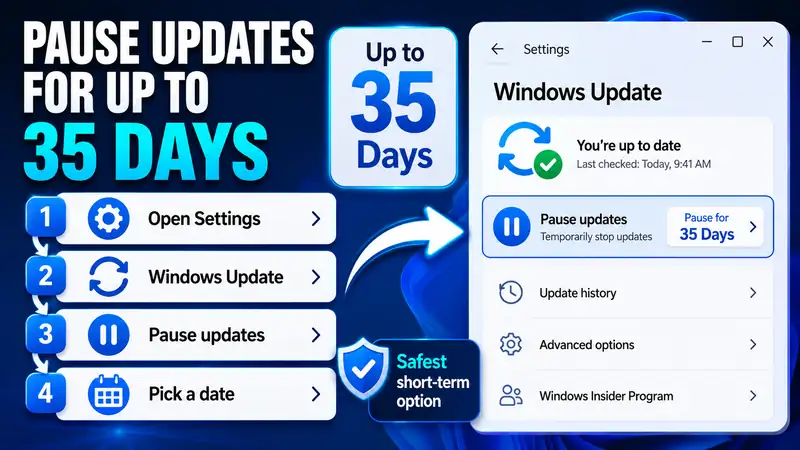
For a short interruption window, this is the easiest way to turn off Windows updates because it is visible, reversible, and does not require registry or policy changes.
Microsoft: Pause updates in Windows
④ Turn Off Early Feature Delivery Without Turning Off Security Updates
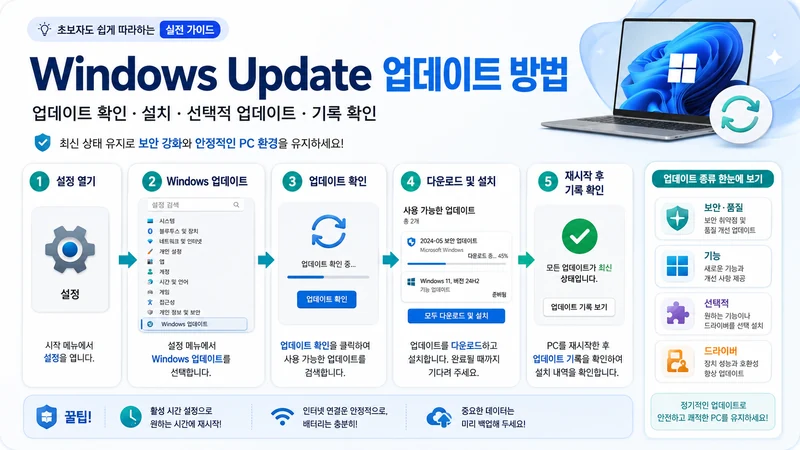
If your real goal is to receive new Windows features later, you do not need to fully turn off Windows updates. Open Settings > Windows Update and turn off Get the latest updates as soon as they’re available.
This switch mainly controls how quickly your device is prioritized for eligible non-security updates, fixes, feature updates, and improvements. Microsoft states that regular security updates continue as usual whether the switch is on or off. This makes it a useful middle ground for someone who wants to turn off Windows updates only in the sense of avoiding the earliest feature rollout.
Microsoft: Get Windows updates as soon as they’re available
⑤ Use a Metered Connection When Data Usage Is the Real Problem
If you are trying to turn off Windows updates because a hotspot or capped connection is being consumed in the background, a metered connection may solve the actual problem without disabling the update policy itself.
▸ Wi-Fi
Go to Settings > Network & internet > Wi-Fi, select the network you are using, and turn on Metered connection.
▸ Ethernet
Go to Settings > Network & internet > Ethernet, select the current network, and turn on Metered connection.
A metered connection does not completely turn off Windows updates. Microsoft says Windows Update will still download priority updates, while some other updates will not install automatically. Microsoft Store downloads and some syncing behavior can also be limited.
Microsoft: Metered connections in Windows
⑥ If Restarts Are the Problem, Do Not Turn Off Windows Updates Yet
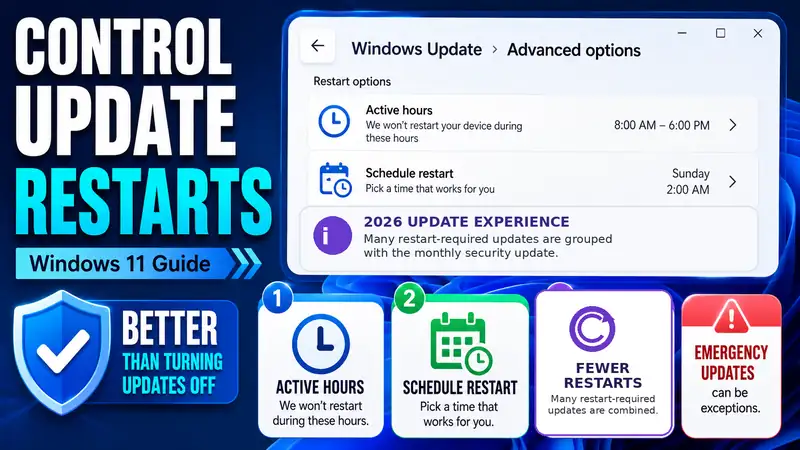
If you mainly want to turn off Windows updates because a restart interrupts your work, Active hours and restart scheduling are safer tools than disabling updates.
- Open Settings > Windows Update > Advanced options.
- Select Active hours.
- Let Windows adjust the hours automatically, or set them manually.
- If a restart is pending, use Schedule the restart when that option is available.
There is also a recent change worth knowing. Starting with Windows updates released on and after July 28, 2026, Microsoft began combining many restart-required driver, .NET, and firmware updates with the monthly security update so that the PC can usually restart once instead of several times. The experience is rolling out gradually, and emergency, out-of-band, critical driver, Defender intelligence, and some other updates can still install outside that monthly restart. If restarts are your only reason to turn off Windows updates, check whether this newer behavior already solves the problem.
Microsoft: Keep your PC up to date with active hours · Microsoft: One restart a month for Windows updates
⑦ Windows 11 Pro: Turn Off Windows Updates as Automatic Downloads with Group Policy
On Windows 11 Pro, Education, or Enterprise, Group Policy gives you the cleanest advanced way to turn off Windows updates as an automatic background download while keeping manual approval.
- Press Windows + R.
- Type
gpedit.mscand press Enter. - Go to Computer Configuration > Administrative Templates > Windows Components > Windows Update > Manage end user experience.
- Open Configure Automatic Updates.
- Set the policy to Enabled.
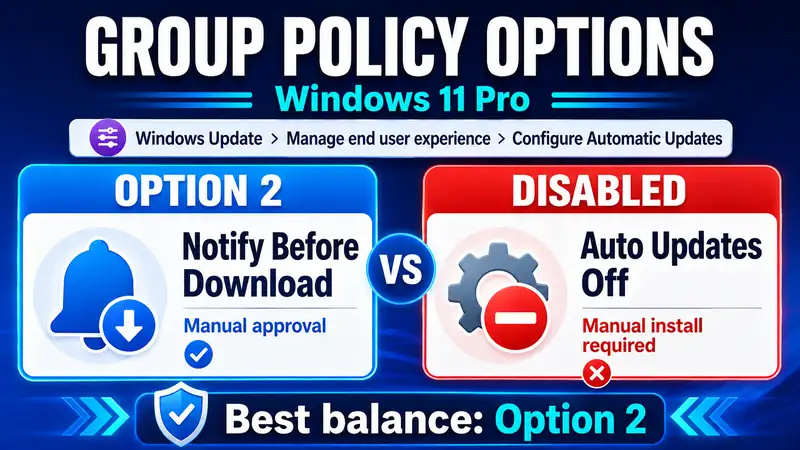
- Under Options, select 2 — Notify for download and auto install.
- Select Apply > OK.
With option 2, Windows notifies you when applicable updates are ready, but you choose when to start the download and installation. This is often a better way to turn off Windows updates automatically than blocking the entire update mechanism, because you can still install security fixes on your own schedule.
⑧ Windows 11 Pro: Disable Automatic Updating Completely with Group Policy
If you have a test PC, lab machine, or validation environment with a clear manual servicing routine, the same policy can turn off Windows updates automatically.
- Open
gpedit.msc. - Go to Computer Configuration > Administrative Templates > Windows Components > Windows Update > Manage end user experience.
- Open Configure Automatic Updates.
- Set the policy to Disabled.
- Select Apply > OK.
Microsoft Learn states that when Configure Automatic Updates is Disabled, users must manually download and install available updates from Windows Update in Settings. In other words, this does not remove Windows Update from the PC; it changes automatic servicing into a manual task. If you turn off Windows updates this way, set a recurring reminder to check for security updates.
Microsoft Learn: Configure Group Policy settings for Automatic Updates
⑨ Windows 11 Home: Use the Registry Policy Only If You Need Advanced Control
Windows 11 Home does not include the Local Group Policy Editor by default. If you still need to turn off Windows updates automatically, Microsoft Learn documents the equivalent Automatic Update policy values in the registry. This is an advanced option, so create a restore point or registry backup first and edit only the intended path.
- Press Windows + R, type
regedit, and press Enter. - Open the registry path shown below.
- If WindowsUpdate or AU does not exist, create the missing keys carefully.
- Create a DWORD (32-bit) Value named
NoAutoUpdate. - Set its value data to 1.
- Restart Windows and check the update behavior.
HKEY_LOCAL_MACHINE\SOFTWARE\Policies\Microsoft\Windows\WindowsUpdate\AU| Registry value | Data | Meaning |
|---|---|---|
NoAutoUpdate | 0 | Automatic Updates enabled — default policy value |
NoAutoUpdate | 1 | Automatic Updates disabled |
To stop using this policy and no longer turn off Windows updates, change NoAutoUpdate back to 0 or remove the policy value, restart the PC, and then check Windows Update.
Microsoft Learn: Manage additional Windows Update settings
Related guide: How to Turn Windows Update Back On in Windows 11
⑩ Why services.msc Is Not the First Method in This Guide
You will find many guides that tell you to open services.msc, find the Windows Update service, and set its startup type to Disabled. That can stop a service, but it is not the clearest long-term policy model for most users who simply want to turn off Windows updates or control when they arrive.
Microsoft documents Pause updates for temporary control and Group Policy or registry policy for automatic-update behavior. Those methods make the intended configuration easier to identify and reverse later. For that reason, this guide treats service disabling as a troubleshooting-level change rather than the first recommendation to turn off Windows updates.
If Windows Update is already failing: Windows Update Errors — Causes and Step-by-Step Fixes
⑪ Do Not Turn Off Windows Updates on a Managed Work or School PC
A work or school PC can be managed by Group Policy, Microsoft Intune, Windows Update for Business, Windows Autopatch, or another organization policy. If Settings says that some options are managed by your organization, do not try to turn off Windows updates by overriding registry, service, VPN, security, or device-management settings on your own.
- Update timing may be part of the organization’s security or compliance policy.
- Do not remove management profiles, VPN software, or security tools just to change Windows Update.
- If an update conflicts with a business deadline or test window, ask IT whether the device can be moved to a different update ring or receive a temporary pause.
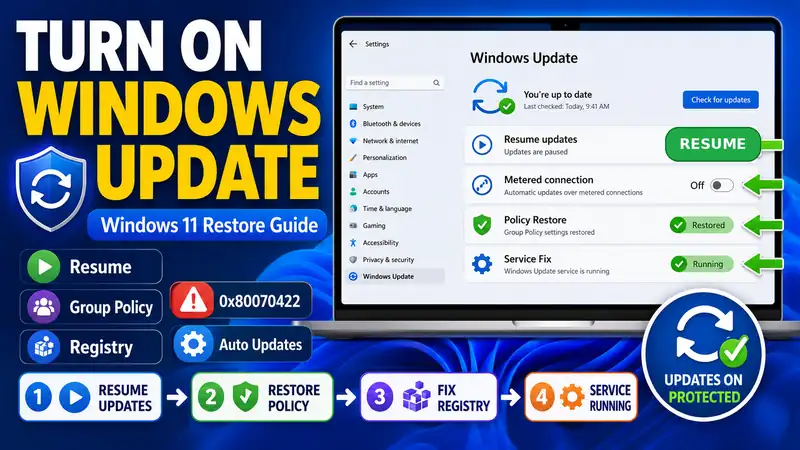
⑫ How to Turn Windows Updates Back On
| If you used | How to restore normal updating |
|---|---|
| Pause updates | Open Windows Update and select the option to resume updates |
| Metered connection | Turn off Metered connection for the current network |
| Group Policy option 2 | Set Configure Automatic Updates to Not Configured or choose the automatic policy you prefer |
| Group Policy Disabled | Set Configure Automatic Updates to Not Configured or Enabled with the desired option |
NoAutoUpdate=1 | Set the value to 0 or remove the policy value, then restart Windows |
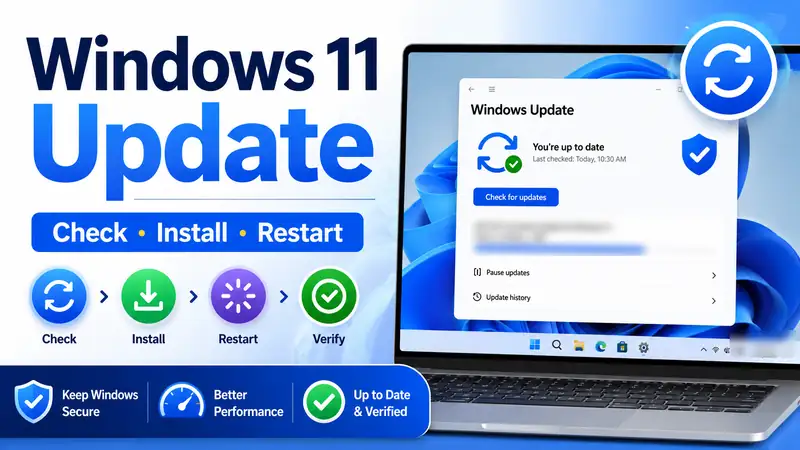
After you stop trying to turn off Windows updates, open Settings > Windows Update > Check for updates. Review and install any security or quality updates that were missed while automatic updating was paused or disabled.
Next in the series: How to Turn Windows Update Back On in Windows 11
⑬ Mistakes to Avoid When You Turn Off Windows Updates
- Do not block security updates indefinitely. If you turn off Windows updates automatically, schedule a manual security check.
- Do not confuse the early-update toggle with the entire update system. Turning it off still allows regular security updates.
- Do not treat a metered connection as a complete block. Priority Windows updates can still download.
- Do not install unofficial Group Policy “enabler” scripts on Windows 11 Home. Use supported Settings options or the documented registry policy when advanced control is genuinely necessary.
- Do not change Group Policy, the registry, and Windows services at the same time. If you later cannot update, you will not know which change caused it.
- Do not override an organization-managed update policy. A managed device can have compliance requirements that are invisible from a normal home-user guide.
- Write down what you changed. The easiest way to recover after you turn off Windows updates is to know exactly which switch, policy, or registry value you used.
❓ Windows 11 Automatic Update FAQ
Q. Can I permanently turn off Windows updates in normal Windows 11 Settings?
A. Not with a simple permanent consumer switch. Microsoft’s normal Settings experience provides a temporary pause of up to 35 days. Windows 11 Pro and higher can disable automatic updating through Group Policy, and Windows 11 Home can use the documented registry policy with care. Even then, you should manually check for security updates.
Q. How long can I turn off Windows updates with Pause updates?
A. Microsoft currently lets Windows 11 users choose a pause end date up to 35 days from the current date. When the pause ends, Windows checks for available updates again.
Q. Does Windows 11 Home include gpedit.msc?
A. The Local Group Policy Editor is not provided as the normal built-in management interface on Windows 11 Home. If you need advanced automatic-update control, Microsoft documents equivalent registry policy values. For most Home users, Pause updates or a metered connection is simpler than trying to turn off Windows updates through unofficial Group Policy modifications.
Q. Does a metered connection completely turn off Windows updates?
A. No. Microsoft says Windows Update will still download priority updates on a metered connection. Use it to reduce data consumption, not as a guaranteed way to turn off Windows updates completely.
Q. Should I turn off Windows updates because I hate automatic restarts?
A. Try Active hours and restart scheduling first. Microsoft began rolling out a once-a-month restart experience for many restart-required updates in 2026, although urgent and out-of-band updates can still be exceptions. If restart timing is the only problem, you may not need to turn off Windows updates at all.
Q. What is the safest advanced setting if I want manual approval?
A. On Windows 11 Pro or higher, Group Policy option 2—Notify for download and auto install—is usually the best balance. It lets you effectively turn off Windows updates as an automatic download while keeping a clear manual path to install security and quality updates.
Final Thoughts: Turn Off Windows Updates Only as Much as You Need
The safest way to turn off Windows updates is to use the lightest control that solves the real problem. Use Pause updates for a short deadline, turn off early-update priority if you only want new features later, use a metered connection when data is limited, and use Group Policy when you need manual approval on Windows 11 Pro.
If you truly need to turn off Windows updates automatically, Group Policy on Pro or the documented registry policy on Home can do that without pretending Windows Update has been removed from the PC. The trade-off is that update responsibility shifts to you.
Once the reason for the restriction is over, stop using the setting you chose, return to Windows Update, and check for missed security and quality updates. That approach gives you control without turning a temporary need to turn off Windows updates into a long-term security gap.