Windows 11 Update Guide: Check, Install, Restart & Verify
A Windows 11 update is safest when you start with Settings > Windows Update > Check for updates. If Windows offers an update for your PC, let it download and install, then restart when prompted. For a larger feature update, spend a few extra minutes checking your backup, free storage, power connection, and compatibility before you begin.
You do not need to chase the highest Windows version number you have seen on another computer. The practical goal is to keep your PC on a supported release and install the Windows 11 update that Microsoft is actually offering to your device. Microsoft can roll out new features gradually, and it can temporarily hold an update when a known hardware, driver, or app compatibility issue exists.
Scope of this guide: this article explains how to install security, quality, feature, and optional updates on a PC that already runs Windows 11. It does not cover upgrading from Windows 10 to Windows 11 for the first time or performing a clean USB installation.
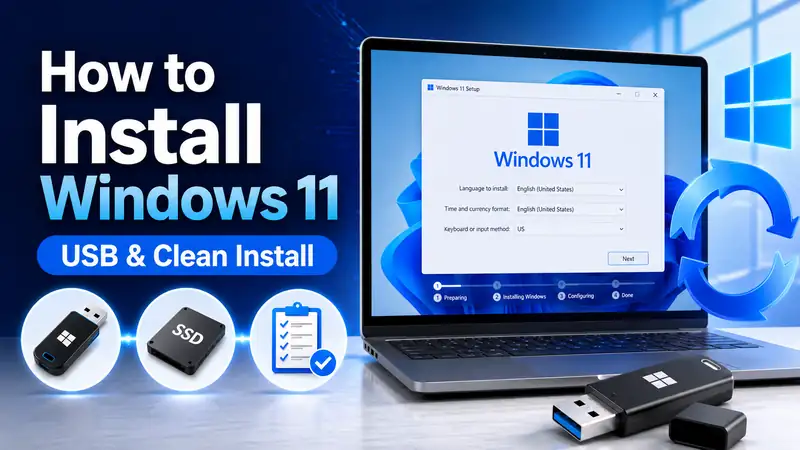
If you need a fresh installation instead: How to Install Windows 11 — USB & Clean Install Guide for Beginners
① Windows 11 Update Types: Know What You Are Installing
Not every Windows 11 update does the same job. For everyday use, the most useful distinction is between security and quality updates, feature updates, and optional updates. Knowing which category you are looking at makes it easier to decide whether to install it immediately or review it first.
| Update type | Main purpose | Beginner guidance |
|---|---|---|
| Security & quality update | Security fixes, reliability fixes, cumulative bug fixes, and stability improvements | Install the normal update that Windows Update offers for your device |
| Feature update | Moves Windows 11 to a newer supported release and can introduce broader platform changes | Check backup, storage, power, and compatibility before starting |
| Optional update | Optional drivers and selected non-security fixes or previews | Review the reason for installing it instead of selecting every item automatically |
Update priority depends on the type of update
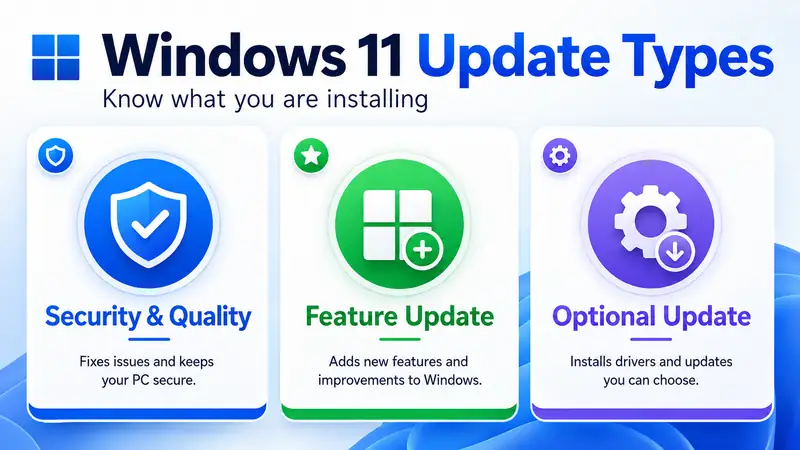
A regular security update is part of normal PC maintenance. An optional driver update is different: Microsoft says optional drivers are not installed automatically, so you can review whether one is actually relevant to a hardware problem. A feature update changes more of Windows and deserves a little more preparation than a routine monthly update.
② Before a Windows 11 Update: Check Backup, Power, Internet, and Storage
Most monthly updates are routine, but a short checklist is worthwhile before a major Windows 11 update, especially on a work PC. The idea is not to make updating complicated; it is to remove the simple causes of failed installations before Windows starts changing system files.
| Check | Recommended state | Why it matters |
|---|---|---|
| Important files | Backed up separately | Protects your data if an unrelated storage or recovery problem appears during installation |
| Power | Laptop connected to its charger | Avoids power loss during download, installation, or restart |
| Internet | Stable connection | Feature updates can require a larger download |
| Storage | Enough free space for download, staging, installation, and recovery files | Low disk space can stop the installation before it completes |
| Peripherals | Only devices you actually need | Keeps a major update environment simpler when troubleshooting |
Microsoft says the required free space varies by PC and update. Its current guidance notes that a feature update may typically require 6–11 GB or more of free space, while a quality update may require 2–3 GB or more. If Windows reports that space is low, start with Settings > System > Storage, Storage Sense, and Cleanup recommendations rather than manually deleting Windows system folders.
Microsoft: Free up space for Windows updates
Related guide: How to Back Up Windows 11 — Windows Backup, OneDrive & File History Guide
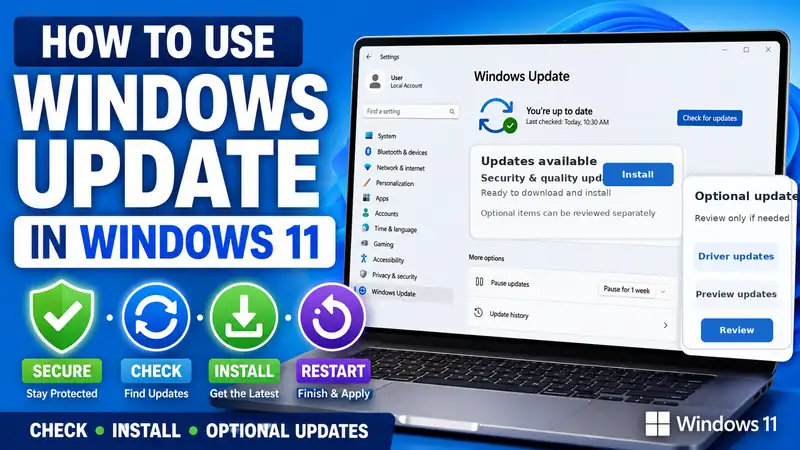
③ How to Install a Windows 11 Update from Settings
If Windows starts normally and the PC is online, this is the standard Windows Update workflow. You do not need a separate updater for normal security and quality updates.
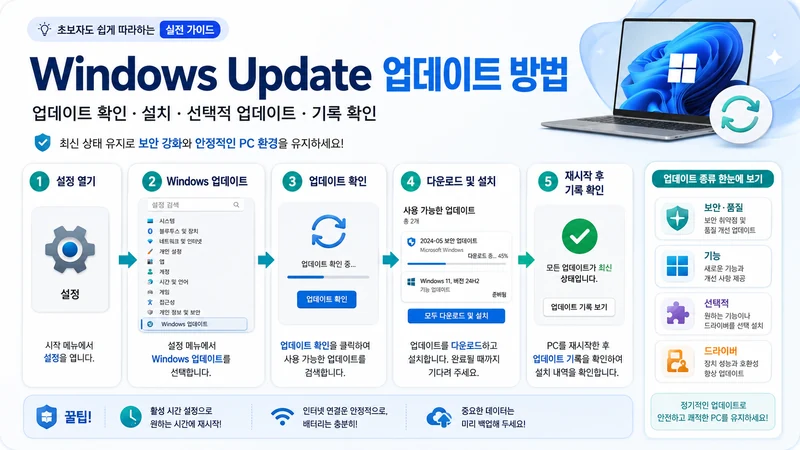
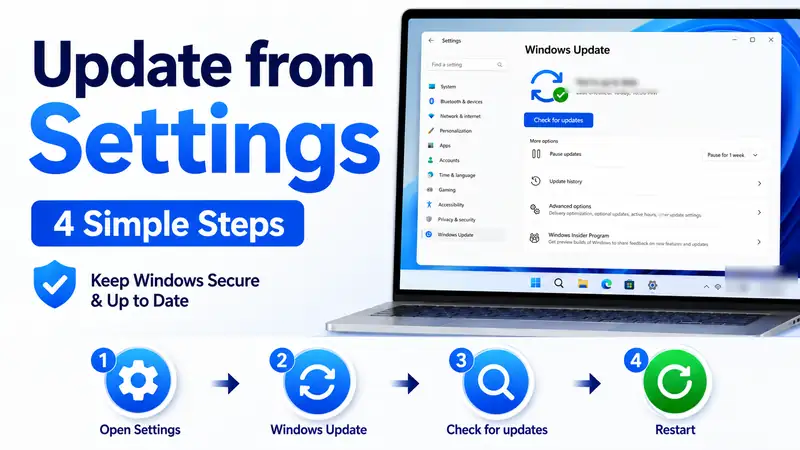
- Open Start > Settings. You can also press Windows + I.
- Select Windows Update.
- Select Check for updates.
- If an update is available, select Download & install when that button appears, or allow the automatic download to continue.
- If Windows shows Restart required, save your open work.
- Select Restart now or use the available restart-scheduling option.
- After the PC restarts, return to Settings > Windows Update and check one more time for anything that remains.
If Windows says You’re up to date, there may be nothing else you need to install at that moment. Another device can still show a different update because rollout timing and compatibility can vary.
Microsoft: Install Windows Updates
Why check again after Windows restarts?
One restart does not always mean every available package is finished. A later update can appear only after a prerequisite or servicing component has installed. Checking Windows Update once more after the restart is a simple way to verify that the update cycle is complete.
④ Windows 11 Update Timing: Should You Get New Updates as Soon as Possible?
Windows Update can show a switch labeled Get the latest updates as soon as they’re available. Turning it on gives your PC priority for eligible non-security updates, fixes, improvements, and feature changes once Microsoft makes them available to your device.
| Setting | What it changes | Who may prefer it |
|---|---|---|
| On | Prioritizes the PC for eligible non-security updates, fixes, improvements, and feature changes sooner | Users who want new Windows changes earlier and are comfortable with a faster update pace |
| Off | Follows the normal staged rollout | Users who prioritize stability or do not need new features immediately |
Turning the switch off does not mean you stop receiving normal security protection. Microsoft explains that the setting mainly affects how quickly your device receives eligible non-security updates and feature improvements. In other words, this option changes the pace of some update delivery, not whether the PC receives ordinary security updates at all.
Microsoft: Get Windows updates as soon as they’re available
⑤ Feature Updates: Why a Windows 11 Update May Not Appear on Your PC
A feature Windows 11 update changes more than a normal monthly patch. If Windows Update offers a newer supported release to your PC, review the update and install it when you are ready. If another PC sees a newer release and yours does not, however, that alone does not prove there is a problem.
Microsoft can deliver a feature Windows 11 update in stages. It can also apply a compatibility safeguard, often called a safeguard hold, when a known app, driver, or hardware problem could make the upgrade unreliable. If that happens, waiting for the normal Windows Update offer is usually safer than forcing the release without understanding the compatibility issue.
Current August 2026 example: Windows 11 version 26H1 is a hardware-optimized release for select new devices. Microsoft states that 26H1 is not designed as a feature update for existing devices and is not offered as an in-place update from Windows 11 24H2 or 25H2. Existing 24H2 and 25H2 PCs continue to receive their supported monthly security, quality, and feature improvements. So the absence of a 26H1 Windows 11 update on an existing PC is expected behavior, not an update failure.
Microsoft Learn: Windows 11 release information
The goal of a Windows 11 update is support and stability, not matching someone else’s number
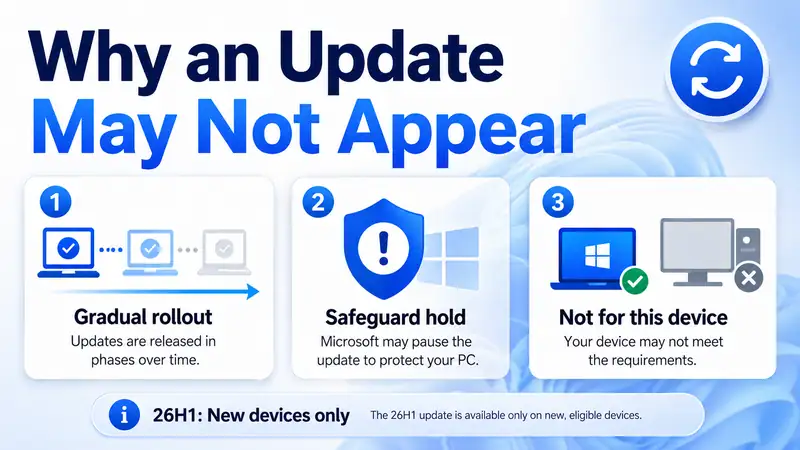
Two Windows 11 PCs can legitimately receive the same feature update at different times. Hardware, drivers, rollout stage, edition, and known issues can all affect availability. For a normal home PC, follow the supported update Microsoft offers to that device unless you have a specific reason to use a manual installation method.
⑥ Manage Windows 11 Update Restarts with Active Hours
Some Windows updates need a restart before they are complete. If a restart would interrupt work, configure Active hours so Windows knows when you usually use the PC.
- Open Settings > Windows Update > Advanced options.
- Select Active hours.
- Choose automatic adjustment based on device activity, or set the hours manually.
- If Windows offers Schedule the restart for a pending Windows 11 update, choose a time that will not interrupt your work.
Microsoft designs Windows to complete update restarts outside active hours whenever possible. Setting the schedule does not cancel the Windows 11 update; it simply gives you more control over when the final restart happens.
Microsoft: Keep your PC up to date with active hours
⑦ Optional Drivers Are Not a Mandatory Windows 11 Update
Windows can install recommended drivers automatically through Windows Update, but Microsoft says optional drivers are not installed automatically. You can review them under Settings > Windows Update > Advanced options > Optional updates when they are available.
If your hardware already works correctly, you do not need to turn every optional driver into a manual Windows 11 update project. Review a driver when it addresses a device problem, when the manufacturer recommends it, or when the update notes clearly match an issue you are trying to solve.
A simple rule works well: install an optional driver because it has a clear purpose, not merely because the version number is newer. That keeps your normal Windows 11 update routine separate from unnecessary driver changes.
Microsoft: Automatically get recommended and updated hardware drivers
⑧ Not Enough Space for a Windows 11 Update? Start with Storage Settings
Before Windows installs a Windows 11 update, it checks whether the system drive has enough room for the download, installation files, temporary content, and rollback data. If Windows reports that more space is required, use the built-in storage tools first.
- Open Settings > System > Storage.
- Review Cleanup recommendations.
- Use Storage Sense for appropriate temporary files.
- If the Windows 11 update page offers a low-space troubleshooting flow, follow the prompt.
- Microsoft can also allow temporary external storage in some low-space update scenarios; its current guidance calls for an external device with at least 10 GB of free space for that workflow.
Avoid deleting Windows system folders or update caches by hand just to make a Windows 11 update fit. Cache corruption is a different troubleshooting problem, and manual deletion can create more work if the real issue is storage, servicing, or system-file damage.
Next supporting guide: How to Clear the Windows Update Cache Safely
⑨ Verify That the Windows 11 Update Installed Correctly
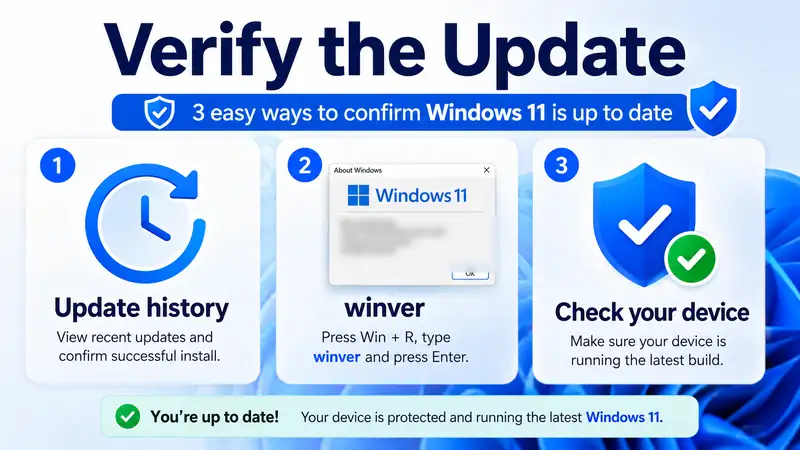
A restart is a good sign, but it is better to verify the result. Two checks tell you most of what you need to know after a Windows 11 update: Update history and your current Windows version.
Check Update history
Open Settings > Windows Update > Update history. You can see installed quality updates, driver updates, and other update categories. If a problem starts after a Windows 11 update, this history gives you a specific KB, driver, or date to investigate.
Check the version with winver
Press Windows + R, type winver, and press Enter. Windows shows the current version and OS build. You can also open Settings > System > About and review Windows specifications.
Why verification makes the next problem easier to solve
When you know which Windows 11 update was installed and which build the PC is running, you can compare the timing of a problem with a specific change. That is far more useful than only remembering that “Windows updated recently.”
⑩ If a Windows 11 Update Fails, Troubleshoot Before Resetting the PC
One failed Windows 11 update is not a reason to jump straight to Reset this PC or a clean installation. First rule out the common causes and record any useful error information.
- Restart the PC normally once.
- Check the internet connection and free space on C:.
- Return to Windows Update and run another update check.
- Write down any error code shown by the failed Windows 11 update.
- Run the Windows Update troubleshooter through the Get Help app.
- Review Update history to see whether a recent update or driver lines up with the start of the problem.
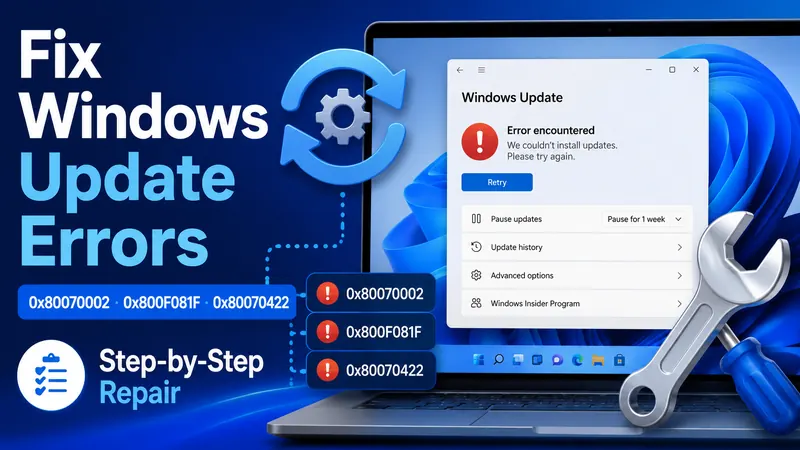
Microsoft’s current troubleshooting guidance starts Windows 11 users with the automated Windows Update troubleshooter in Get Help. If the same Windows 11 update continues to fail, the cause may be a servicing problem, damaged system files, a driver conflict, low storage, or an update-cache issue. At that point, move to the troubleshooting path that matches the error instead of repeating the same update attempt indefinitely.
Microsoft: Troubleshoot problems updating Windows
Next supporting guide: Windows Update Errors — Causes and Step-by-Step Fixes
⑪ When Should You Use Windows Update Assistant?
Windows Update Assistant is a Microsoft tool for manually downloading and installing the latest feature update on a compatible PC when that feature Windows 11 update has not arrived automatically through Windows Update.
For most users, Settings > Windows Update should still be the first choice. If a feature Windows 11 update is missing, check release-health information and known compatibility issues before using a manual tool. Microsoft also distinguishes the Assistant from normal quality updates: if you only need smaller security and quality fixes, use Windows Update in Settings instead.
Microsoft currently states that Windows Update Assistant does not run on Arm-based PCs and is supported on x86/64-based devices. That is another reason not to treat the Assistant as the universal way to install every Windows 11 update.
Microsoft: Windows Update Assistant
⑫ Windows 11 Update Mistakes to Avoid
- Do not force the PC off during a Windows 11 update. A long restart or configuration screen is not a reason to interrupt power.
- Do not force a feature update just to match another PC’s version number. Rollout timing and safeguard holds can differ by device.
- Do not install every optional driver in one batch without a reason. Know which hardware problem or need the driver addresses.
- Do not skip a backup before a major Windows 11 update on an important PC.
- Do not change services, registry settings, drivers, and BIOS options all at once after a failure. Multiple simultaneous changes make the cause harder to identify.
- Do not install Windows update files from untrusted sources. Prefer Windows Update, Microsoft’s official resources, and the device manufacturer’s official support page when a driver is needed.
❓ Windows 11 Update FAQ
Q. Does a Windows 11 update install automatically?
A. Many regular updates download and install automatically through Windows Update. A Windows 11 update can still require a restart, and some feature or optional updates may show a button for you to choose when to download and install them.
Q. Is it okay to click Check for updates manually?
A. Yes. You do not need to press it repeatedly every day, but it is useful when you want to verify that a Windows 11 update cycle is complete, look for a pending fix, or troubleshoot an update problem.
Q. If Windows 11 26H1 does not appear, is Windows Update broken?
A. No. As of August 2026, Microsoft describes 26H1 as a hardware-optimized release for select new devices. It is not offered as an in-place Windows 11 update from 24H2 or 25H2 on existing PCs, so not seeing 26H1 is expected on those systems.
Q. Should I install every optional driver update?
A. No. Microsoft says optional drivers are not installed automatically. If the hardware already works correctly, you do not need to turn every listed driver into a manual Windows 11 update. Review drivers when they solve a real problem or are recommended for your device.
Q. My PC feels slower after a Windows 11 update. Should I uninstall it immediately?
A. Not necessarily. Restart the PC, check whether a follow-up Windows 11 update is available, and see whether the slowdown continues. If the issue clearly began after a particular KB or driver, review Update history and Microsoft’s known-issue information before deciding whether rollback is appropriate.
Q. Is more than one restart during a Windows 11 update normal?
A. It can be. Feature updates and some cumulative update processes may involve more than one restart. If Windows says the Windows 11 update is still installing or configuring, avoid turning the PC off manually.
Final Thoughts: A Windows 11 Update Is Check → Install → Restart → Verify
For everyday maintenance, a Windows 11 update is straightforward: open Settings > Windows Update, check for updates, install what Windows offers, and restart when required. That is the normal path for most home PCs.
Before a large feature Windows 11 update, add a short preparation step: back up important files, connect reliable power, make sure the internet connection is stable, and check free space. If another computer has a newer version and yours does not, review Microsoft’s rollout and release-health information before forcing anything.
After the Windows 11 update, verify the result in Update history and with winver. If installation keeps failing, work from the error code, storage condition, drivers, and Windows Update troubleshooting tools before moving to a reset or clean reinstall.
Next in the series: Windows Bootable USB Errors — Causes and Step-by-Step Fixes