How to Reset Windows 11: Keep My Files, Cloud Download & WinRE Guide
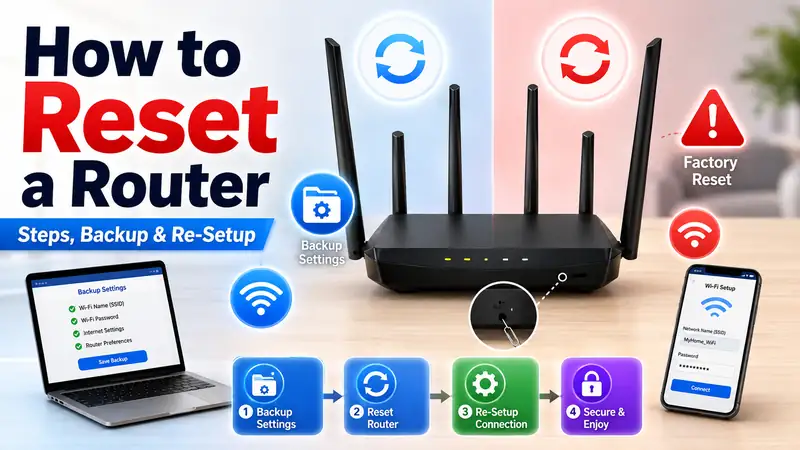
To reset Windows 11 is to reinstall Windows using its built-in recovery feature. That can be useful when the system has become unstable, cluttered, or difficult to repair, but a reset should not be the first response to every problem. Before you begin, decide whether a lighter recovery option can solve the issue and, if a reset is truly needed, understand exactly what Keep my files, Remove everything, Cloud download, and Local reinstall will do.
The most important point is that Keep my files does not keep your entire PC environment intact. Personal files are preserved, but installed apps and many settings are removed. Remove everything also deletes personal files. Before you reset Windows 11, back up anything important and make sure you can access the BitLocker recovery key if the device is encrypted.
① Decide Whether You Really Need to Reset Windows 11
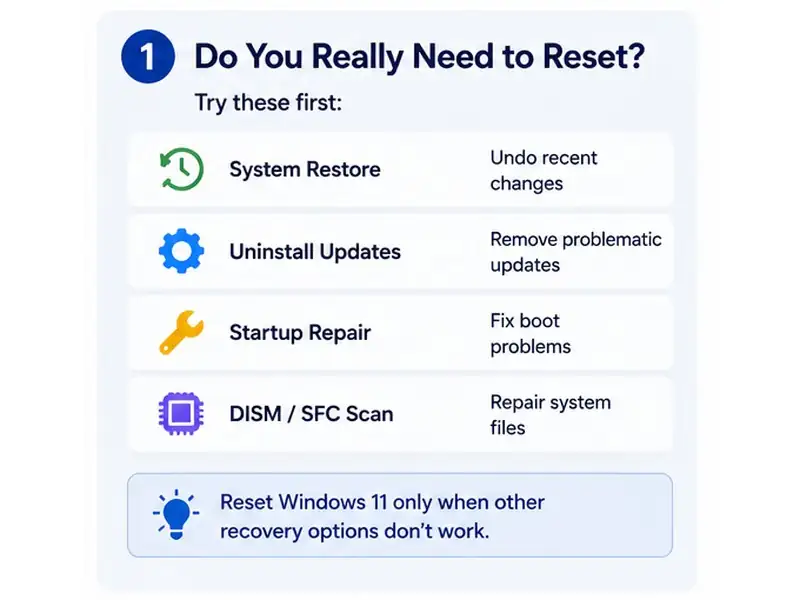
Slow performance or recurring errors do not automatically mean you should reset Windows 11. Microsoft’s current recovery guidance separates recent app problems, update issues, startup failures, and more persistent system problems into different recovery paths. A reset becomes more reasonable when lighter recovery methods have failed or when you intentionally want a fresh Windows environment.
| Current situation | Try first | Consider a reset when |
|---|---|---|
| Problems began after installing an app or driver | System Restore, Safe Mode, driver rollback | Removing the likely cause does not restore stability |
| Problems began after Windows Update | Check for a corrective update, reinstall the current version, or uninstall the problematic update | Update repair options do not solve the issue |
| Repeated system-file errors | DISM, SFC, or reinstall the current Windows version through Windows Update | Windows remains unstable after repair |
| The PC has been unstable for a long time | Back up data and review recovery options | Multiple issues have accumulated and no single cause is clear |
| You are selling, donating, or recycling the PC | Back up anything you want to keep | You need to remove personal data from the device |
A reset is stronger than most recovery tools
Reset this PC reinstalls Windows, so its impact is much greater than a restart, Startup Repair, System Restore, or a targeted update repair. The safer sequence is to preserve as much of your current environment as possible and only reset Windows 11 when the less disruptive options no longer make sense.
Related guide: Windows 11 Recovery Guide — Fix Boot Errors with WinRE & System Restore
② Five Things to Do Before You Reset Windows 11
- Back up important files. Save documents, photos, project files, browser data, and anything else you cannot easily replace to an external drive or trusted cloud location.
- Find your BitLocker recovery key. An encrypted device can request the key during recovery. Microsoft states that Support cannot retrieve, provide, or recreate a lost BitLocker recovery key.
- Prepare to reinstall your apps. Even if you choose Keep my files, applications you installed can be removed. Make sure you still have the accounts, installers, license information, and sign-in details you need.
- Connect reliable power. Keep a laptop connected to its power adapter throughout the reset.
- Check whether the device is managed by work or school. Organization-managed PCs can have recovery policies, encryption requirements, or administrator procedures that should take priority over a consumer reset guide.
Microsoft’s Reset your PC guidance recommends backing up important files and having the BitLocker recovery key available before starting. For encrypted devices, see Find your BitLocker recovery key.
Next in the series: Windows 11 Backup Guide — A Practical Step-by-Step Walkthrough for Beginners
③ Keep My Files vs Remove Everything: Choose This First
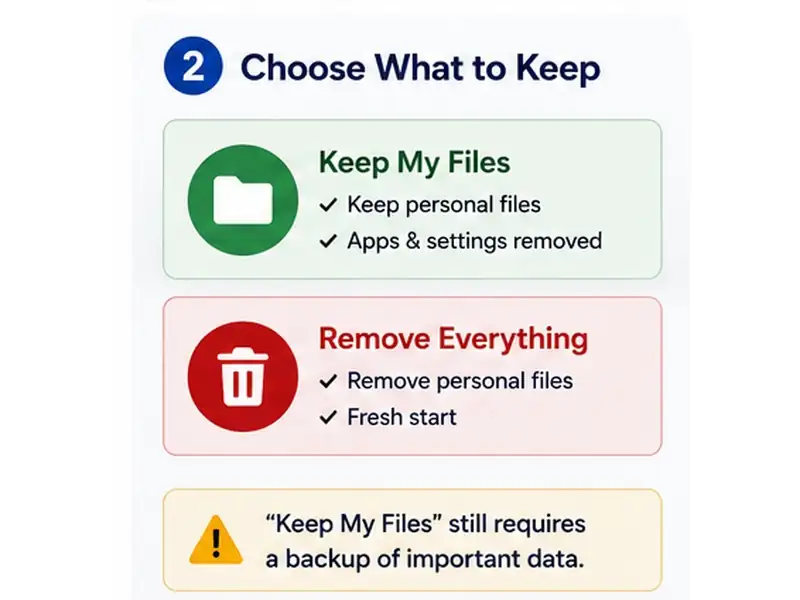
When you reset Windows 11, the first major decision is whether Windows should preserve your personal files. Both options reinstall Windows, but they have very different consequences for the data on the PC.
| Reset option | Personal files | Installed apps | Windows settings | Best for |
|---|---|---|---|---|
| Keep my files | Kept | Removed | Reset | Repairing Windows while preserving documents, photos, and other personal files |
| Remove everything | Removed | Removed | Reset | A fresh personal setup or preparing a PC for sale, donation, or recycling |
Keep my files still requires a backup
Keep my files is designed to preserve personal data, but a reset still rewrites the operating system. Apps and settings are removed, and a separate storage failure could still put data at risk. Treat the feature as a recovery option—not as a substitute for a backup.
When Keep my files makes sense
- Windows problems keep returning, but you want to preserve your documents and photos.
- The PC has accumulated years of software and configuration changes, and you want a cleaner Windows environment without a full wipe.
- Normal recovery tools have failed, but a clean installation would be unnecessarily disruptive.
When Remove everything makes sense
- You are selling, donating, recycling, or otherwise transferring the PC.
- You want to rebuild the machine without retaining the existing user data.
- There is no reason to preserve the current personal files or application setup.
On some manufacturer-configured PCs, you may also see an option to restore preinstalled apps or apply manufacturer customizations. Review the final settings screen carefully because those choices can change what the PC looks like after the reset.
④ Cloud Download vs Local Reinstall: Which Is Better?
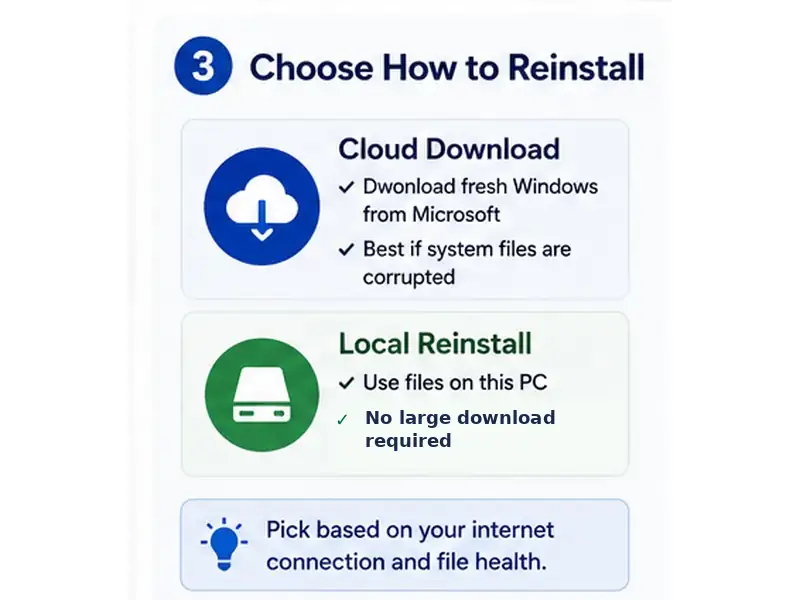
After choosing what to keep, Windows asks where the installation files should come from. Cloud download gets a fresh Windows copy from Microsoft, while Local reinstall uses the Windows files already stored on the PC.
| Factor | Cloud download | Local reinstall |
|---|---|---|
| Installation source | Downloads a fresh copy of Windows | Uses Windows files already on the PC |
| Internet | Requires a stable internet connection | Avoids a large cloud download |
| If local recovery files may be damaged | Often the better choice | Relies on the local files being usable |
| Best fit | You want a fresh Windows copy or suspect local files are corrupted or missing | Internet is limited and the local Windows files appear healthy |
Choose based on the installation source, not just speed
Cloud download is useful when local recovery files may be corrupted or missing. Local reinstall can be more convenient when internet access is slow or unreliable and the local installation source is healthy. Neither choice removes the need to check Windows Update after you reset Windows 11.
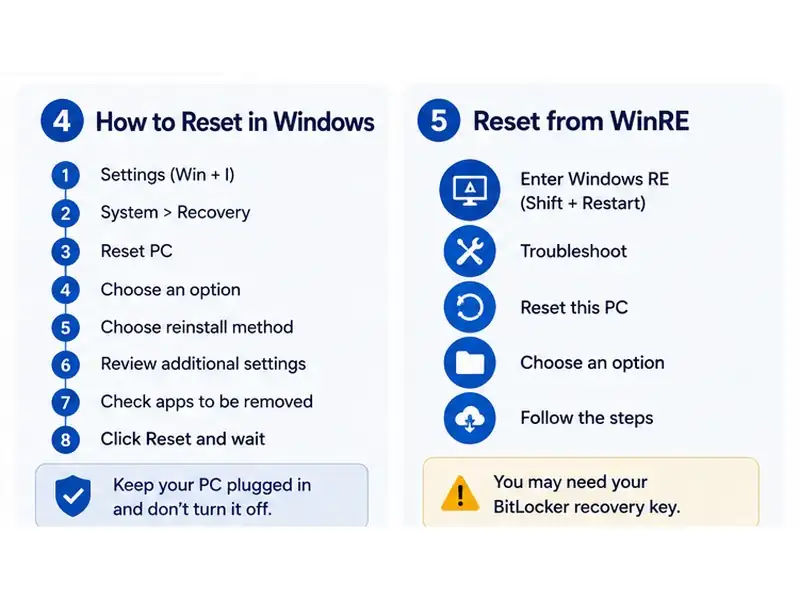
⑤ How to Reset Windows 11 from Settings
If you can still sign in to Windows, the Settings app is the simplest place to begin.
- Open Settings. You can press Windows + I.
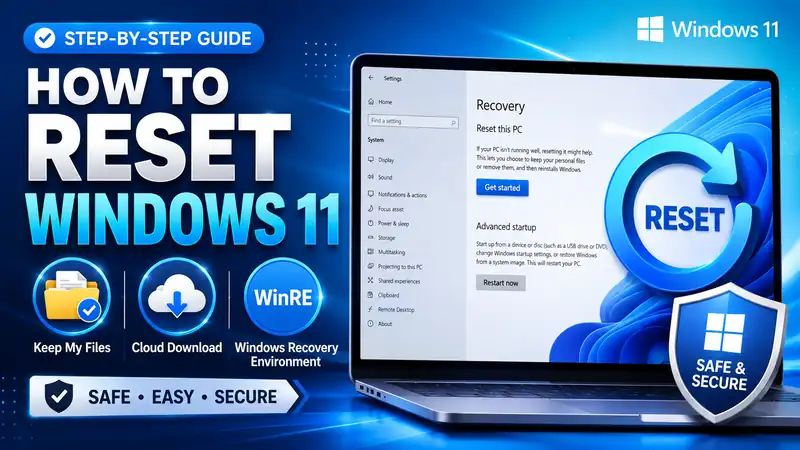
- Go to System > Recovery.
- Under Recovery options, select Reset PC.
- Choose Keep my files or Remove everything.
- Choose Cloud download or Local reinstall.
- If Windows shows Additional settings or Change settings, review options such as data cleaning and restoring preinstalled apps.
- Review the apps that will be removed and confirm that the reset summary matches what you intended.
- Select Reset and leave the PC powered until the process finishes.
Stop at the final summary and check everything once more
Before the reset actually starts, confirm the personal-file option, reinstall source, and any additional settings. If you selected Remove everything or enabled drive cleaning for a PC you are not giving away, make sure that is truly what you intended. This is the last easy point to catch the wrong choice before you reset Windows 11.
⑥ How to Reset Windows 11 from WinRE When It Will Not Boot
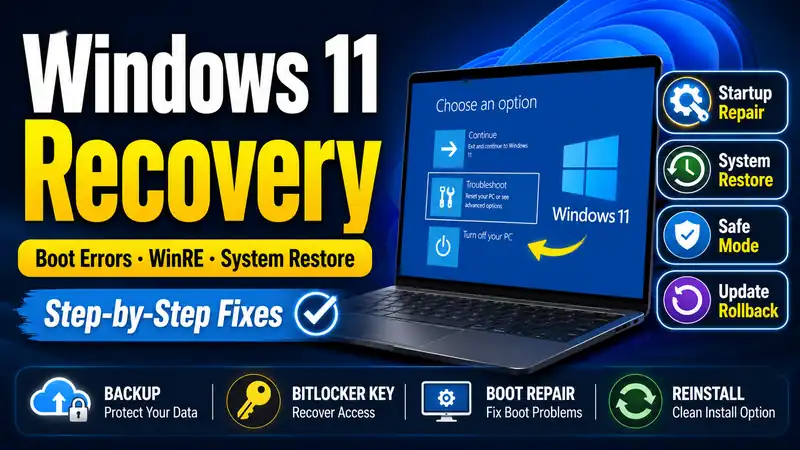
If Windows cannot reach the desktop, you can still reset Windows 11 from the Windows Recovery Environment, or WinRE. Windows may open Automatic Repair after repeated startup failures, and you can also enter WinRE from the sign-in screen by holding Shift while selecting Restart.
- Enter Windows RE.
- Select Troubleshoot.
- Select Reset this PC.
- Choose Keep my files or Remove everything.
- Follow the reinstall-source, account, and BitLocker prompts shown on the screen.
- Review the final selections and begin the reset.
Microsoft’s reset documentation confirms that encrypted devices can require the BitLocker key when Reset this PC is launched from Windows RE. If you cannot locate the key, stop and find it before continuing rather than guessing through the recovery process.
⑦ What Actually Stays When You Choose Keep My Files?
Keep my files is often misunderstood. It means Windows attempts to preserve personal files while reinstalling the operating system. It does not mean that every program, driver, preference, and desktop customization will survive the reset unchanged.
- Personal files: preserved by the Keep my files option.
- Installed desktop apps: removed and may need to be reinstalled.
- Windows settings: many settings return to defaults.
- Manufacturer software: can return when the restore-preinstalled-apps option is enabled or when the manufacturer recovery configuration applies.
- Cloud-synced files: verify OneDrive or other sync status separately; do not assume every cloud item is currently stored offline on the PC.
If Windows displays a list of apps that will be removed before you reset Windows 11, save or photograph that list. It makes rebuilding the PC much easier afterward.
⑧ Resetting Windows 11 Before Selling or Giving Away the PC
If the PC is being sold, donated, recycled, or transferred to another person, choose Remove everything and review the Clean data setting. Microsoft explains that cleaning the drive makes it harder for someone else to recover files that were removed.
There is an important limitation: Microsoft explicitly states that the Windows data-erasure feature is designed for consumers and does not meet government or industry data-erasure standards. A business, regulated organization, or device containing highly sensitive data should follow its approved disposal and sanitization procedure rather than assuming Reset this PC meets a formal destruction standard.
⑨ A Long Black Screen During Reset Does Not Always Mean It Failed
During a reset, the screen can stay black for a surprisingly long time while the PC restarts itself. Microsoft notes that this can occasionally last more than 15 minutes and warns that manually restarting the computer during the process can cause the reset to fail.
- Do not hold the power button just because progress appears to pause.
- Keep a laptop connected to its power adapter.
- Avoid connecting and disconnecting unnecessary USB or storage devices during the reset.
- Only interact with the PC when Windows actually asks for input.
⑩ What to Do If Reset This PC Fails
If the reset stops with an error, rolls back, or returns you to the same broken state, repeatedly running the exact same reset is not always the best next move.
- Local reinstall failed: consider Cloud download if the local Windows source may be corrupted.
- The SSD or HDD may be failing: check whether the drive is detected reliably in BIOS/UEFI and investigate hardware errors.
- WinRE is not working: create Windows installation media on another working PC.
- You suspect malware or built-in recovery tools keep failing: consider reinstalling Windows from installation media.
Microsoft’s broader Recovery options in Windows guide recommends installation media when built-in recovery options are no longer enough. If Windows still runs and you want a less destructive repair before resetting, the Fix problems using Windows Update option can reinstall the same Windows version while preserving apps, files, and settings.
Related guide: How to Install Windows 11 — USB & Clean Install Guide for Beginners
⑪ Reset Windows 11 vs Clean Install: What Is the Difference?
| Method | Reset this PC | Clean install from installation media |
|---|---|---|
| Where you start | Settings or Windows RE | Bootable USB or other installation media |
| Personal files | Keep my files is available | Can be deleted depending on the installation and partition choices |
| Apps and settings | Apps removed and settings reset | A new Windows environment is built |
| Best for | You need a stronger recovery step but do not necessarily need to rebuild from USB | Built-in recovery has failed or you intentionally want a completely fresh installation |
Microsoft’s installation-media reinstall guide explains both in-place reinstall and clean-install paths. A clean install is more disruptive than Reset this PC and should be treated as a deliberate rebuild, not simply another button in the same reset flow.
⑫ Checklist After You Reset Windows 11
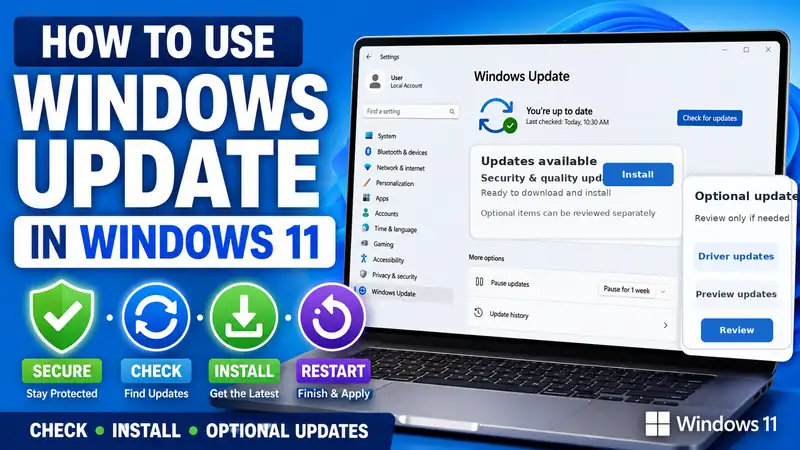
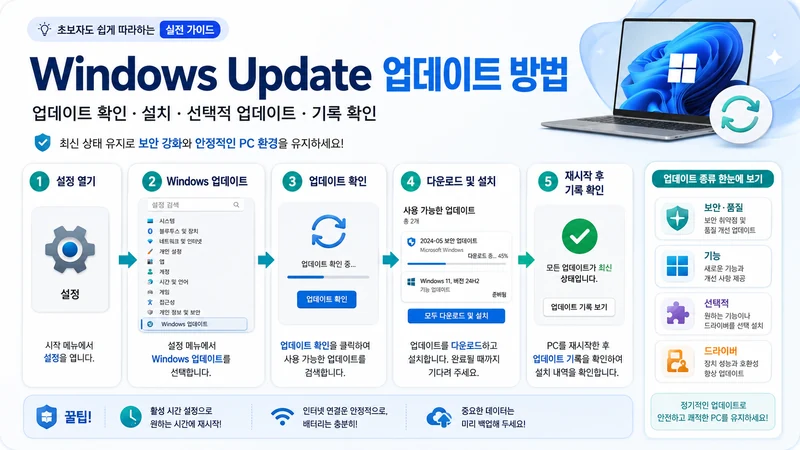
- Windows Update: open Settings > Windows Update and install the latest available fixes.
- Device drivers: verify graphics, chipset, Wi-Fi, Bluetooth, audio, webcam, and touchpad operation.
- Personal files: confirm that local backups and OneDrive or other cloud-synced data are available.
- Essential apps: reinstall only the browsers, office tools, security software, and work apps you actually need.
- Security: check Windows Security and confirm the intended device-encryption status.
- Backup: once the PC is healthy again, rebuild your backup routine before the next problem happens.
❓ Windows 11 Reset FAQ
Q. Are my photos and documents guaranteed to be safe with Keep my files?
A. Keep my files is designed to preserve personal files, but you should still back up anything important before you reset Windows 11. A reset does not protect you from an unrelated storage failure or another unexpected problem during recovery.
Q. Does Keep my files remove programs?
A. Yes. Microsoft states that Keep my files preserves personal files but removes apps and settings. Review the list of apps Windows plans to remove and prepare the installers and account information you will need afterward.
Q. Is Cloud download always better than Local reinstall?
A. No. Cloud download is useful when local Windows files may be corrupted or missing and when you have reliable internet access. Local reinstall avoids the large cloud download and can be convenient when the local recovery source is healthy.
Q. Can I turn the PC off if the reset screen stays black for a long time?
A. Avoid manually restarting it during the reset. Microsoft notes that the screen can occasionally remain black for more than 15 minutes and warns that forcing a restart can cause the reset to fail.
Q. Can I reset Windows 11 if it will not boot?
A. Yes, if you can reach Windows RE. From WinRE, open Troubleshoot > Reset this PC and continue with the available reset options. An encrypted device may require the BitLocker recovery key.
Q. Is Remove everything enough before selling a PC?
A. For a typical consumer transfer, review the additional Clean data setting because it makes deleted files harder to recover. However, Microsoft states that this consumer feature does not meet government or industry data-erasure standards, so regulated or high-security devices need the organization’s approved sanitization process.
Final Thoughts: Decide What You Want to Keep Before You Reset Windows 11
The most important part of a Windows reset is not finding the Reset PC button. It is deciding what you want to preserve and why you are resetting the machine. Use Keep my files when personal data should remain, and consider Remove everything when you intentionally want a fresh user environment or are preparing the PC for someone else.
Then choose Cloud download or Local reinstall based on the condition of the local Windows files and your internet connection. Before you reset Windows 11, complete a separate backup and make sure the BitLocker recovery key is available. During the process, do not force the PC off simply because the screen appears black or progress seems slow.
If Reset this PC repeatedly fails, stop repeating the same attempt and move back into the wider Windows recovery flow. At that point, installation media or a clean reinstall may be the more appropriate next step.