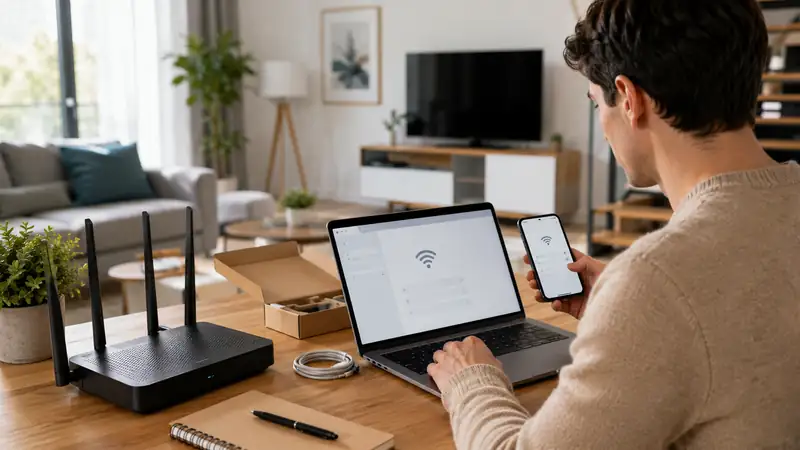
How to Update Router Firmware | A Safe Step-by-Step Guide
A safe router firmware update is more than clicking an “Update” button. The reliable order is identify the exact model and hardware revision → check the current firmware and release notes → back up important settings → choose the supported automatic, online, app, or manual method → keep power connected during the update → verify the firmware, WAN, WiFi, and devices after the reboot. If you are new to this, start with the router’s built-in online update or official app when your model supports it, because that reduces the risk of choosing the wrong firmware file.
Router firmware is the software built into the device that controls its networking functions. Manufacturers may release a router firmware update to patch security issues, fix bugs, improve stability, add features, or improve compatibility. Even if your internet connection is working today, it is still worth knowing how your router handles updates and whether a newer supported release exists. The exact menus and firmware files differ by brand and model, so this guide focuses on a safe decision process rather than one brand’s screen layout.
The one rule to remember:
Use only firmware intended for the exact router model, hardware revision, and purchase region. Once a router firmware update begins, do not unplug the router or interrupt the connection unless the manufacturer’s recovery instructions specifically tell you to do so.
① Router Firmware Update: Check the Model and Current Version First
The first step in any router firmware update is not finding the Update button. It is identifying the exact hardware you own. Routers with nearly identical product names can have different hardware revisions, and some vendors publish different firmware for different regions.
- Model name — Check the label on the bottom or back of the router, or the router dashboard.
- Hardware revision — Look for labels such as V1, V2, Ver., Rev., or H/W.
- Current firmware version — Usually found under Status, System, Administration, Firmware, or Router Update.
- Purchase region — Important when a vendor separates US, EU, or other regional firmware.
- Supported update method — Check whether the model supports automatic, online, app-based, or manual firmware installation.
TP-Link’s current English router firmware update guide tells users to verify the hardware version before a manual upgrade and to download firmware from the official regional site that matches the device’s purchase location. It also warns that using the wrong firmware can damage the device and affect warranty coverage.
TP-Link: How to Update Firmware on TP-Link Wi-Fi Routers
② Back Up Important Settings and Read the Release Notes
Before a router firmware update, protect the settings that would be difficult to recreate. Many routine updates preserve the existing configuration, but a specific release note or vendor procedure may recommend a reset or require some settings to be entered again.
| Before you update | Why it matters | Practical action |
|---|---|---|
| Configuration backup | Helps if settings are lost or the router needs to be rebuilt | Export a backup when supported and record important values separately |
| Release notes | Shows security fixes, bug fixes, compatibility changes, and reset requirements | Read the notes in the router dashboard or official support page |
| WAN settings | PPPoE or Static IP users may need them to reconnect | Record username, IP address, gateway, DNS, and other ISP-provided values |
| Port, VPN, and DHCP rules | NAS, cameras, gaming, remote access, and reserved addresses can be time-consuming to recreate | Save screenshots or a compatible configuration backup |
This preparation step matters most on routers that have been heavily customized. A successful router firmware update is much easier to recover from when you already know how the WAN, VPN, port forwarding, and address reservations were configured. If the purpose of the update is to fix a configuration conflict, however, restoring an old backup may also restore the problem, so sometimes a clean reconfiguration is better.
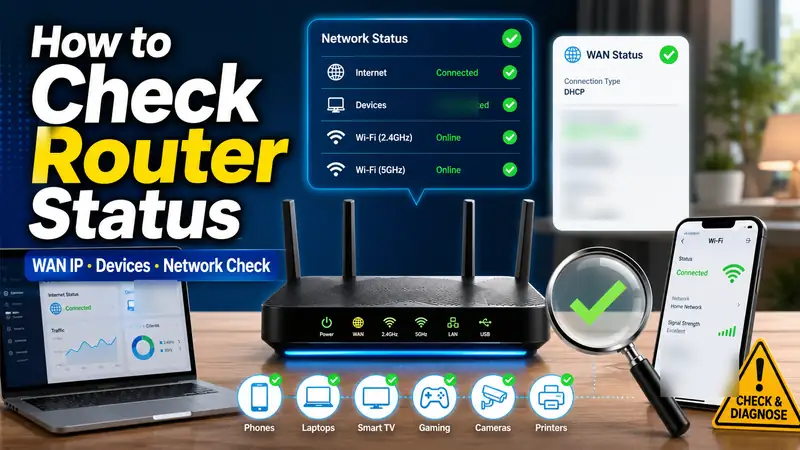
If you want a baseline before the update, first review How to Check Router Status | A Beginner-Friendly Network Check Guide. Recording the WAN, WiFi, and connected-device state before a router firmware update makes post-update comparison much easier.
③ Automatic, Online, or Manual: Which Update Method Should You Use?
A router firmware update generally falls into three categories: automatic updates, online/app updates that check the vendor’s server, and manual updates where you download a firmware file and upload it yourself. The best option is the method officially supported by your specific router—not whichever method looks more advanced.
| Method | Best for | Main advantage | Watch for |
|---|---|---|---|
| Automatic update | Home routers that officially support scheduled or automatic firmware installation | Less manual checking and fewer missed releases | Know when the router may reboot and what the automatic setting actually installs |
| Online / app update | Routers that can check the vendor server from the dashboard or app | You usually do not have to choose a firmware file manually | Requires the model to support the service and may depend on internet/server availability |
| Manual update | Unsupported online updates, failed online checks, or installing a specific official release | Lets you choose an exact vendor-supported release | You must verify model, hardware revision, region, archive extraction, and file format |
ASUS currently supports a router firmware update through its WebGUI and ASUS Router App, and supported models can also schedule automatic firmware upgrades. TP-Link similarly separates Cloud-enabled online/app updates from manual updates on routers that do not support its Cloud service. For a beginner, the built-in online method is usually the easiest place to start when the vendor provides it for that model.
Official references: ASUS: Update Router Firmware in WebGUI · ASUS: Update Router Firmware with the ASUS Router App
④ The Easiest Router Firmware Update Is Usually the Official App or Online Tool
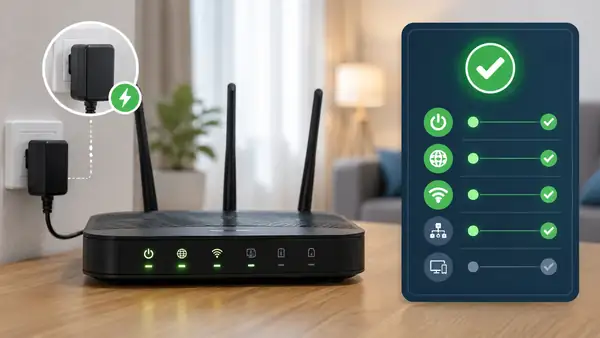
Router Firmware Update via App or Online Check
The router or manufacturer app checks for the latest compatible release and installs it through the supported online flow. This router firmware update method is convenient because you usually do not need to select a regional firmware file yourself. Review the update notice and release notes before starting.
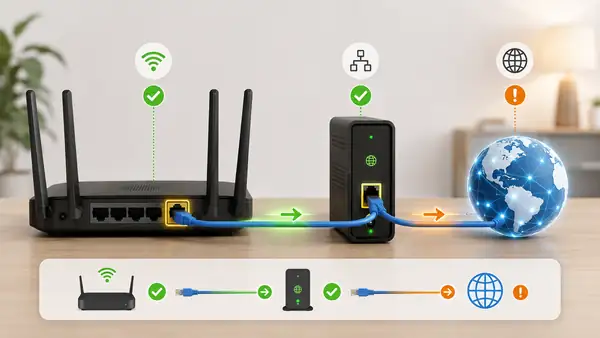
Manual Router Firmware Update
Download the official firmware for the exact model and hardware revision, then upload it through the router management interface. A manual router firmware update is useful when online updating is unsupported or fails, but the file-selection step requires more care.
Most online workflows follow the same broad sequence: check for new firmware, review the change information, start the router firmware update, then wait for the router to reboot. Menu names still vary by brand and firmware generation, so use the support page for your exact model instead of copying screenshots from a different router.
⑤ For Manual Updates, the Firmware File Is the Critical Step
With a manual router firmware update, “the newest file” is not enough. You need the newest official file that actually belongs to your router. A similar model name, different hardware revision, or firmware from another region may not be compatible.
- Confirm the exact model and hardware revision from the router label or dashboard.
- Open the manufacturer’s official support site for the region where the router was purchased.
- Read the release notes and choose the appropriate stable/official firmware.
- If the download is an archive, extract it according to the manufacturer’s instructions.
- Open the router’s Firmware Upgrade or Router Update page.
- Select the actual firmware file format required by the vendor.
- Start the router firmware update and wait until the router completes its reboot.
TP-Link’s current manual router firmware update instructions say to extract the downloaded archive, then choose the extracted firmware—usually a BIN file for the documented routers. TP-Link also recommends avoiding a wireless connection for manual upgrades when the device has a LAN/Ethernet port. NETGEAR’s current manual guide similarly tells users to select the exact product, download and unzip the firmware when needed, then upload the appropriate IMG or CHK file for the supported router.
NETGEAR: Manually Update Router Firmware
⑥ Do Not Interrupt the Router Firmware Update
The riskiest part of a router firmware update is the period when the router is writing the new firmware. TP-Link and NETGEAR both warn against turning the router off during the process. ASUS also tells users not to power off the router or AiMesh devices while firmware is being upgraded.
- Keep power connected — Wait until the router finishes the update and completes its reboot.
- Keep the wired connection stable — If you are doing a manual update over Ethernet, do not unplug the LAN cable mid-upgrade.
- Pause heavy network use — Stop large downloads, gaming, streaming, or other traffic before a manual router firmware update.
- Wait before assuming it is frozen — A progress bar can pause while the router writes firmware or reboots.
- Check every mesh node — If the system updates several nodes, wait until the full system comes back online.
A good time for a router firmware update is when nobody in the home is relying on the connection for work, classes, gaming, or calls. If your router lets you schedule automatic updates, choose a low-usage period so an automatic reboot is less disruptive.
⑦ Verify the Firmware, WAN, WiFi, and Devices After Reboot
The reboot is not the end of the router firmware update. Sign back in to the router and verify that the new version is actually installed, then confirm that the internet and local network still behave as expected.
- Confirm that the firmware page shows the intended new version.
- Check the Internet/WAN status and WAN IP.
- Open real websites from both a phone and a computer.
- Check the 2.4 GHz, 5 GHz, or 6 GHz bands that your devices use.
- Test wired LAN devices such as a PC, TV, or NAS if you use them.
- Verify important settings such as port forwarding, VPN, and DHCP reservations.
- On a mesh network, confirm that the main node and satellite nodes are online again.
This post-update router firmware update check connects naturally to How to Check Router Status. Reviewing WAN IP, connected devices, and real internet access after an update makes it easier to distinguish a normal reboot delay from a genuine configuration or upstream problem.
⑧ Troubleshoot Router Firmware Update Failures by Type
If a router firmware update fails, do not jump straight to a factory reset. First determine whether the failure happened during an online update, during a manual file upload, or after the update started. TP-Link’s current troubleshooting guide separates issues such as internet connectivity, Cloud support, the wrong file, an unextracted archive, model/hardware/region mismatch, and browser-related problems.
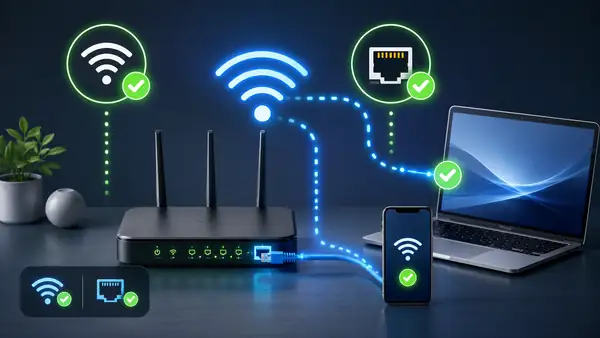
Router Firmware Update: When the Online Check Fails
Confirm that the router itself has internet access, that the model supports online updates, and that the manufacturer’s update service is reachable. If the online router firmware update continues to fail, use the vendor’s official manual method when it is supported.
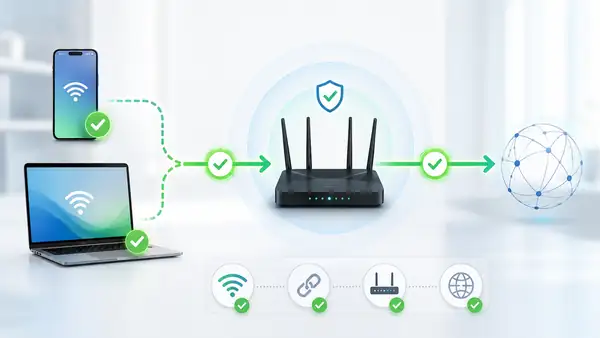
Router Firmware Update: When a Manual File Is Rejected
Check whether you tried to upload the ZIP archive instead of the extracted firmware file. Reconfirm the exact model, hardware revision, purchase region, and the required firmware format. Never force a router firmware update with a file intended for another router.
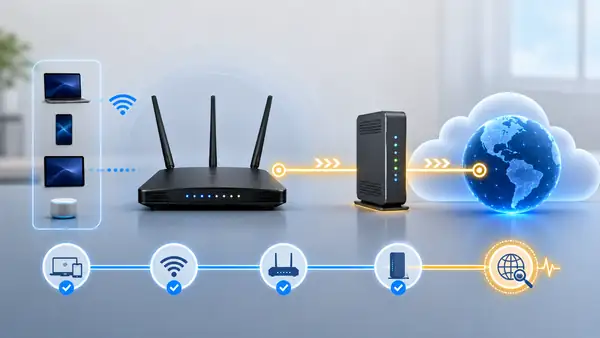
Router Firmware Update: When Progress Looks Stuck
Do not immediately disconnect power. Give the router enough time to write the firmware and reboot, and check whether only the browser page is frozen while the router is actually restarting. If the router firmware update never completes, follow the recovery instructions for that exact model.
TP-Link’s current English troubleshooting page says routers without the required online-update capability may need a manual router firmware update, and manual failures should be checked for archive extraction, correct firmware, and model/hardware/region compatibility. If a browser progress indicator appears stuck, the safer response is to wait and inspect the router state before cutting power.
TP-Link: Router Firmware Update Failed — Troubleshooting Guide
⑨ If the Internet Does Not Return After the Update, Diagnose Before Resetting
No internet immediately after a router firmware update does not automatically mean the update failed. The router may still be rebooting, the WAN connection may take longer to renew, or a setting may have changed.
- Wait for the router to finish its full boot sequence.
- Check whether the router admin page opens.
- Confirm that the intended firmware version is installed.
- Check the WAN cable, Internet status, and WAN IP.
- Compare several phones or computers to see whether the issue affects the whole network.
- Verify PPPoE, Static IP, VLAN, or other ISP-specific settings if your service uses them.
- Read the release notes or vendor instructions for any post-update reset or reconfiguration requirement.
Some brands or models may recommend a reset after a particular router firmware update, but that is not a universal rule. ASUS’s current WebGUI guide, for example, recommends restoring factory defaults after its firmware update process. Other manufacturers and models can have different instructions, so follow the documentation for the exact router rather than applying the ASUS step to every device.
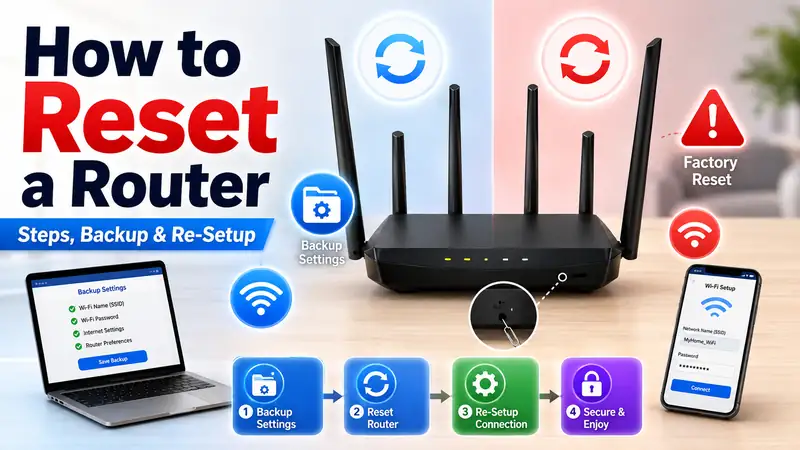
If a factory reset is genuinely required, continue with How to Reset a Router | A Safe Step-by-Step Factory Reset Guide. If the problem is simply that the internet did not recover after the router firmware update, use How to Fix Router Problems | A Step-by-Step Troubleshooting Guide first and work through WAN, modem/ONT, and ISP checks.
⑩ Mesh WiFi: Update the Main Router and Satellite Nodes as a System
A mesh router firmware update can work differently from an update on one standalone router. The main router and satellite nodes may each have firmware, and the app or controller may update them in sequence.
- Check the update state of the main node and satellite nodes in the mesh app.
- Do not power off any node while the router firmware update is in progress.
- Check whether the manufacturer requires matching firmware across the system.
- Expect WiFi to disappear temporarily if the entire mesh reboots.
- After the update, confirm that every satellite reconnects to the main node.
ASUS’s current Router App instructions specifically warn users not to power off any AiMesh device during a router firmware update and say that each device automatically reboots when the update completes. The important lesson for any mesh system is to verify the health of the entire mesh, not just the main router.
⑪ ISP-Provided Gateways May Not Allow Manual Firmware Updates
The router firmware update process for an ISP-provided gateway, modem-router, or managed unit can be very different from a retail router. The provider may control firmware remotely or disable manual upload features, so do not install a random file you found online.
NETGEAR’s current product guidance says that, except for certain CAX-series and CBR-series models, cable modem firmware is supplied by the ISP and cannot be manually updated by the customer. If you are using rented equipment, a combined internet/phone/IPTV gateway, or managed business equipment, confirm who is responsible for the router firmware update before changing anything.
NETGEAR: How Firmware Updates Work by Product Type
⑫ Should You Turn On Automatic Router Updates?
When a home router officially supports it, automatic updating can reduce the effort required to keep firmware current. A scheduled router firmware update can be especially useful if you do not want to keep checking the vendor site for security or stability releases.
Automatic behavior still varies by product. Some routers only notify you, some download firmware but wait for approval, and some can install it automatically at a scheduled time. If your model supports scheduling, a router firmware update is best placed in a low-usage window. ASUS currently allows supported models to schedule automatic firmware upgrades and recommends choosing a time when the network is not being used heavily.
For an English-language security reference, the U.S. Federal Trade Commission advises home users to keep router software up to date and check with the ISP if the router was supplied by the provider. That makes the router firmware update part of routine home-network security rather than only a troubleshooting step.
FTC: How To Secure Your Home Wi-Fi Network
⑬ What If Your Old Router No Longer Gets Firmware Updates?
You may search for a router firmware update and find that the manufacturer has not published anything new for a long time. “No new release today” and “the product is no longer supported” are not necessarily the same thing, so check the official support page or end-of-life notice before drawing a conclusion.
- Confirm that the installed firmware is the latest official release for the model.
- Check the date and release notes for the most recent update.
- Look for an end-of-life or end-of-support notice.
- Check whether known security issues still receive patches.
- If the router only supports obsolete security options or repeatedly fails with newer devices, consider replacement.
This does not mean that every older router must be replaced immediately. The better approach is to look at vendor support status, availability of security fixes, and the features you actually need. If an internet-edge device is no longer supported with security updates, planning a replacement is often more sensible than relying indefinitely on an old router firmware update.
Router Firmware Update Checklist at a Glance
| Step | What to do | How to avoid mistakes |
|---|---|---|
| 1 | Identify model, hardware revision, and current firmware | Do not choose a file based on a similar product name |
| 2 | Read release notes and supported update method | Check whether a reset or manual update is required |
| 3 | Back up important settings | Record PPPoE, Static IP, VPN, ports, and reservations |
| 4 | Start the official router firmware update | Prefer supported app/online updating; manual files must match exactly |
| 5 | Wait for update and reboot | Do not unplug power or interrupt the upload |
| 6 | Verify the installed version | Confirm the new release actually installed |
| 7 | Check WAN, WiFi, LAN, and devices | Do more than open one website |
| 8 | Troubleshoot failures by type | Separate online-service, file, compatibility, and reboot problems |
❓ Frequently Asked Questions
Q. How often should I check for a router firmware update?
A. There is no universal schedule for every router. If the model supports automatic updates or update notifications, use them when appropriate. Otherwise, check the vendor’s support page or router dashboard periodically, especially after a security advisory or when the router has recurring stability problems.
Q. Do I need a router firmware update if the internet already works?
A. Possibly. A router firmware update is not only about fixing slow internet. It can include security patches, bug fixes, stability improvements, compatibility changes, or new features. Use the official stable firmware for your exact model rather than a beta or unofficial file unless you knowingly intend to test one.
Q. Can I perform a router firmware update over WiFi?
A. Many official app and online update methods are designed to work over WiFi. Manual updates are different: some vendors recommend Ethernet when the router has a LAN port. TP-Link’s current manual router firmware update guidance, for example, says not to upgrade over a wireless connection unless the device has no LAN/Ethernet port. Follow the instructions for your exact model.
Q. Will a router firmware update erase all my settings?
A. Not always. Many routine updates keep the configuration, but a specific release or manufacturer procedure may recommend or require a reset. That is why configuration backup and release-note review belong at the beginning of the router firmware update process.
Q. What should I do if the power went out during the update?
A. Restore power and first see whether the router boots normally. If you can open the dashboard, check the installed firmware and WAN status. If the router will not boot or requires recovery mode, use the official recovery procedure for that exact model. Do not copy another model’s forced-recovery steps.
Q. Should I downgrade if WiFi feels slower after the update?
A. First confirm that the router fully rebooted and check the WiFi band, channel, WAN state, and whether any settings were reset. Firmware downgrades should be attempted only when the manufacturer explicitly supports the target version and downgrade path. Reversing a security-related router firmware update simply because speed feels different is usually not a good first troubleshooting step.
Final Takeaway: A Safe Router Firmware Update Depends on the Right File, an Uninterrupted Install, and Verification
A router firmware update is less about finding the newest version and more about applying the correct version safely. Confirm the exact model, hardware revision, current firmware, and purchase region; read the release notes; back up important settings; then use the automatic, online, app, or manual update method supported by the manufacturer. If you update manually, use only the exact official firmware and keep power and the update connection stable until the router finishes rebooting.
After the router firmware update, verify the installed version, WAN IP, internet access, WiFi, wired LAN, and important connected devices. If something is wrong, do not jump immediately to factory reset. Narrow the problem in this order: How to Check Router Status → How to Fix Router Problems → How to Reset a Router only when a reset is actually necessary.