How to Fix Router Problems | A Step-by-Step Troubleshooting Guide
If you’re trying to figure out how to fix router problems, the safest approach is not to jump straight to a factory reset. Work from the outside in: check power and cables, confirm the WAN or Internet connection, test the modem or ONT, review the router’s WAN settings, then look at DNS and firmware before considering a reset. This order helps you find the actual failure without wiping settings that may already be correct.
One distinction matters from the start: rebooting a router is not the same as factory-resetting it. A reboot simply restarts the device and normally keeps your WiFi name, password, and other configuration. A factory reset restores the router to its default state and may erase personalized settings. Treat reset as a last-resort step, not a first response to every connection problem.
① Identify the symptom before changing anything
“The internet is down” can describe several different failures. Start by matching your situation to the closest symptom below. Doing this first keeps you from troubleshooting the wrong part of the network.
| What you see | Most likely area | Check first |
|---|---|---|
| Your WiFi network name is missing | Router power, boot process, or wireless radio | Power/WiFi LEDs, power adapter, reboot |
| WiFi connects, but there is no internet | WAN cable, modem/ONT, ISP, or WAN configuration | Internet/WAN LED, modem status, another device |
| Both wired and wireless connections keep dropping | Modem, ISP line, firmware, cable, or router hardware | Direct modem test, Ethernet cable, firmware |
| Only one phone or computer has a problem | That device’s network configuration | Another device, IP settings, VPN, WiFi adapter |
If only one device is affected, troubleshoot that device before touching the router. If several devices fail at the same time, the router, modem/ONT, or internet service becomes a much stronger suspect.
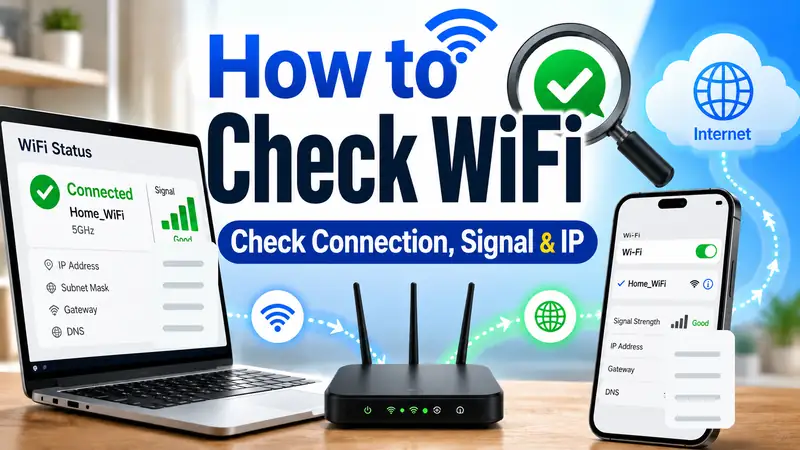
If you have not already done a basic connection check, see How to Check WiFi | A Beginner-Friendly Step-by-Step Guide first. It helps you confirm the SSID, IP address, signal, and whether another device can get online.
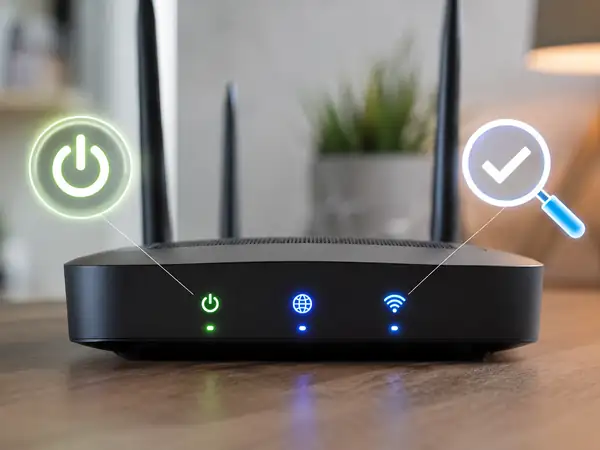
Check power and status LEDs
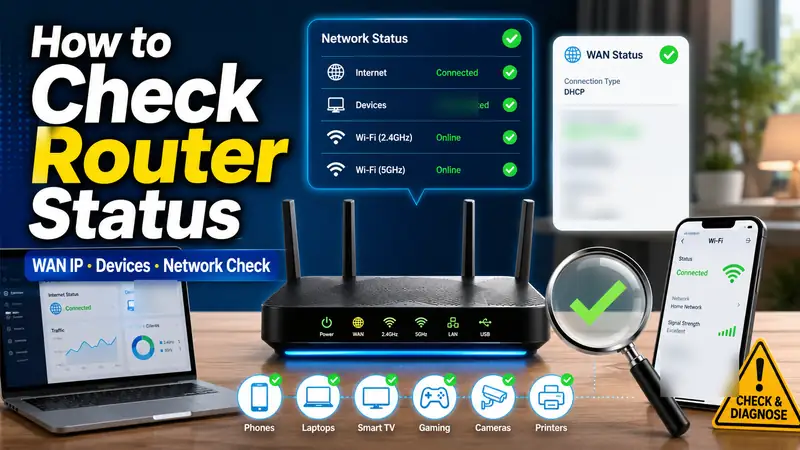
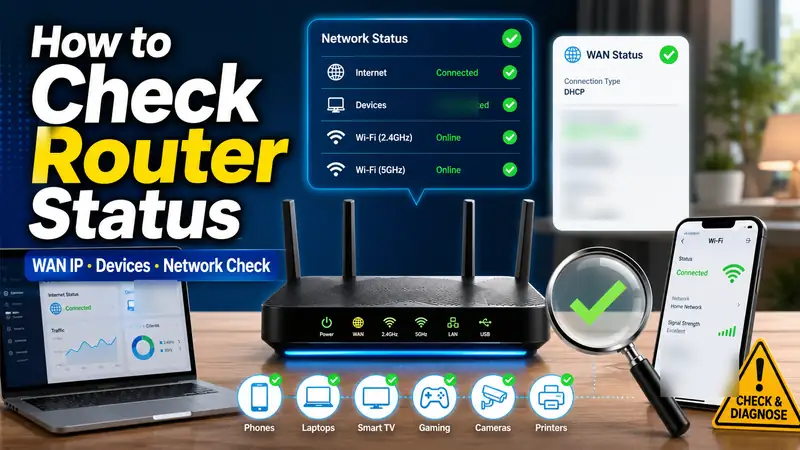
Look at the router’s power, Internet/WAN, and WiFi indicators. If the router is not fully powered or has not finished booting, solve that before changing network settings.
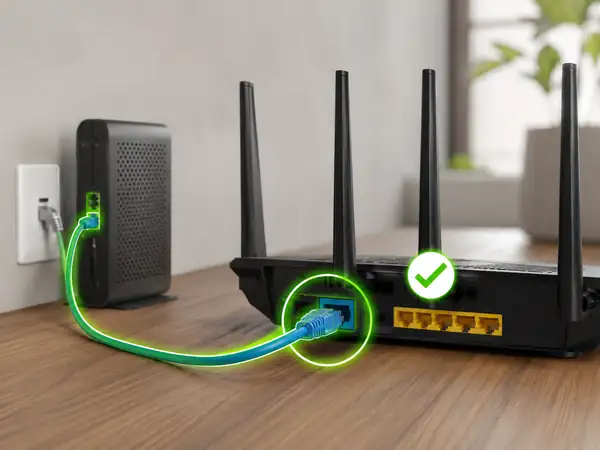
Check the WAN cable
Make sure the Ethernet cable from your modem, ONT, gateway, or wall connection is plugged into the router’s WAN or Internet port rather than an ordinary LAN port.
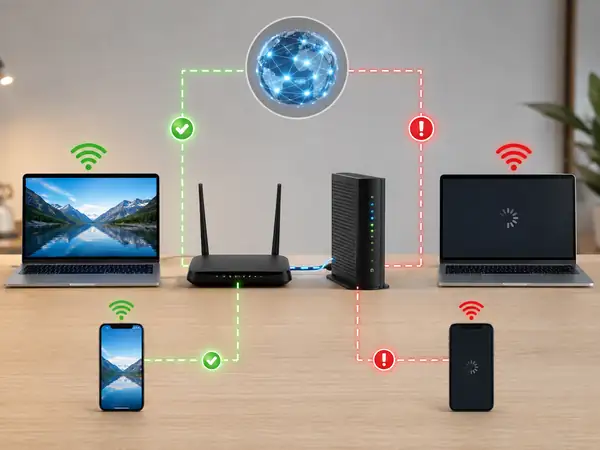
Compare another device and the modem
Test another device on the same network, then isolate the router from the upstream connection when appropriate. This is one of the fastest ways to tell whether the router is really the problem.
② Check the router lights and physical connections
The LEDs on the front or top of a router are a quick diagnostic clue. Depending on the model, they may indicate power, WiFi activity, wired LAN connections, and the router’s WAN or Internet status.
Do not assume that a red, orange, blinking, or unlit LED means the same thing on every router. LED colors and patterns vary by manufacturer and model. Use the router’s manual or official support page to interpret the exact light pattern.
- No power light: check the outlet, power strip, power adapter, and power switch if the model has one.
- WiFi light is off: the wireless radio may be disabled, the router may still be booting, or the device may have a configuration problem.
- Internet/WAN light is off: the Ethernet link to the modem, ONT, or gateway may not be established.
- WAN link exists but internet access does not: continue with the modem, WAN IP, connection type, and ISP checks below.
TP-Link’s current troubleshooting guidance for an Internet light that is off or a WAN port that appears unplugged begins with the physical connection, the Ethernet cable, and a direct modem test. See TP-Link’s WAN/Internet light troubleshooting guide.
Make sure the internet cable is in the correct port
In a typical setup, the cable coming from the modem, ONT, gateway, or wall Ethernet jack goes into the router’s WAN or Internet port. Computers, TVs, game consoles, and switches normally connect to LAN ports.
Some newer routers use auto-sensing or multi-gig ports that can serve more than one role, so follow the labels and documentation for your specific model. If the cable is in the right place but the link is still missing, swap in a known-good Ethernet cable before assuming the router port has failed.
③ Reboot before you reset
A reboot is one of the lowest-risk fixes for a router that suddenly stops responding, loses internet access, or behaves erratically. It restarts the router without intentionally erasing its saved configuration.
If your modem or ONT is separate from the router, restart the network equipment according to your ISP or device manufacturer’s instructions. Many support guides power the upstream device back on first, allow it to come online, and then restart the router. Other vendors may prescribe a different sequence for specific hardware, so there is no single restart order that should be treated as universal.
- Turn off or unplug the modem/ONT and router.
- Check that the Ethernet cables are still firmly connected.
- Restart the modem/ONT according to the provider or manufacturer’s guidance and wait for it to reach its normal ready state.
- Restart the router and allow it to finish booting.
- Test the connection again from a phone and a computer.
Google’s network troubleshooting guidance, for example, recommends bringing the modem fully back online before reconnecting the primary WiFi router in its Nest/Google Wifi workflow. See Google’s network restart guidance.
④ Bypass the router to separate a router problem from an ISP problem
If multiple devices still have no internet after a reboot, the next useful question is: does the internet work when the router is removed from the path?
When your modem or ONT is separate and your ISP allows a direct Ethernet test, connect a computer directly to the modem or upstream device. TP-Link’s current router troubleshooting documentation uses this test to distinguish a router problem from a modem or ISP problem.
| Direct test result | What it suggests | What to do next |
|---|---|---|
| No internet even without the router | Modem/ONT, line, account, or ISP issue is more likely | Check service status and contact the ISP if needed |
| Internet works when the router is bypassed | Router WAN settings, cable, WAN port, firmware, or hardware may be involved | Check WAN status and configuration |
| Ethernet through the router works, WiFi does not | The WAN path may be fine; focus on wireless settings or interference | Check WiFi band, channel, coverage, and device behavior |
There is an important exception: some ISPs use PPPoE credentials, a static IP, MAC registration, VLAN settings, or other requirements. In those environments, a direct connection may not work without the provider’s configuration. If you do not know how your service is provisioned, ask the ISP rather than entering random values.
⑤ Check the WAN IP and internet connection type
If the modem and cables appear to be working but the connection fails only when traffic passes through the router, open the router’s management page and find its Internet or WAN status.
The exact menu name varies, but you are looking for one key piece of information: has the router received a usable WAN IP address from the upstream network?
On supported TP-Link routers, an Internet IP address of 0.0.0.0 means the router has not received a valid address from the modem, and TP-Link directs users to check the physical connection, test the modem directly, and verify the connection type. This interpretation is model- and vendor-specific, so use your own router’s documentation for the final diagnosis.
See TP-Link Router Not Connecting to Internet: How to Troubleshoot and Fix.
Confirm the WAN connection type after a new setup or reset
If the problem started after replacing the router, moving service, or restoring factory defaults, the WAN connection type may be wrong. Common examples include:
- Dynamic IP / DHCP: the upstream network assigns the router an address automatically.
- PPPoE: some providers require an account name and password.
- Static IP: the provider or network administrator supplies specific IP, subnet, gateway, and DNS values.
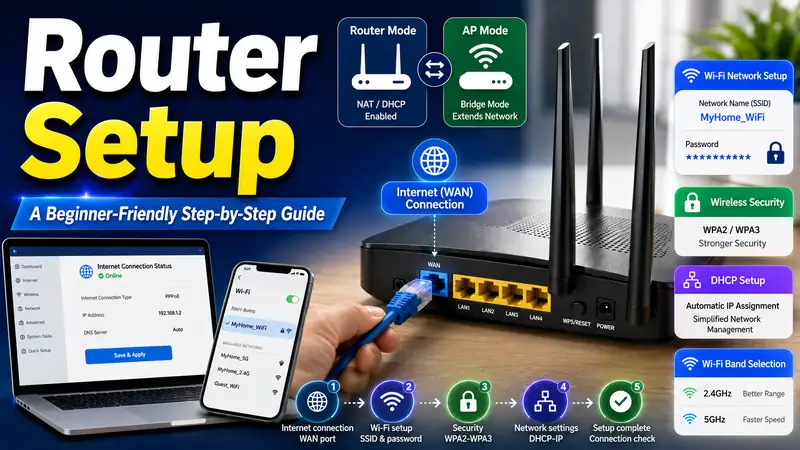
Do not guess PPPoE credentials, static IP information, or other ISP-specific values. If you need to configure the router from scratch, continue with How to Set Up a Router | A Beginner-Friendly Step-by-Step Guide.
⑥ Check DNS only after the WAN connection is working
DNS is worth investigating when the router appears to have a valid internet connection but websites still fail to load by name. It is not the first thing to change when the WAN cable is disconnected or the router has no upstream address.
- Check whether the same problem occurs on several devices.
- Try more than one website or service.
- Confirm that the router has a working WAN connection and a valid status according to its documentation.
- Check your ISP’s service status before changing DNS settings.
- If DNS is still the likely cause, follow your router manufacturer’s instructions for changing DNS servers.
Current TP-Link troubleshooting guidance also separates the “no valid Internet IP” path from the “valid IP but no internet” path, where DNS becomes one of the configuration checks. That is a useful general diagnostic principle even though the exact menu and recommended settings differ by router.
⑦ If Ethernet works but WiFi does not, do not assume the router is broken
If a computer works normally over an Ethernet cable but WiFi is slow, unstable, or unavailable, the upstream internet connection may be fine. Focus on the wireless side of the network instead.
- Router placement and distance
- Walls, doors, metal, and other obstacles
- Nearby WiFi networks and radio interference
- 2.4 GHz, 5 GHz, or 6 GHz band selection
- Channel congestion
- The wireless capabilities of the affected device
For that situation, use How to Make WiFi Faster | A Practical Beginner’s Guide before resetting the router.
⑧ Check firmware only after you identify the exact model and hardware version
If the cables, modem, WAN configuration, and ISP connection all look normal but the router remains unstable, check whether the manufacturer has a firmware update for your exact device.
Firmware updates can include stability, compatibility, performance, or security fixes, but installing the wrong file can create a much bigger problem than the one you started with.
TP-Link’s current firmware guidance says to verify the hardware version, use firmware from the official site for the correct purchase region, and avoid powering off the router or interrupting the connection during the upgrade. See How to Update Firmware on TP-Link Wi-Fi Routers.
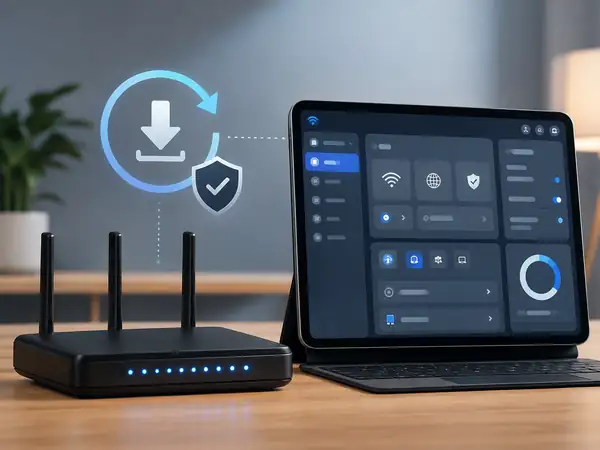
Verify the exact firmware target
Confirm the full model, hardware revision, and region before using a firmware file or update tool. When an official app or web interface offers the update for your exact router, follow that vendor’s instructions.
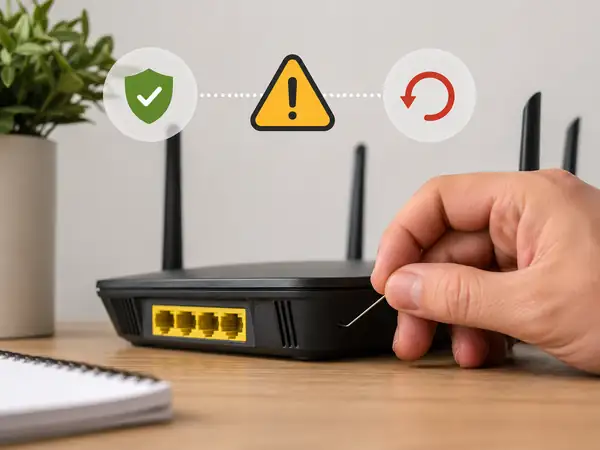
Keep factory reset as the last step
A factory reset can remove your customized WiFi and router settings. Make sure you have the information needed to configure the connection again before you proceed.
⑨ Use a factory reset only when the lower-risk checks are exhausted
A factory reset is different from a reboot because it restores default settings. Depending on the router and the way your network is configured, you may need to set up some or all of the following again:
- WiFi network name (SSID) and password
- Router administrator credentials
- Internet connection type and PPPoE credentials
- Static IP, DHCP, or DNS settings
- Port forwarding and VPN settings
- Access controls and guest networks
- Mesh WiFi configuration
- IPTV or ISP-specific settings
NETGEAR’s factory-reset documentation, for example, states that a factory reset deletes personalized settings including the username, password, WiFi network name, and security settings. The exact reset method and what is restored to default can differ by product, so do not apply a generic “hold the button for X seconds” rule to every router.
See NETGEAR’s factory reset guide.
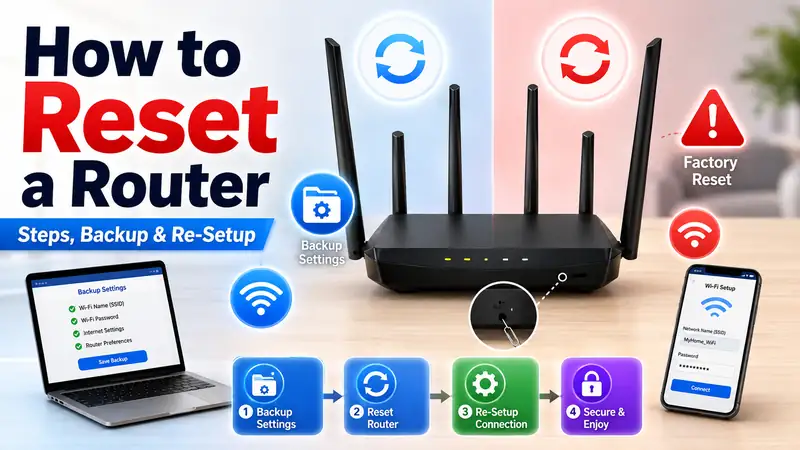
If a reset is genuinely necessary, continue with How to Reset a Router | A Safe Step-by-Step Guide and follow the instructions for your specific model.
⑩ Know when to stop troubleshooting and contact the ISP or manufacturer
At some point, more configuration changes stop being useful. Contact your ISP or router manufacturer when the evidence points outside normal home troubleshooting.
- A direct connection to the modem/ONT still has no internet access.
- The modem/ONT never reaches its normal online or service-ready state.
- A known-good Ethernet cable still does not establish a WAN link.
- A different router works immediately on the same connection while the original one does not.
- The router repeatedly reboots or cannot finish booting.
- You notice unusual heat, a burning smell, visible damage, or other physical abnormalities.
- The problem continues after official firmware and a correct reconfiguration.
For ISP-owned equipment, do not open the device or substitute a random power adapter. For a personally owned router, collect the model, hardware revision, firmware version, LED status, WAN status, modem model, ISP name, and the troubleshooting steps you already tried before contacting support. That information can shorten the diagnostic process.
Router troubleshooting order at a glance
| Step | What to check | If it looks normal |
|---|---|---|
| 1 | Whether another device has the same problem | Move toward router/upstream checks |
| 2 | Power, WAN/Internet LEDs, and Ethernet cables | Reboot the network equipment |
| 3 | Modem/ONT and router restart | Run a direct upstream test if appropriate |
| 4 | Whether internet works with the router bypassed | Check the router’s WAN status |
| 5 | WAN IP and internet connection type | Check DNS only if symptoms fit |
| 6 | Official firmware for the exact hardware version | Consider a reset only if necessary |
| 7 | Configuration backup and factory-reset plan | Escalate to ISP or manufacturer support |
The logic behind this order is simple: do the reversible checks first and save destructive changes for last. If the real problem is an ISP outage, a failed modem, or a loose WAN cable, resetting the router will not fix it—and it may leave you with a second problem: rebuilding a configuration that was fine.
❓ Frequently asked questions
Q. WiFi connects, but it says “No internet.” Does that mean the router is broken?
A. No. Your device can maintain a normal WiFi link to the router even when the router cannot reach the modem, ONT, or ISP. Compare another device, check the Internet/WAN status, inspect the modem, and then check the router’s WAN information.
Q. Is it normal to reboot my router every day?
A. If the network only works reliably after frequent manual reboots, investigate the underlying cause. Possible areas include the ISP connection, modem/ONT, firmware, overheating, the power adapter, or router hardware.
Q. Does a red Internet or WAN light always mean an ISP outage?
A. No. LED meanings vary by router. A red or unlit WAN indicator can also point to a loose cable, a failed link to the modem, a configuration problem, or a hardware issue. Use the manual for your exact model.
Q. Should I change DNS as soon as the internet stops working?
A. Usually not. DNS is a later-stage check when the router already has a working upstream connection but name resolution appears to be failing. A disconnected WAN cable or missing WAN address will not be fixed by changing DNS.
Q. Will a factory reset erase my WiFi password?
A. It can. A factory reset generally restores personalized router settings to their defaults, which can include the WiFi network name and password. Check your manufacturer’s instructions before resetting so you know what must be configured again.
Final takeaway: isolate the failure before you reset the router
The most efficient router troubleshooting path is another-device check → LEDs and cables → reboot → modem/ONT or upstream test → WAN IP and connection type → DNS when appropriate → firmware → factory reset.
Following that order reduces two common mistakes: blaming the router for an ISP or modem problem, and erasing a working configuration because of a simple cable or WAN issue.
If the router is healthy but you need to configure a new internet connection or rebuild the settings from scratch, continue with How to Set Up a Router | A Beginner-Friendly Step-by-Step Guide.