How to Check WiFi | A Beginner-Friendly Step-by-Step Guide
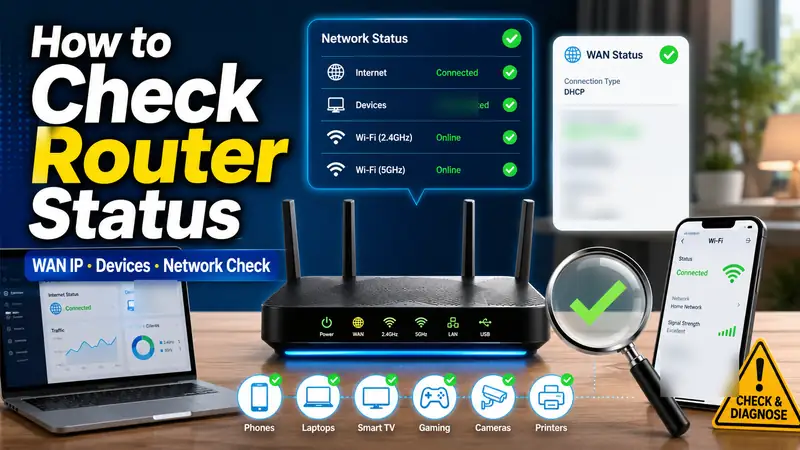
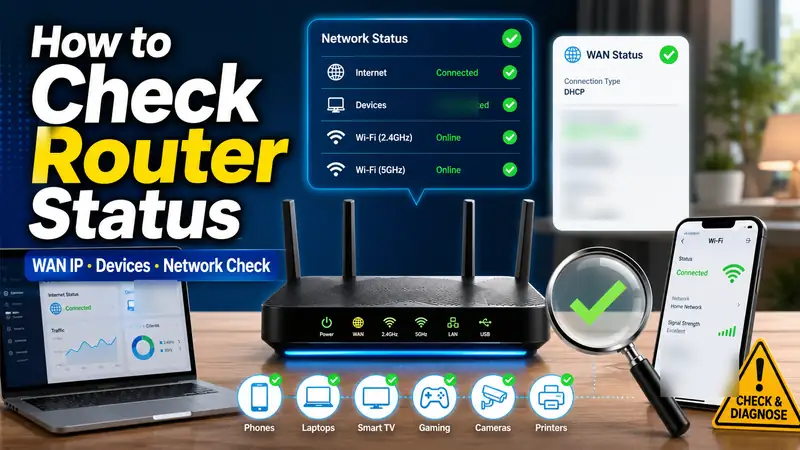
If you’re wondering how to check WiFi properly, don’t stop at the signal icon in the corner of your screen. A useful WiFi check looks at the full path: which network you’re connected to, whether the internet actually works, how strong the signal is, which frequency band you’re using, whether your device received a valid IP address, and how fast the wireless link is between your device and router. Work through the checks below in order, and you can usually narrow the problem down without changing settings at random.
The most important distinction is simple: being connected to WiFi is not the same as being connected to the internet. Your laptop or phone can have a perfectly good wireless connection to the router while the router itself has no working internet connection. On the other hand, if every other device works normally and only one laptop has trouble, the problem is more likely to be on that device.
① Start with this 1-minute WiFi check
Before you reset anything, run through these six checks. They help you quickly separate a device problem from a router or internet-service problem.
| What to check | What normal looks like | What a problem may mean |
|---|---|---|
| WiFi is on | WiFi is enabled | Check Airplane mode, wireless settings, or the WiFi adapter |
| Connected network | You’re connected to your intended SSID | You may be connected to a guest or nearby network |
| Internet access | Websites and apps load normally | Router WAN, modem, ISP, or DNS issue |
| Signal strength | Signal stays stable where you use the device | Distance, walls, interference, or router placement |
| IP address | The device receives a valid local IPv4 address | Possible DHCP or network-configuration issue |
| Another device | Another device works on the same WiFi | If several devices fail, check the router or internet connection first |
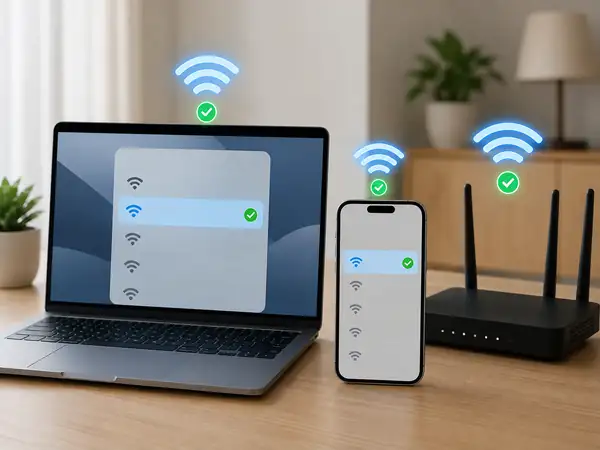
Check the connection status
Make sure WiFi is turned on and that the device is actually connected to the network you meant to use. Similar network names, guest networks, and saved nearby networks can easily cause confusion.
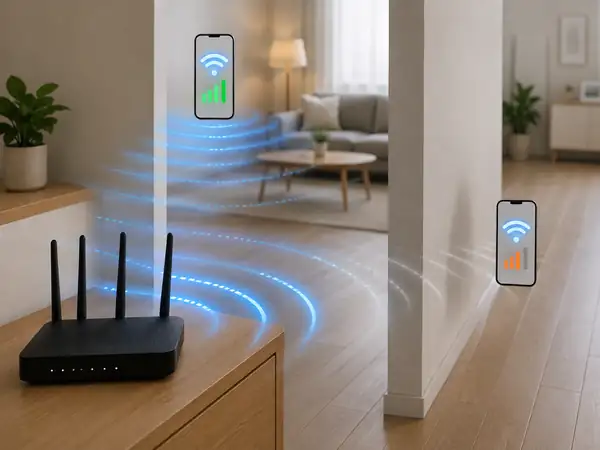
Check the signal and band
A weak signal—or a different band than you expected—can affect speed and stability. Moving the same device to a different spot is often the fastest way to tell whether distance or interference is part of the problem.
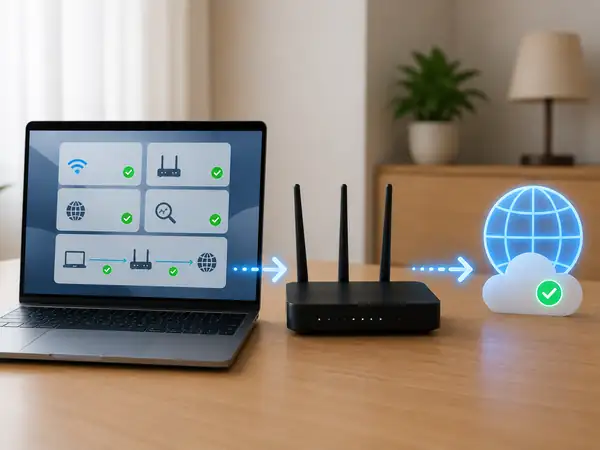
Check the IP and internet path
A normal WiFi icon does not guarantee working internet access. If the device did not receive a valid IP address, or the router has lost its upstream connection, browsing will still fail.
② Check WiFi status in Windows 11
In Windows 11, open Settings → Network & internet → Wi-Fi, then select the network you’re connected to. Microsoft’s current guidance shows that this area lets you review your connection status and view details such as your IPv4 address.
- Press Windows key + I to open Settings.
- Select Network & internet.
- Select Wi-Fi.
- Open the WiFi network you’re currently connected to.
- Review the network name, connection status, IP information, and other connection details shown on the page.
Microsoft’s current English documentation is available in Essential Network Settings and Tasks in Windows.
Why the WiFi icon alone is not enough
The WiFi icon is useful, but it only tells part of the story. If Windows says you’re connected and websites still won’t load, check the IP address and compare the connection with another device before changing router settings.
For a step-by-step fix when the connection itself is failing, continue with How to Fix WiFi Problems | A Step-by-Step Troubleshooting Guide.
③ Check signal strength, frequency band, and WiFi link speed
If WiFi drops out, feels unstable, or slows down in certain rooms, check more than the simple connection status. In Windows, Command Prompt can show useful wireless-interface details.
netsh wlan show interfacesMicrosoft documents netsh wlan show interfaces as a command that lists the wireless LAN interfaces detected on the system. Depending on your adapter and Windows version, the output can include useful information such as the SSID, radio type, channel, signal, and receive/transmit rate.
See the official Microsoft Learn documentation for netsh wlan.
| Item | What it tells you | How to use it |
|---|---|---|
| SSID | The WiFi network you’re connected to | Confirm that it is the network you intended to join |
| Signal | Current wireless signal condition | Compare the same device from different locations |
| Band / Channel | The band and channel being used | See whether you’re on 2.4 GHz, 5 GHz, or 6 GHz when supported |
| Receive / Transmit rate | Wireless link rate between the device and router | Do not treat this as your actual internet download speed |
WiFi link speed and internet speed are not the same thing. Link rate describes the wireless connection negotiated between your device and router. Real-world internet throughput is also affected by your ISP connection, radio interference, protocol overhead, the remote server, and other devices using the network.
If the connection is stable but performance is the main problem, continue with How to Make WiFi Faster | A Practical Beginner’s Guide.
④ Check your IP address and router connection
If the device is connected to WiFi but the internet still does not work, check the IP address next. In Windows, you can find the IPv4 address in the connected network’s properties, or use Command Prompt.
ipconfigFor more detail, use:
ipconfig /allMost home routers use DHCP to assign local IP information automatically. Microsoft recommends DHCP for typical network configurations because the router or access point can automatically provide the IP and DNS settings.
If Windows ends up with a 169.254.x.x address in a typical home network, that is a strong clue that the device did not receive a normal address from the router. Reconnect to WiFi, check the router’s DHCP function, and compare with another device before making more aggressive changes.
Microsoft’s broader WiFi troubleshooting steps are available in Fix Wi-Fi connection issues in Windows.
What if you have an IP address but still no internet?
- Try the same WiFi network on a phone or another laptop.
- If several devices fail, check the router, modem, and ISP connection first.
- If only one PC fails, check that PC’s network settings, VPN or proxy, and WiFi adapter.
- If only one website fails, the problem may be with the site, DNS, or browser rather than the WiFi connection itself.
⑤ Check WiFi on Android and iPhone
Android
On Google’s current Android interface, open Settings → Network & internet → Internet to view available networks and your current WiFi connection. The WiFi icon also gives you a quick visual comparison of signal strength—a fuller icon represents a stronger signal.
Phone manufacturers may use slightly different menu names. For example, some devices may place WiFi under a section such as Connections instead of Network & internet.
See Google’s official guide: Connect to Wi-Fi networks on your Android device.
iPhone
On iPhone, go to Settings → Wi-Fi. A checkmark appears next to the network you’re using, and the WiFi icon appears at the top of the screen when the phone is connected. Tap the information button next to the network to review more details and settings.
See Apple’s official guide: Connect iPhone to the internet.
⑥ Check detailed WiFi information on a Mac
On a Mac, the WiFi status menu in the menu bar gives you a quick view of the current connection. For more detail, hold the Option key and click the WiFi status menu. Apple says this can show information such as the IP address, router address, channel, frequency or band, security standard, and 802.11 protocol.
See Apple’s Use the Wi-Fi status menu on Mac.
Use Wireless Diagnostics when the problem keeps coming back
If the Mac can connect to the router but web pages, email, or streaming are unreliable, open Wireless Diagnostics. Apple says the tool analyzes the network connection, reports detected issues, and suggests possible solutions. It does not change your network settings automatically.
See Apple’s Use Wireless Diagnostics on your Mac.
⑦ Compare another device to isolate the problem faster
One of the fastest troubleshooting tricks is to test the same WiFi with a second device in the same location. That single comparison can tell you whether it makes sense to keep troubleshooting the laptop—or shift your attention to the router and internet connection.
| Computer | Phone | Most likely area to check | Next step |
|---|---|---|---|
| Works | Works | WiFi and internet are probably fine | Check the specific app or website |
| Fails | Works | Computer or WiFi adapter | Reconnect, check IP, driver, VPN, or proxy |
| Fails | Fails | Router, modem, or ISP connection | Check router status, WAN connection, and service outage |
| Varies by room | Varies by room | Coverage or interference | Check router placement, band, and channel conditions |
This comparison prevents a common mistake: resetting the router when only one device is having trouble, or repeatedly changing settings on one PC when every device on the network is offline.
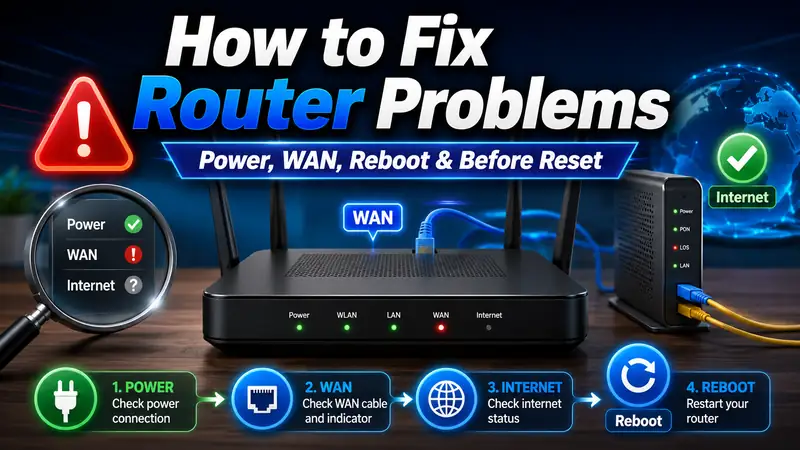
If several devices fail at the same time, continue with How to Fix Router Problems | A Step-by-Step Troubleshooting Guide.
⑧ Use the Windows wireless network report for recurring dropouts
Intermittent WiFi problems are hard to diagnose because everything may look normal by the time you open Settings. Windows includes a more useful option for recurring disconnections: the wireless network report.
netsh wlan show wlanreportRun the command from Command Prompt with administrator privileges. Microsoft says it generates an HTML report that groups WiFi events by connection session and includes events from the last three days. It also includes useful adapter and network information, making it easier to see when a connection failed or why it disconnected.
See Microsoft’s official guide: Analyze the wireless network report.
⑨ Choose the next step based on what you found
Once you know where the problem is, only change the settings that are relevant. Resetting everything at once can create extra work and make the original cause harder to identify.
- WiFi is off or the settings are confusing → How to Set Up WiFi | A Beginner-Friendly Step-by-Step Guide
- The network appears but the device won’t connect → How to Connect to WiFi | A Beginner-Friendly Step-by-Step Guide
- WiFi connects but the internet does not work or keeps dropping → How to Fix WiFi Problems | A Step-by-Step Troubleshooting Guide
- The connection works but feels slow → How to Make WiFi Faster | A Practical Beginner’s Guide
- Several devices fail at the same time → How to Fix Router Problems | A Step-by-Step Troubleshooting Guide
Used this way, this article becomes the diagnostic hub for the whole WiFi series: check the symptoms first, identify the likely source, then move to the one guide that matches the problem. That keeps each article focused instead of repeating the same troubleshooting steps across the cluster.
❓ Frequently asked questions
Q. If the WiFi signal icon is full, does that mean the internet is working?
A. Not necessarily. A strong WiFi signal mainly tells you that the wireless connection between the device and access point is strong. The router can still have a problem reaching the internet, and DNS or an ISP outage can also stop websites from loading.
Q. Is 5 GHz always faster than 2.4 GHz?
A. No. The result depends on distance, walls, interference, router and device capabilities, channel conditions, and your internet service. Test the same device in the same location rather than assuming one band will always perform better.
Q. What does a 169.254.x.x IP address mean in Windows?
A. In a typical home DHCP setup, it usually means the PC did not receive a normal IP address from the router. Reconnect to WiFi, check the router’s DHCP service, and compare with another device on the same network.
Q. If my WiFi link rate shows 1 Gbps, should my internet speed also be 1 Gbps?
A. No. Link rate describes the wireless connection between your device and router. Actual internet throughput is affected by your ISP plan, wireless conditions, protocol overhead, remote servers, and other traffic on the network.
Q. What is the easiest way to tell whether the problem is my PC or the router?
A. Connect another phone or laptop to the same WiFi from the same location. If the second device works, focus on the original device. If several devices fail, check the router, modem, and internet connection first.
Final check: don’t stop at “Connected”
A proper WiFi check follows a simple order: SSID → internet access → signal and band → IP address → link rate → another-device comparison. Once you know which step fails, you can troubleshoot the right part of the network instead of changing everything at once.
For recurring dropouts, diagnostic history such as the Windows wireless network report is especially useful because it gives you something concrete to inspect after the connection has recovered. If all checks look normal, leave the network alone. If one check clearly fails, move to the troubleshooting guide that matches that result.