How to Connect to WiFi | A Step-by-Step Guide for Beginners
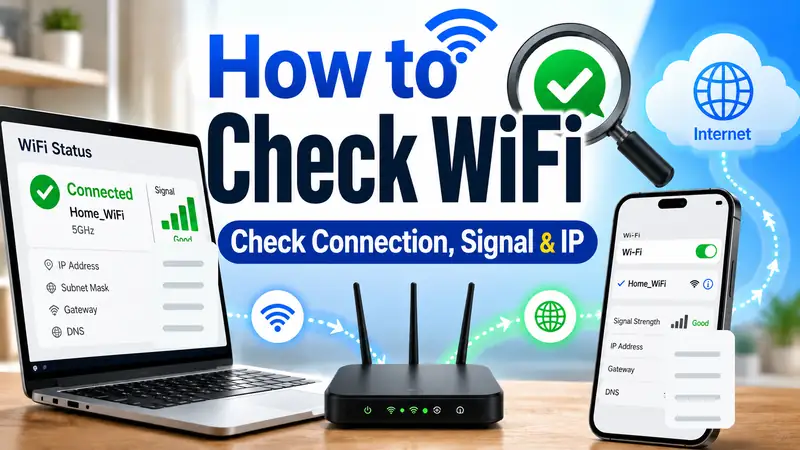
Connecting to WiFi usually takes only a few taps or clicks, but when something goes wrong, the fastest way to fix it is to identify exactly where the connection is failing: choosing the SSID → entering the password → confirming the WiFi connection → checking actual internet access.
This guide walks through how to connect to WiFi on Windows 11, Android, iPhone and iPad, and Mac. It also covers hidden networks, QR-code connections, public WiFi login pages, and what to do when your device says it is connected but has no internet access.
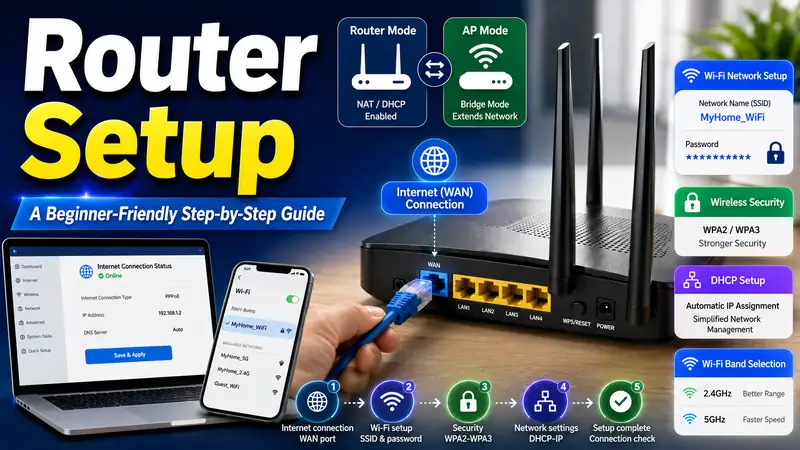
If you are still setting up your router, start with “How to Set Up WiFi | A Step-by-Step Guide for Beginners” to configure the SSID, password, WPA3 security, and frequency bands first. If you already know your network name and password, you can begin with the steps below.
① Check these four things before connecting to WiFi
A quick check can prevent you from mistaking a simple password or network-name issue for a more serious connection problem.
- SSID: Make sure you are selecting the correct WiFi network name.
- Password: Check uppercase and lowercase letters, numbers, and special characters carefully.
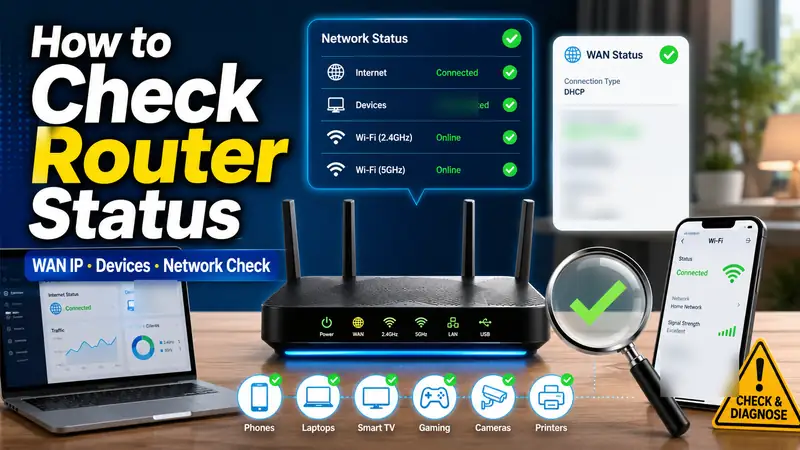
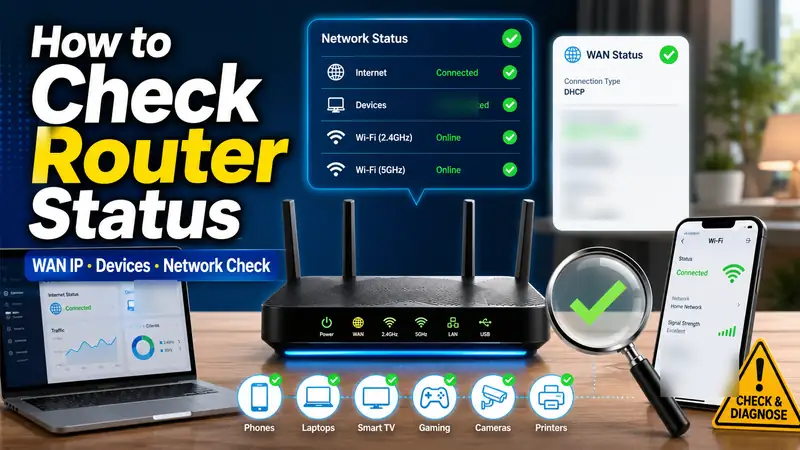
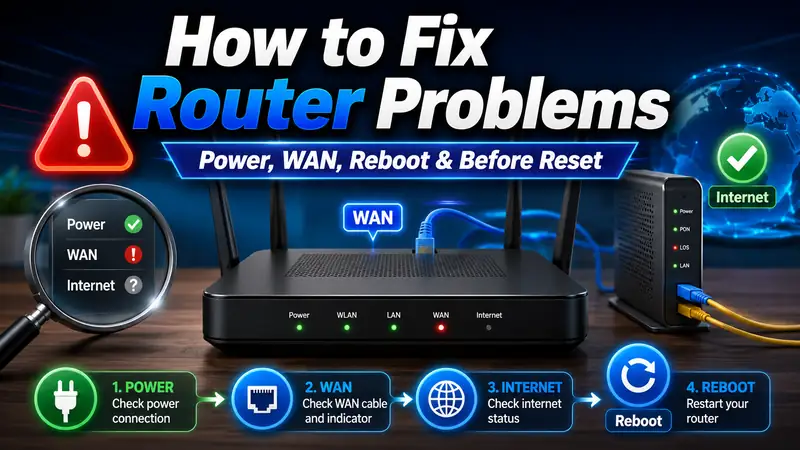
- Router status: Confirm that the router is powered on and its Internet or WAN status appears normal.
- Distance: For the first connection attempt, stay reasonably close to the router.
| What you see | Check first | What to do next |
|---|---|---|
| Wi-Fi network is missing from the list | Wi-Fi is on, router power, distance, hidden SSID | Refresh the list or add the hidden network manually |
| Password is rejected | Upper/lowercase letters and whether the password was recently changed | Forget the saved network and reconnect with the correct password |
| Connected to Wi-Fi, but no internet | Whether other devices can get online and the router WAN status | Separate a device problem from a router or ISP problem |
② How to connect to WiFi on Windows 11
On Windows 11, the fastest method is usually through Quick Settings on the taskbar.
- Click the network, volume, and battery area on the right side of the taskbar.
- Open the WiFi connection list.
- Select the SSID you want to join.
- If this is your home network, you can enable Connect automatically.
- Select Connect and enter the WiFi password.
- Open a web browser and confirm that the internet actually works.
If the network does not appear, refresh the available-network list and try again. On supported Windows devices with a camera, you may also be able to scan a WiFi QR code to connect without typing the password manually.
Microsoft: Connect to a Wi-Fi network in Windows
③ How to connect to WiFi on Android
Menu names vary slightly between Android manufacturers, but on many devices the basic path is Settings → Network & internet → Internet.
- Open Settings.
- Go to Network & internet → Internet.
- Select the WiFi network you want to join.
- If the network is secured, enter the password.
- After connecting, open a website or app to confirm internet access.
Once you connect successfully, Android can save the network and reconnect automatically when WiFi is on and the network is nearby. On supported devices, you can also share a saved WiFi network using a QR code.
Google: Connect to Wi-Fi networks on your Android device
④ How to connect to WiFi on iPhone or iPad
On iPhone and iPad, you can connect directly from the WiFi section in Settings.
- Go to Settings → WiFi.
- Turn WiFi on.
- Tap the network you want to join.
- Enter the password if required, or complete any terms-of-use screen that appears.
- Confirm the check mark next to the network name and the WiFi icon at the top of the screen.
If another nearby Apple device is already connected to the same network, you may also be able to use Apple’s WiFi password-sharing feature instead of typing the password manually.
Apple: Connect to Wi-Fi on your iPhone or iPad
⑤ How to connect to WiFi on a Mac
On a Mac, the quickest method is usually the WiFi menu in the menu bar.
- Click the WiFi icon in the menu bar.
- Select the network you want to join.
- Enter the WiFi password if prompted.
- Open Safari or another browser and confirm that the internet works.
For more detailed network controls, go to Apple menu → System Settings → WiFi.
Apple: Connect your Mac to Wi-Fi
⑥ WiFi connection paths by device
The menu names may change slightly with operating-system updates, but the basic process is almost always the same: turn on WiFi → choose the SSID → enter the password → confirm internet access.
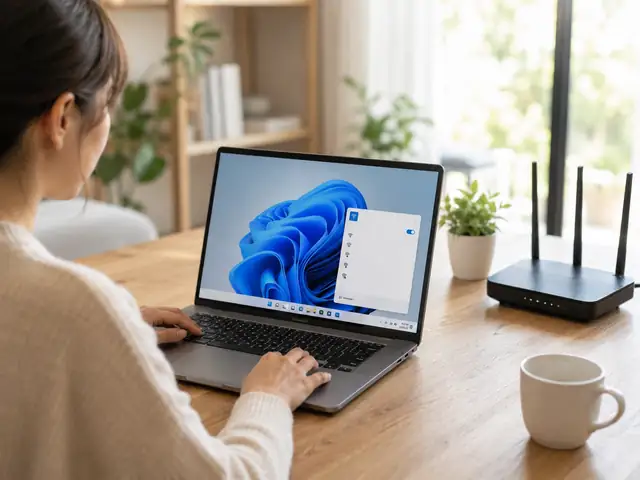
Windows 11
Open the WiFi list from Quick Settings on the taskbar, select the SSID, and enter the password. Supported devices may also use QR-code connection.
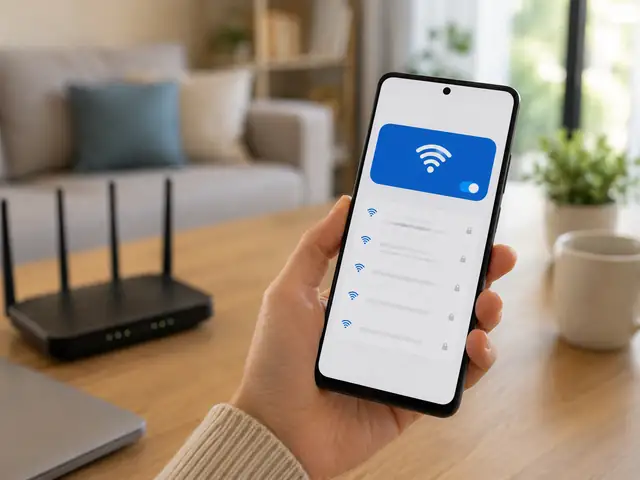
Android
Open the internet settings, choose the WiFi network, and enter the password when required. Saved networks can reconnect automatically, and many Android devices support QR sharing.
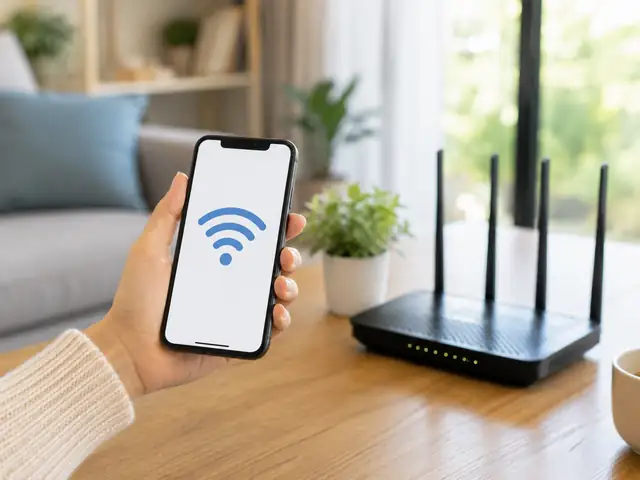
iPhone and iPad
Choose the SSID from the WiFi section in Settings. A check mark next to the network name confirms the connection.
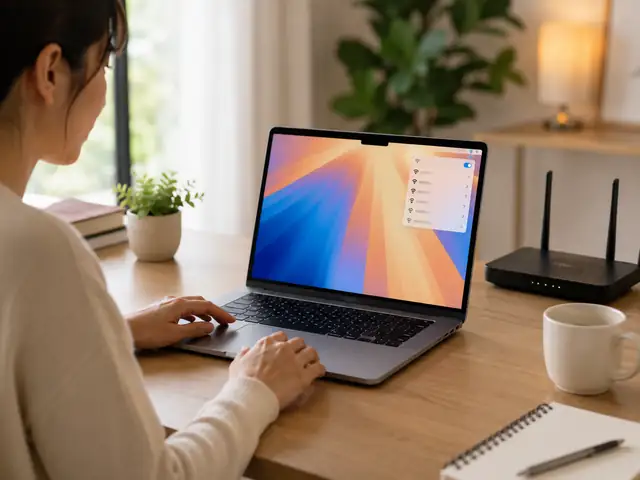
Mac
Select the network from the WiFi menu in the menu bar. Use System Settings when you need more detailed network controls.
⑦ If the WiFi network does not appear, check whether it is hidden
A network configured with a hidden SSID may not appear in the normal list of available networks. To join it manually, you usually need the exact network name, security type, and password.
| Device | Where to add a hidden network | Information required |
|---|---|---|
| Windows | Add network or Manage known networks in Settings | Wi-Fi name, security type, password |
| Android | Add network or advanced options in internet settings | Wi-Fi name, security type, password |
| iPhone and iPad | Settings → Wi-Fi → Other | Wi-Fi name, security type, password |
| Mac | Wi-Fi → Other Networks → Other | Wi-Fi name, security type, and credentials when required |
Hiding an SSID should not be treated as a primary security measure. A hidden network name does not replace proper encryption, a strong password, or secure router settings.
⑧ On public WiFi, connecting to the network may not be the final step
At a hotel, airport, café, or other public location, your device may show that it is connected even though the internet does not work yet. Many public networks require you to complete a sign-in page, email form, or terms-of-use screen before internet access is enabled. This type of network is commonly known as a captive network or captive portal.
- Make sure the SSID matches the network name provided by the venue.
- After connecting, check whether a sign-in or terms-of-use page appears.
- For sensitive tasks, consider using a trusted personal network or cellular connection instead.
- If you do not plan to use the public network again, consider disabling automatic connection or removing the saved network.
Apple: Use captive Wi-Fi networks
⑨ Connected to WiFi but no internet? Isolate the problem in this order
A WiFi icon only confirms that your device has connected to the wireless network. It does not guarantee that the router itself has working internet access.
The quickest first test is to determine whether only one device is affected or every device on the same WiFi network is offline.
- Test another device: Connect another phone or laptop to the same WiFi network.
- Only one device is offline: Forget the saved network and reconnect.
- Every device is offline: Check the router’s Internet/WAN status and the modem, ONT, or ISP connection.
- The password was recently changed: Remove the saved network and reconnect using the new password.
- You are on public WiFi: Make sure the sign-in or terms-of-use page has been completed.
At this point, the problem has moved from basic connection setup into troubleshooting. If the issue continues, use the companion guide “WiFi Troubleshooting Guide | Fix Connection Problems Step by Step” to separate device, router, modem, and ISP problems.
⑩ Should you leave automatic WiFi connection turned on?
Automatic connection is convenient for trusted networks you use regularly, such as your home WiFi. For temporary networks at cafés, airports, hotels, or shopping centers, it is often better to decide case by case whether you want the device to reconnect automatically.
| Network type | Automatic connection | Recommended approach |
|---|---|---|
| Home Wi-Fi | Usually convenient to leave on | Use it when you control the SSID and security settings |
| Work or school Wi-Fi | Follow organization policy | Use the required authentication and device rules |
| Café or airport Wi-Fi | Use only when needed | Verify the official SSID and manage whether the network stays saved |
| Unknown open Wi-Fi | Best avoided | Do not connect when the operator cannot be verified |
Windows can use random hardware addresses on supported wireless adapters, while Apple devices provide a Private Wi-Fi Address feature. These privacy features can reduce how consistently a device is identified while scanning for or joining wireless networks. On managed work or school networks, follow the organization’s device-registration and network policies first.
❓ Frequently asked questions
Q. Why won’t WiFi connect even when the password is correct?
A. The device may still have an old password saved, the router’s security mode may not be compatible with the device, or the device may be failing to receive an IP address. Start by forgetting the saved network and reconnecting, then check whether other devices have the same problem.
Q. Why does my device say “connected” but “no internet”?
A. Your device may have successfully connected to the router while the router itself cannot reach the internet. If other devices on the same network also have no internet access, check the router, modem or ONT, and ISP connection first.
Q. Should I choose 2.4 GHz or 5 GHz when both appear?
A. 5 GHz is often better for higher speeds when you are close to the router, while 2.4 GHz may provide a more stable connection at longer distances or through more walls. If your router uses one combined SSID, the device may choose the band automatically.
Q. Is a hidden WiFi network more secure?
A. Not by itself. Hiding the SSID does not replace WPA2/WPA3 security and a strong password. It also makes manual connection more complicated because you must enter the network name and security information yourself.
Q. Why does public WiFi connect but still not open websites?
A. Many public networks require a separate sign-in page or terms-of-use agreement after the WiFi connection itself is established. Check whether a captive-portal page is waiting for you to complete the login process.
Conclusion: connecting to WiFi is easy once you know which stage is failing
Windows 11, Android, iPhone and iPad, and Mac all follow the same basic pattern:
Turn on WiFi → choose the correct SSID → enter the password → confirm the WiFi connection → verify actual internet access.
If the network does not appear, check whether the SSID is hidden. If the password is rejected, forget the saved network and reconnect. If WiFi connects but the internet does not work, test another device so you can quickly determine whether the problem is with one device or with the router or internet connection.
If you need to change the router’s SSID, password, security mode, or frequency-band settings, return to “How to Set Up WiFi | A Step-by-Step Guide for Beginners.” If repeated connection failures or no-internet problems continue, move on to “WiFi Troubleshooting Guide | Fix Connection Problems Step by Step.”