WiFi Troubleshooting Guide | Step by Step Fixes for Connection Problems
The fastest way to fix a WiFi problem is to first figure out whether the issue is with your device, your router, or your internet connection—instead of resetting everything right away. Start by testing the same WiFi on another device, then connect the problem device to a different network such as a phone hotspot. These two quick cross-checks can narrow down the cause dramatically.
This guide covers the most common WiFi problems: the network name does not appear, the password is correct but the device will not connect, WiFi shows as connected but there is no internet access, or the connection keeps dropping. The troubleshooting flow is based on current guidance from Microsoft, Google, and Apple as of August 2026.
① Start by identifying the type of WiFi problem
WiFi issues can look similar on the surface even when the actual causes are different. Before changing settings, match your symptom with the closest situation below.
| What you see | Most likely area | Check this first |
|---|---|---|
| The Wi-Fi network name does not appear | Wi-Fi turned off, Airplane mode, distance/band, router wireless function | Turn Wi-Fi on, turn Airplane mode off, move closer to the router |
| The network appears but the device will not connect | Saved network profile, password, authentication settings | Forget the network and reconnect |
| Wi-Fi is connected but there is no internet | Router WAN, modem/line, DHCP/IP, DNS | Test internet access on another device using the same Wi-Fi |
| Only one device cannot connect | Device settings, network profile, driver, operating system | Connect that device to another Wi-Fi network or hotspot |
| All devices lose internet at the same time | Router, modem, or ISP connection | Router/WAN lights, cables, ISP outage status |
| Wi-Fi connects but keeps disconnecting | Weak signal, interference, router condition, adapter power saving | Test near the router and compare with another device |
② Three quick tests to narrow down the cause in 1–2 minutes
This is the most important part of the troubleshooting process. Before changing advanced settings, run these three checks.

Do other devices also fail on the same WiFi?
If two or more devices—such as a phone and laptop—cannot access the internet on the same WiFi, the problem is more likely to involve the router, modem, or internet service rather than the settings on one device.

Can the problem device connect to another network?
Try connecting the affected PC or phone to another WiFi network or a smartphone hotspot. If it still fails, the likely causes shift toward the device itself, its wireless adapter, or the operating system.
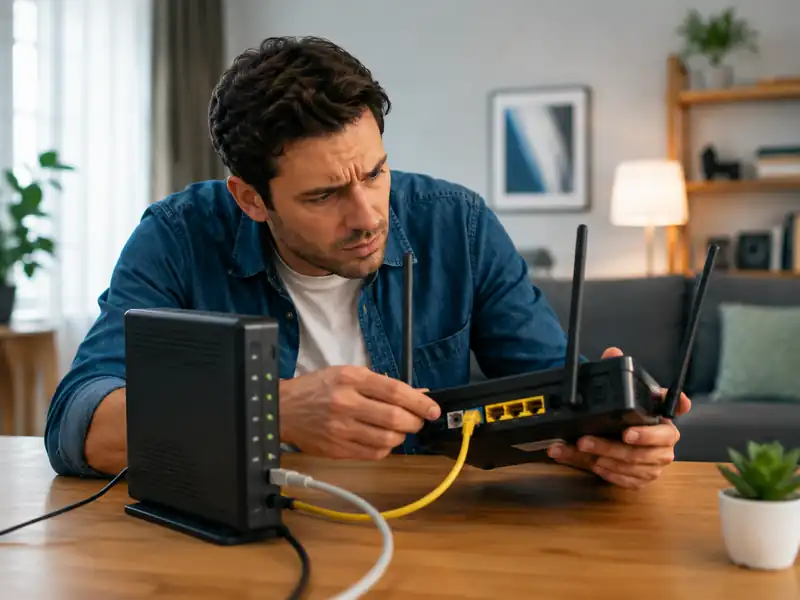
Is the router actually receiving internet service?
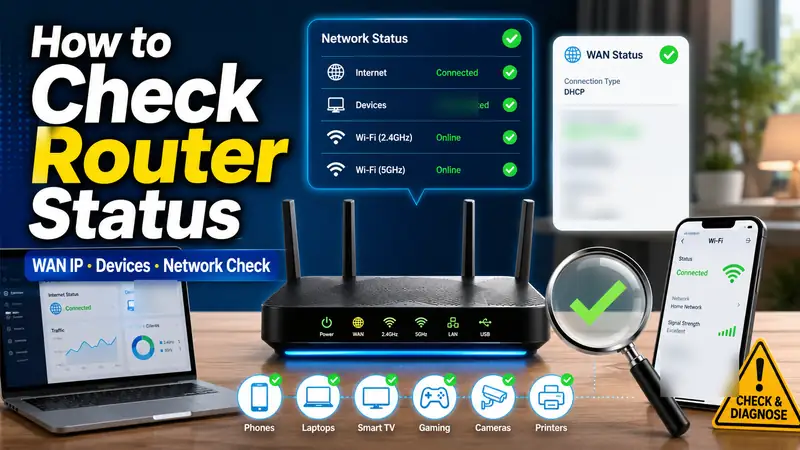
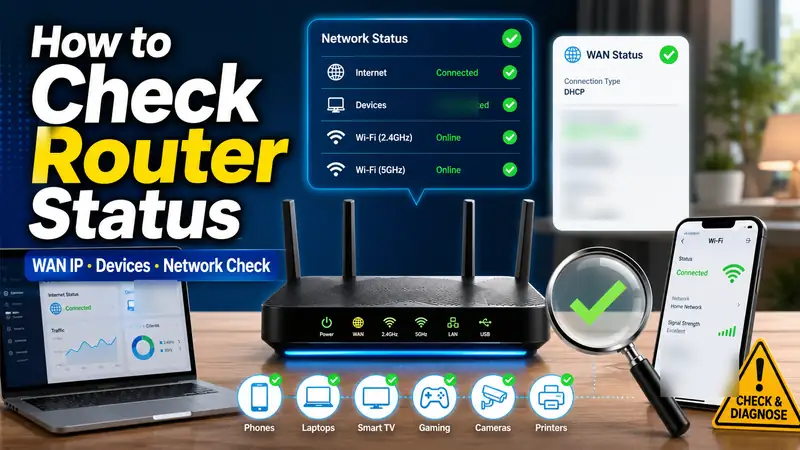
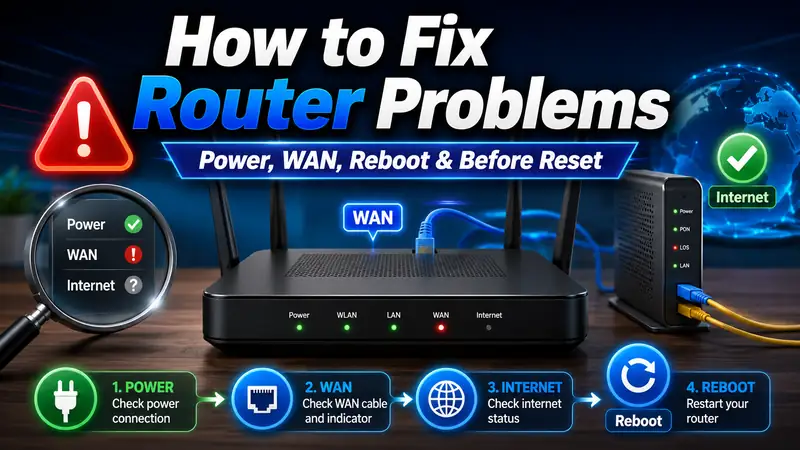
Check the router’s Internet/WAN indicator and the modem status. If the WiFi network appears normally but every device has no internet access, inspect the connection between the router, modem, and ISP before focusing on the wireless signal itself.
Quick rule: if only your device is affected while others work normally, start with the device. If every device fails at the same time, start with the router, modem, and internet line. If the problem device cannot connect to any WiFi network, troubleshoot the device before factory-resetting the router.
③ Five basic checks to try first
- Make sure WiFi is turned on: Check that WiFi is enabled on your PC or phone.
- Check Airplane mode: If Airplane mode is enabled, turn it off and reconnect.
- Move closer to the router: Walls, doors, furniture, and distance can weaken a connection even when the WiFi network is still visible.
- Look for a sign-in page on public WiFi: Cafes, hotels, airports, and other public networks may require you to accept terms or complete a browser login before internet access is allowed.
- Check whether only one app or website is affected: If everything else works, the problem may be with that service, your VPN, proxy, browser, or security software rather than WiFi itself.
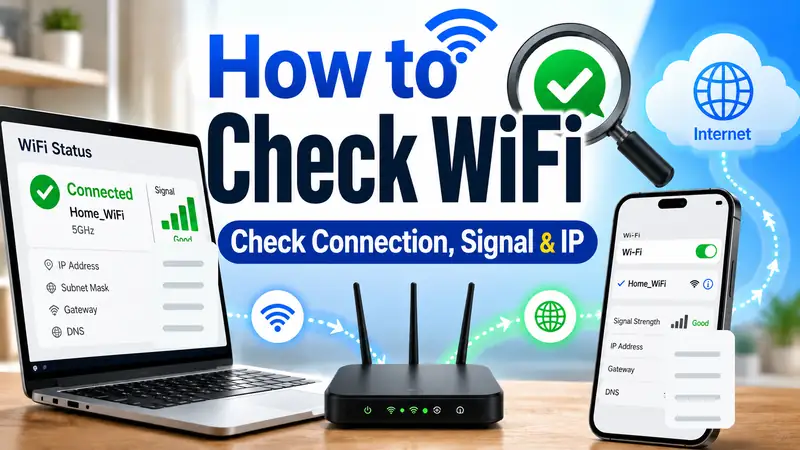
On Windows 11, first check WiFi under Settings → Network & internet. You can also use the network troubleshooting options available through Get Help. Microsoft likewise recommends checking WiFi status, Airplane mode, and saved network connections early in the troubleshooting process. Microsoft: Fix Wi-Fi connection issues in Windows
④ Forget the saved WiFi network and reconnect
If you recently changed the router password or the saved network profile has become corrupted, simply turning WiFi off and back on may not be enough. Forget the network, then reconnect and enter the password again.
Windows 11
Go to Settings → Network & internet → WiFi → Manage known networks. Select the affected network, remove the saved connection, then choose the network again and enter the password.
Android
Menu names vary slightly by manufacturer, but you can usually open the affected network from the WiFi list, forget or remove it, and then reconnect. Google also recommends restarting the device and switching between WiFi and mobile data to help determine where the connection problem is occurring. Google: Fix internet connection problems on Android devices
iPhone and iPad
Open Settings → WiFi, tap the information button next to the affected network, forget it, and reconnect. If you continue to see a “No Internet Connection” message, check the router and test the device on another network as well. Apple: If your iPhone or iPad won’t connect to a WiFi network
⑤ Reboot the router and modem before you factory-reset anything
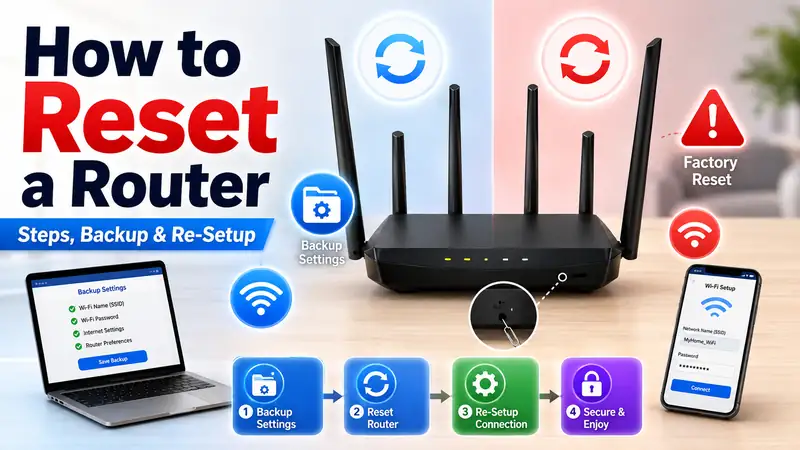
This is where many people make an avoidable mistake. Restarting a router by turning its power off and back on is completely different from holding the RESET button and restoring factory settings. A factory reset can erase your Wi-Fi name, password, internet configuration, and other custom settings.
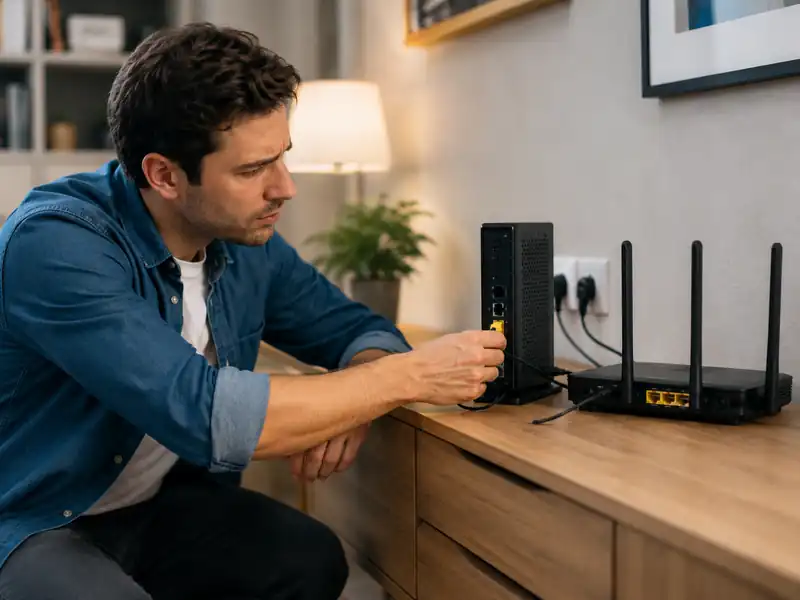
Do this first: power-cycle the equipment
Unplug the router and modem and wait about 30 seconds. If you have a separate modem, power the modem back on first and wait until its status lights stabilize. Then reconnect power to the router and test the internet again.
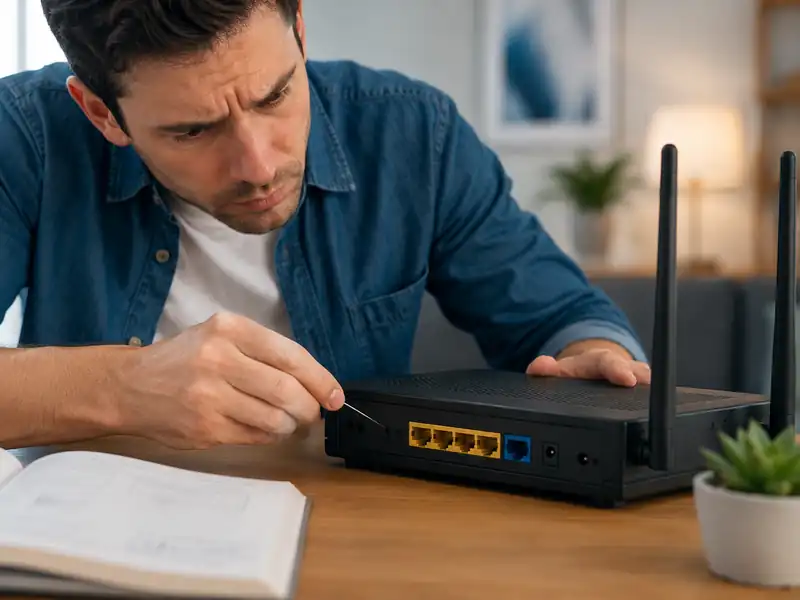
Use a factory reset only as a last resort
A factory reset using the RESET button can erase saved settings. Consider it only if other troubleshooting steps have failed, you understand how to reconfigure the router, or you need to recover from a persistent configuration problem. Back up settings first when possible and follow the instructions for your exact router model.
TP-Link also notes that factory-resetting a router removes user-defined settings such as internet settings, WiFi settings, and port forwarding. The required RESET procedure differs by model, so always check the manufacturer’s documentation before doing it. TP-Link router factory reset guide
⑥ WiFi is connected, but there is no internet
A WiFi icon and a “Connected” status do not necessarily mean the internet connection is working. Your device may be successfully connected to the router while the connection from the router to the modem or internet service provider (ISP) is down.
- No internet on any device: Check the router’s WAN cable, modem, and ISP connection first.
- Only your device has no internet: Forget and reconnect to WiFi, then check IP/DNS settings, VPN or proxy software, and the network adapter.
- Only one or two websites fail: The issue may be the website itself, DNS, the browser, or security software rather than your overall internet connection.
- The problem happens only on public WiFi: Make sure the browser sign-in or captive portal page has been completed.
If the connection is stable but WiFi is simply slow, the troubleshooting path is different. Router placement, 2.4 GHz vs. 5 GHz, interference, channel selection, and device-by-device speed testing are better covered separately in the cluster article “How to Make WiFi Faster | A Practical Beginner’s Guide.”
⑦ Advanced Windows 11 troubleshooting
If the problem continues only on a Windows PC, work through the following steps in order. Save a full network reset for the end.
1. Check whether the PC can reach the default gateway
Open Command Prompt and run ipconfig to find the Default Gateway address for the WiFi adapter. You can then ping that address to test whether the PC can communicate with the router.
ipconfig
ping YOUR_DEFAULT_GATEWAY
For example, if the router’s default gateway is 192.168.0.1, run ping 192.168.0.1. If the router responds normally but the internet still does not work, shift your attention to the modem, ISP connection, or DNS rather than the local WiFi link.
2. Reset TCP/IP and refresh DNS-related settings
In an administrator Command Prompt, you can run the following network commands in sequence:
netsh winsock reset
netsh int ip reset
ipconfig /release
ipconfig /renew
ipconfig /flushdns
Restart the PC after running the commands, then test the connection again. If the computer uses a static IP address or organization-specific network settings, check with your IT administrator before making changes.
3. Check the WiFi adapter and driver
If the WiFi option disappears entirely or no nearby networks are detected, open Device Manager → Network adapters. Make sure the wireless adapter is enabled and does not show an error. If the problem started after a recent update, also check the PC manufacturer’s support page for the correct network driver for your model.
4. Use Network reset only as a last step
In Windows 11, go to Settings → Network & internet → Advanced network settings → Network reset to restore network adapters and related settings to their defaults. Because this can require you to reconfigure VPN clients, virtual adapters, or other network software, use it only after the earlier steps have failed.
⑧ What to try on Android, iPhone, and iPad
Android
- Restart the device.
- Turn WiFi off and check whether mobile data works, then switch back to Wi-Fi.
- Forget the affected network and enter the password again.
- Connect to another WiFi network or hotspot to see whether the same problem occurs.
- If the issue continues, look for your manufacturer’s network settings reset option. The menu name and reset scope vary by device.
iPhone and iPad
- Make sure WiFi is on and Airplane mode is off.
- Restart the device.
- Check whether another device works normally on the same WiFi.
- If the router provides separate 2.4 GHz and 5 GHz networks, try the other band.
- If the problem began after installing or using VPN or security software, check whether that software is affecting the connection.
- Use Reset Network Settings only as a last resort.
Important: Apple’s Reset Network Settings option can reset saved WiFi networks and passwords as well as cellular, VPN, and APN-related settings. If the device is managed by your workplace or school, check with the administrator first.
⑨ Try switching between 2.4 GHz and 5 GHz
If your router broadcasts separate 2.4 GHz and 5 GHz network names, test the other band to see whether the problem occurs only on one of them. In general, 2.4 GHz tends to maintain connectivity better over longer distances and through walls, while 5 GHz is often better for higher speeds at shorter range. Actual performance depends on your devices, router, interference, and building layout.
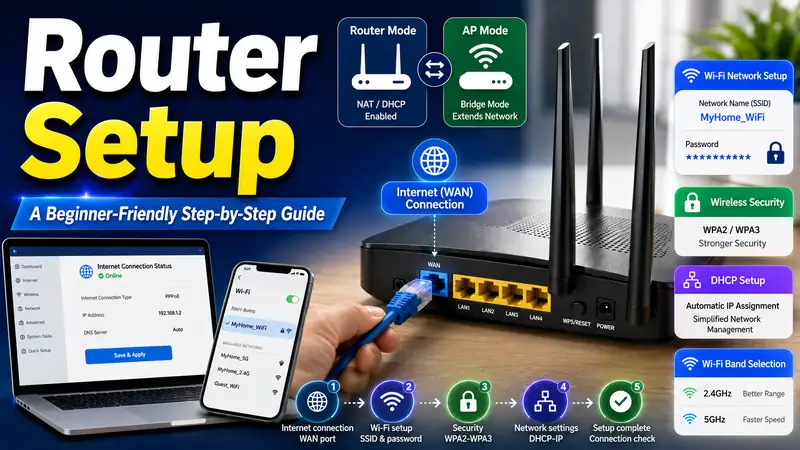
If only one band is missing from the WiFi list, check whether the device’s wireless adapter supports that band and whether the router has it enabled. For step-by-step configuration details, see the related cluster guides “How to Set Up Wi-Fi | A Step-by-Step Beginner’s Guide” and “How to Configure a Router | A Step-by-Step Beginner’s Guide.”
⑩ How to tell who you should contact
| Test result | Most likely problem | What to do next |
|---|---|---|
| No internet on any device at home | Router, modem, or ISP connection | Check cables and WAN status, then contact your ISP if needed |
| One device fails on home Wi-Fi but works on another network | Saved profile, compatibility, or device settings | Forget/reconnect to Wi-Fi and check OS network settings |
| One device cannot connect to any Wi-Fi network | Wireless adapter, driver, or device hardware | Check manufacturer drivers/updates and inspect the device |
| Ethernet works but Wi-Fi does not | Router wireless function, band settings, or wireless adapter | Check router wireless settings and the device adapter |
| All devices still fail after a router reboot | Upstream line, modem, router WAN, or hardware failure | Contact your ISP and, if needed, the router manufacturer |
When contacting your internet provider, it is more useful to say whether other devices have the same problem, whether Ethernet works, whether the issue remains after rebooting the router, and what the WAN/Internet indicator is doing than to simply say “my WiFi doesn’t work.” That information helps support staff narrow down the fault more quickly.
❓ Frequently asked questions
Q. Why does WiFi say connected when there is no internet?
A. Your device may be connected successfully to the router while a later part of the connection—such as the router WAN, modem, ISP line, DHCP/IP configuration, or DNS—is failing. The fastest first check is to see whether another device on the same Wi-Fi also has no internet.
Q. Will pressing the router RESET button fix a WiFi problem?
A. Holding the RESET button can restore factory settings on many routers and erase your custom configuration. For ordinary connection problems, try a power-cycle first. Consider a factory reset only after other steps fail and you know how to restore the router’s settings.
Q. What should I do if the Wi-Fi password is correct but the device still will not connect?
A. Forget the saved Wi-Fi network and reconnect. If the router’s password or security settings were changed, an older saved profile on the device can cause authentication to fail. If you have forgotten the password itself, use the related cluster guides for checking, finding, or recovering a WiFi password.
Q. My phone works on WiFi, but my laptop does not. What does that mean?
A. The router and internet connection are likely working, so focus on the laptop’s saved WiFi profile, wireless adapter, driver, VPN or security software, and network settings. Connecting the laptop to a phone hotspot is another quick way to test whether the laptop itself is the problem.
Q. How often should I factory-reset my router?
A. A factory reset is not routine maintenance and does not need to be done on a schedule. Use a normal reboot for temporary connection problems. Reserve a factory reset for persistent configuration issues, account recovery situations, or cases where other troubleshooting steps have failed.
Conclusion | Diagnose the cause before you reset anything
The fastest way to solve a Wi-Fi problem is not to change as many settings as possible. It is to identify where the connection is failing first. Check whether other devices work on the same WiFi, whether the problem device works on another network, and whether the router is receiving internet service normally.
Then work through the fixes in this order: check WiFi status → forget and reconnect to the network → restart the device → power-cycle the router and modem → test the other WiFi band → perform OS-specific troubleshooting → use a full network reset only if necessary. Keep a router factory reset as your final option, not your first one.